Purchase, Activate or Update Bitwar Cleaner
Summary: This user guide below will show the steps to Purchase, Activate, and Update Bitwar Cleaner.
Table of Contents
Purchase License
Users can purchase Bitwar Cleaner license from the official online store or in-software purchase.
Note: Purchasing the license in the software will automatically trigger activation, but the users will need a license code to activate the software if they purchase it through the online store.
In-Software Purchase
- First, click the Sign In icon in the bottom left corner to create an account.
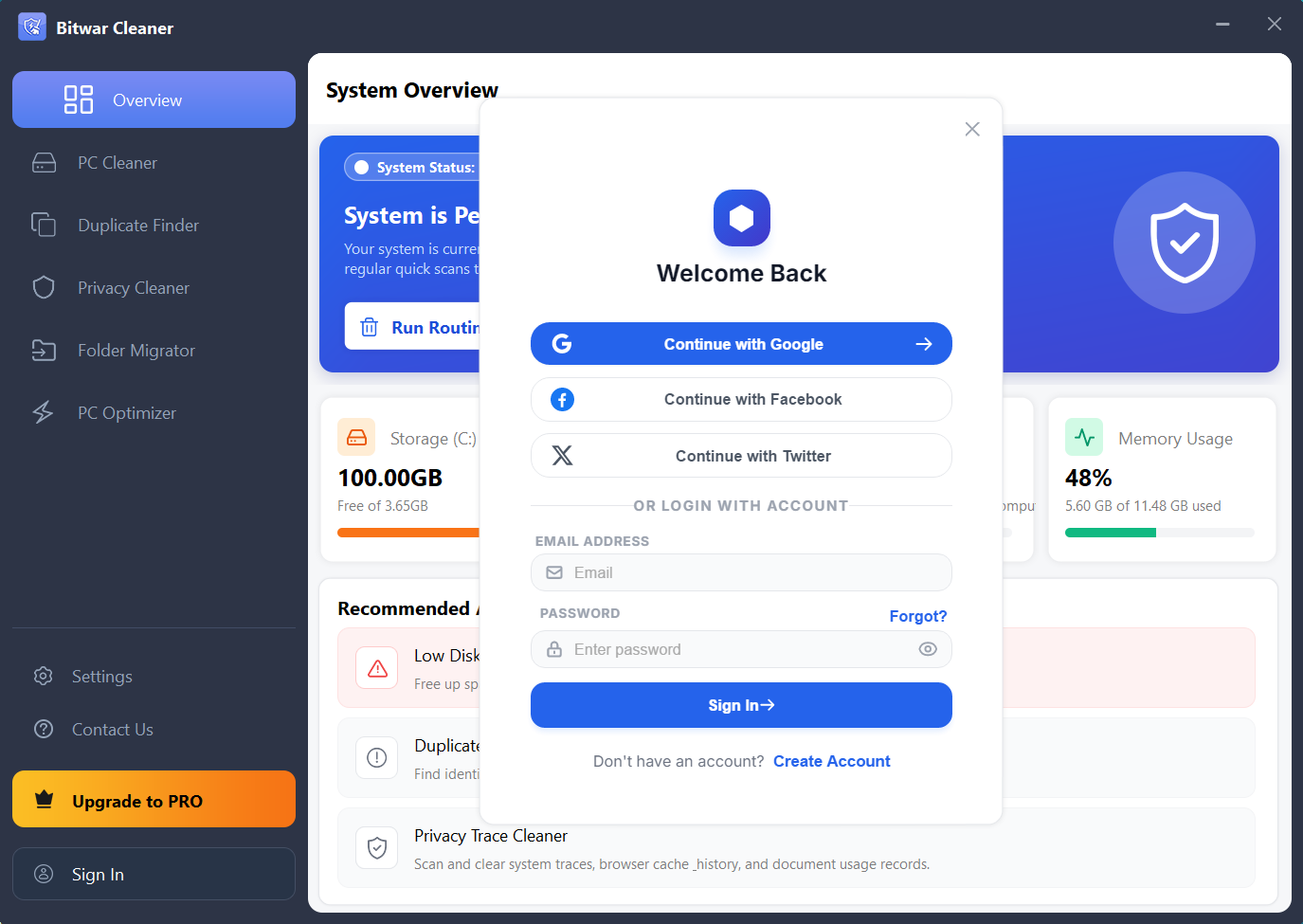
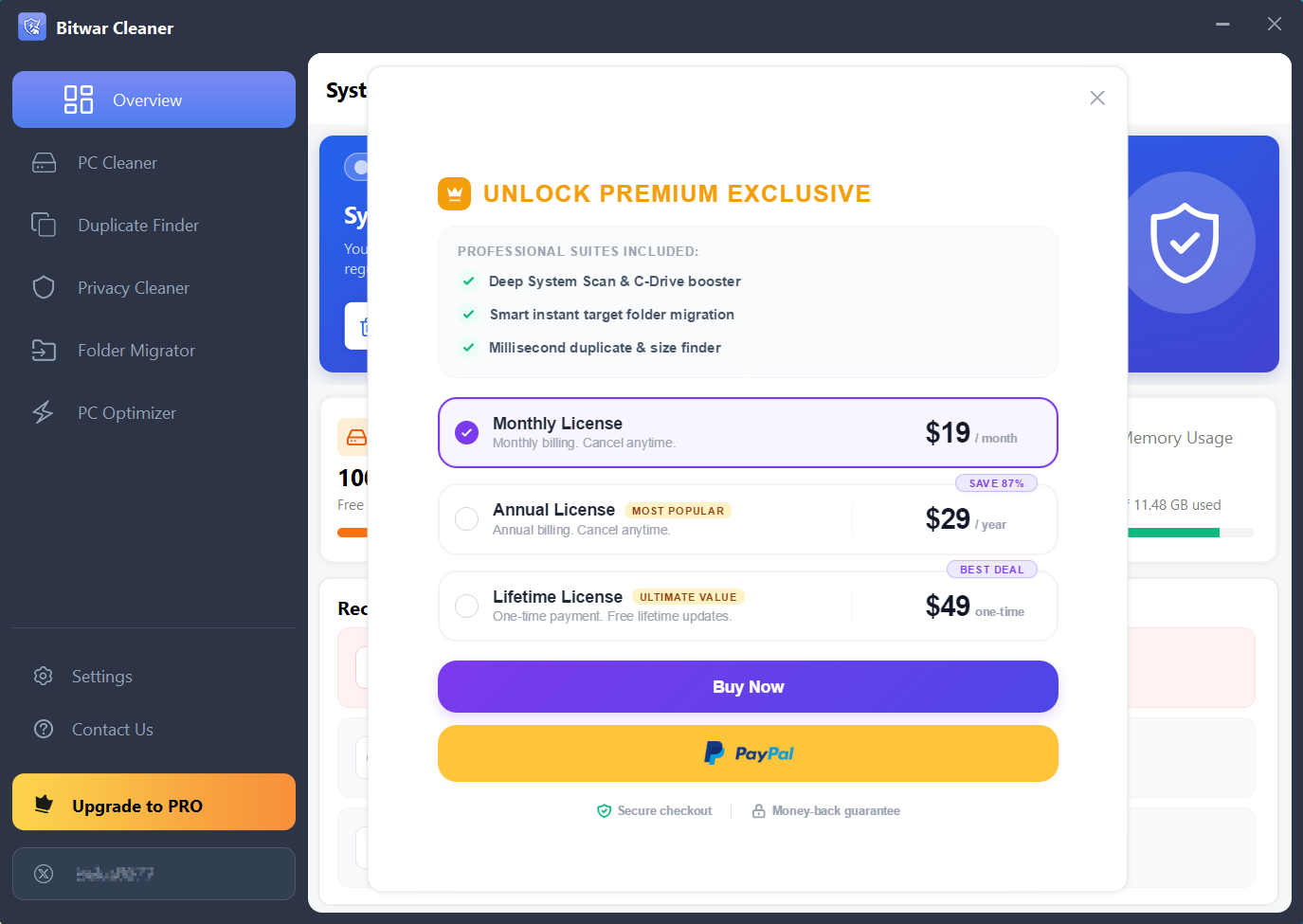
- Then, log in to your account in the software and a Pay window will pop up. Or you can click Upgrade to PRO in the bottom left corner.
- Select the Monthly, Annual or Lifetime license.
- Then click Buy Now to complete the transaction.
Official Online Store
If you purchase the license code from the Official Online Store, you will receive a code in the email address you provided after purchasing the software. And you need to use the license code for software activation.
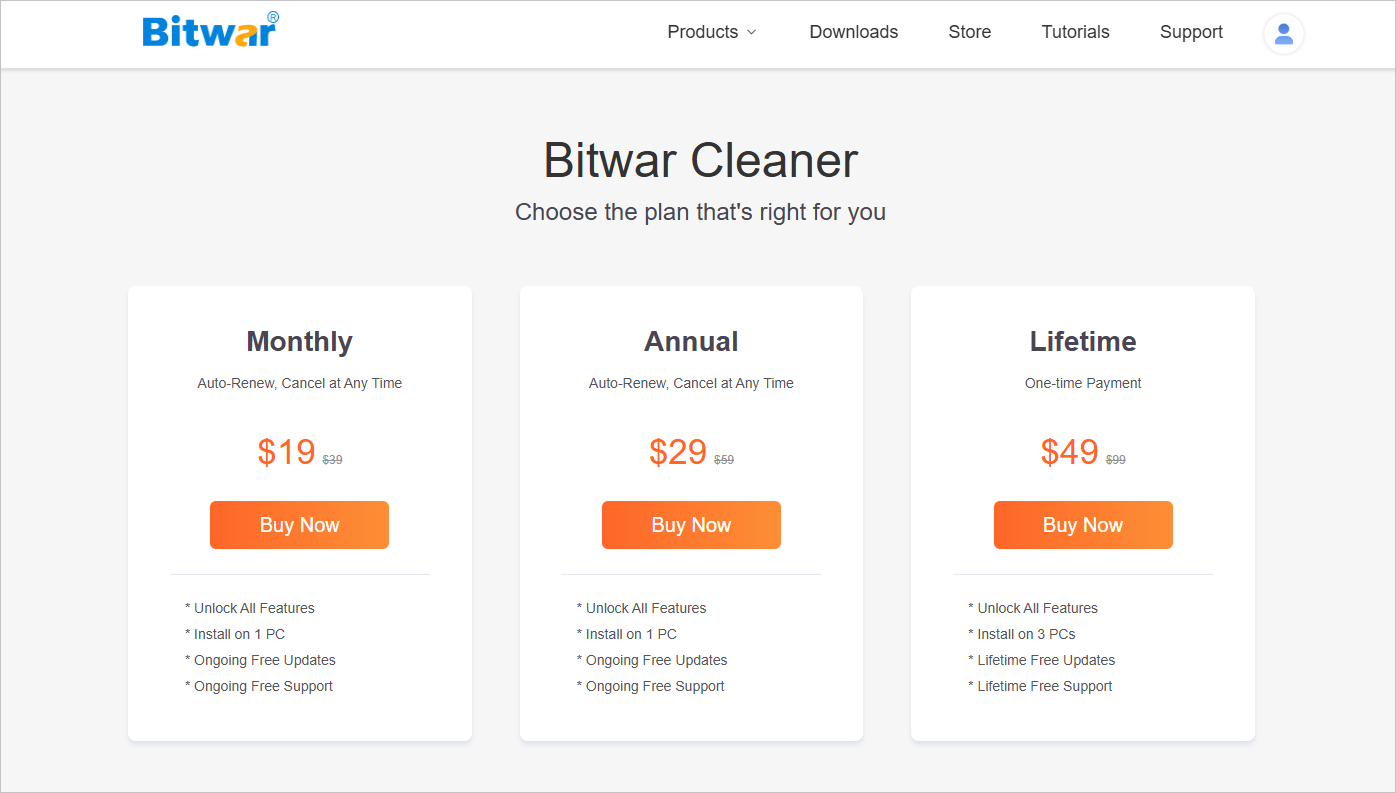
Note: Please go to your email and check the Junk/Spam or Inbox for the license code sent from the Bitwar support team.
After receiving the license code, we can then move to the next step activating the software by using this code.
Steps to Activate Bitwar Cleaner
- Launch the software and log in to an account. If you don’t have an account, click Sign In to create one.
- Click Settings, choose Activate, and a Activate License window will pop up.
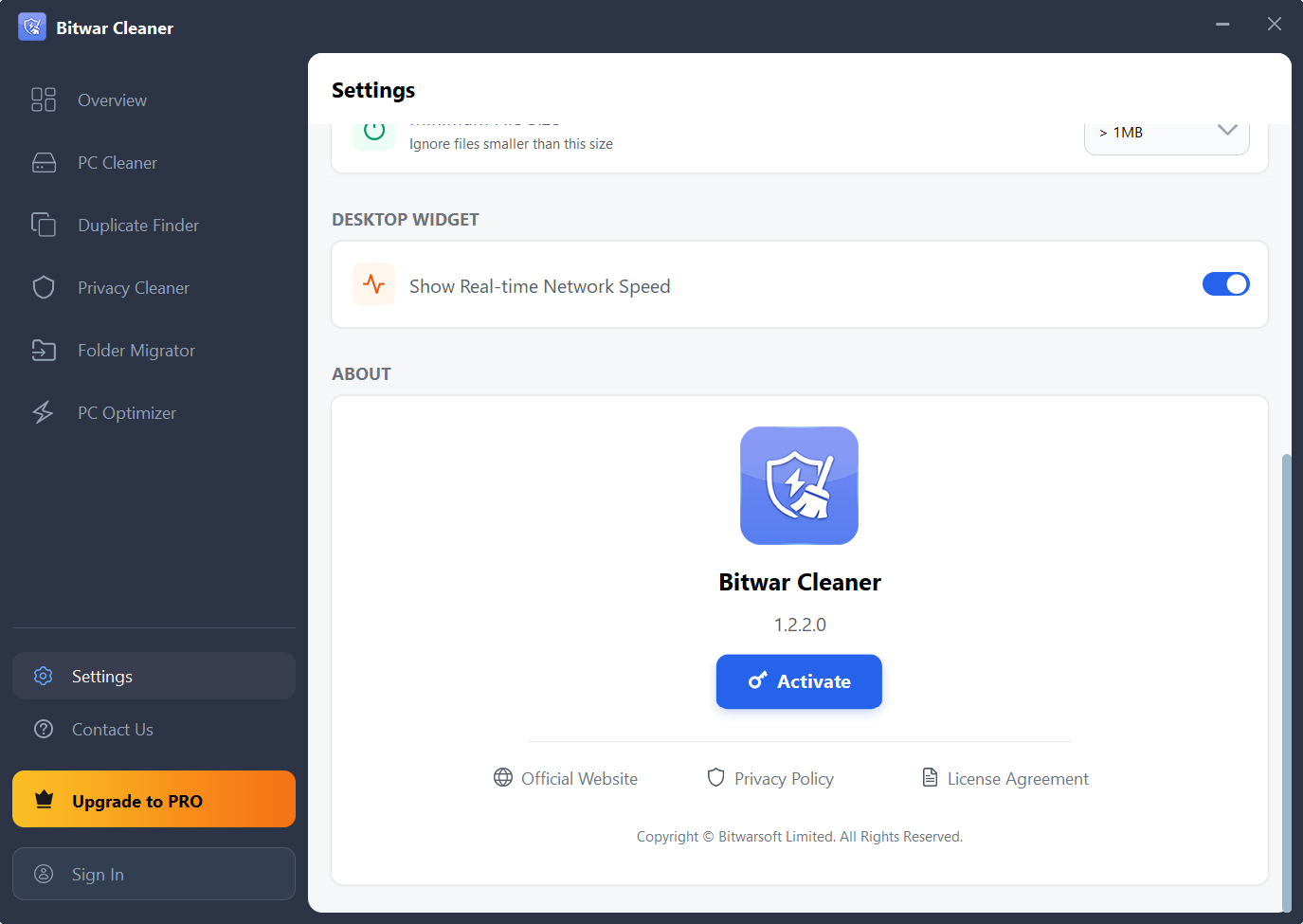
- Copy the License code from the email, paste it into the blank space, and click on Activate Now to activate the software.
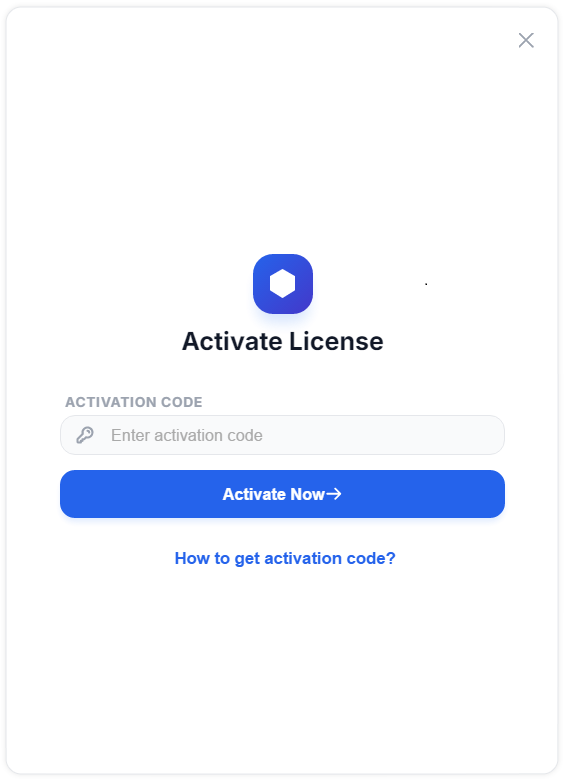
- Once you successfully activate the software, your account will become a VIP account and enjoy membership rights.
Check PRO Membership Status
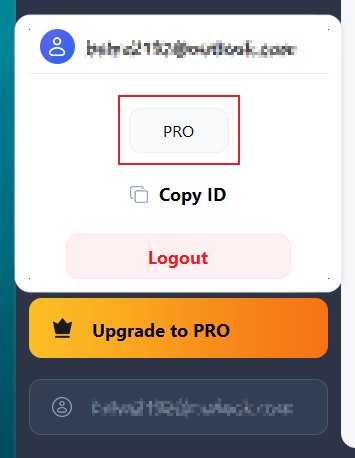
Users can click their account name in the bottom-left corner to access the User Center. The appearance of the PRO label indicates that the membership privileges have been successfully activated.
Software Update
Users can always get the latest version of the software after its release.
- Launch Bitwar Cleaner.
- Click on the Settings button and choose Check for Updates.
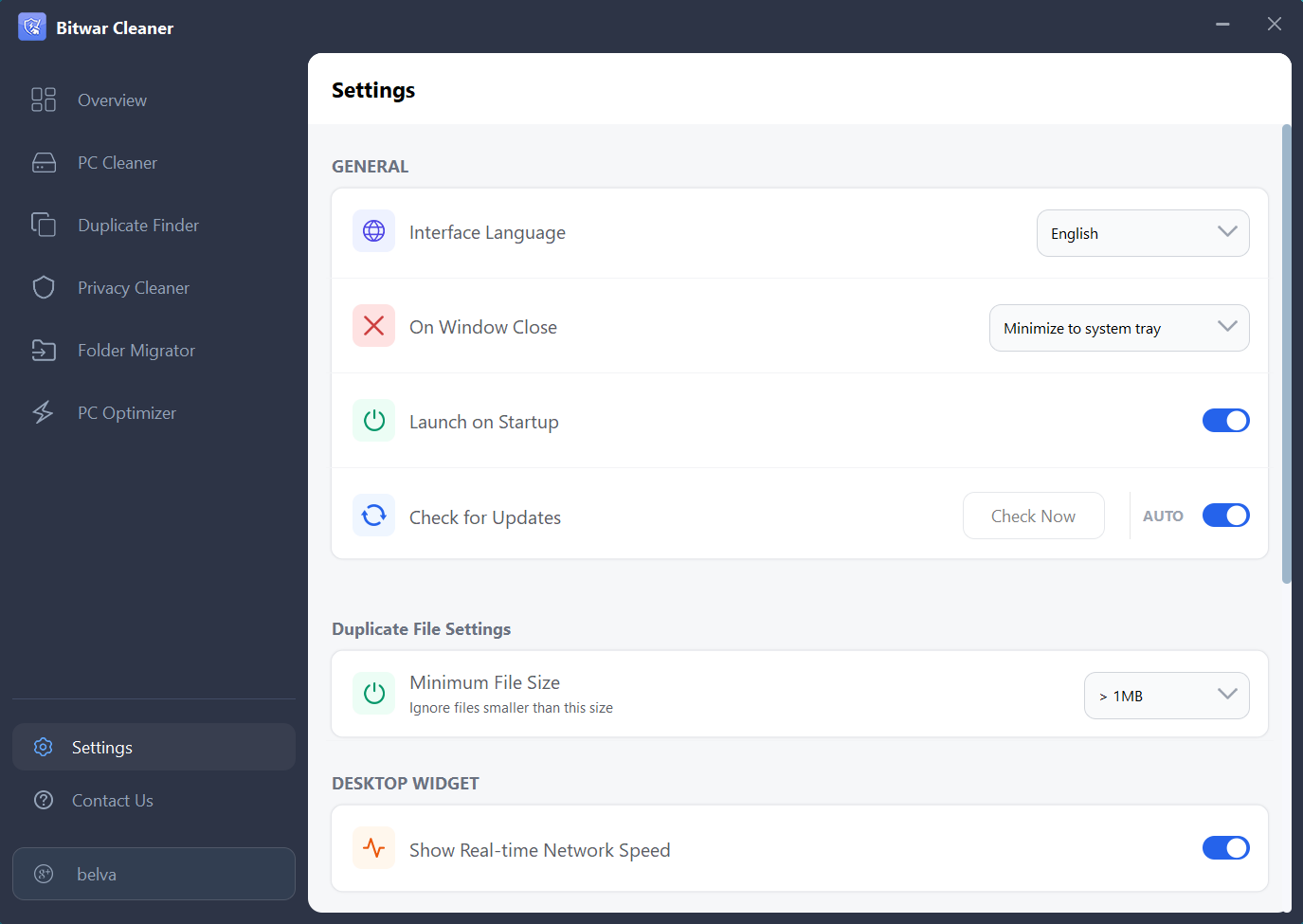
- If there is a new version, follow the instructions to update the software. If not, there will be a message saying Already the latest version! Additionally, users can enable the automatic update check feature, allowing the software to automatically detect and notify you when a new version is available.



