Purchase, Activate and Update Bitwar Screen Recorder
Summary: This user guide below will show the steps to Purchase, Activate, and Update Bitwar Screen Recorder.
Table of Contents
Purchase License
Users can purchase the Screen Recorder license from the official online store or in-software purchase.
In-Software Purchase
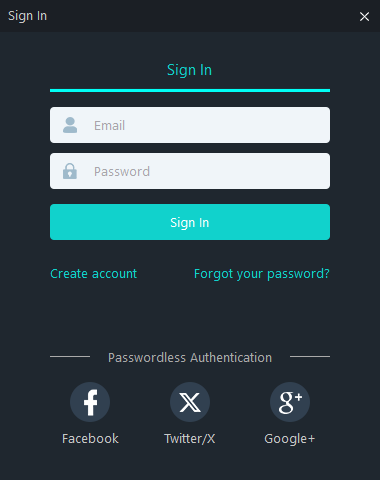
- First, click the Sign In icon to create an account.
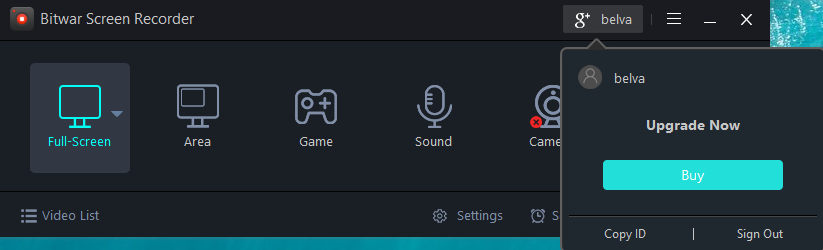
- Click on My Account icon in the top right corner and select the Buy button, and a Pay window will pop up.
- Select the Monthly, Annual or Lifetime package. Then click Buy Now to complete the transaction.

Official Online Store
If you purchase the license code from the Official Online Store, you will receive a code in the email address you provided after purchasing the software. And you need to use the license code for software activation.
Note: Please go to your email and check the Junk/Spam or Inbox for the license code sent from the Bitwar support team.
After receiving the license code, we can then move to the next step activating the software by using this code.
Steps to Activate Bitwar Screen Recorder
- Launch the software and log in to an account. If you don’t have an account, click Sign In to create one.
- Click the More Menu button, choose Activate.
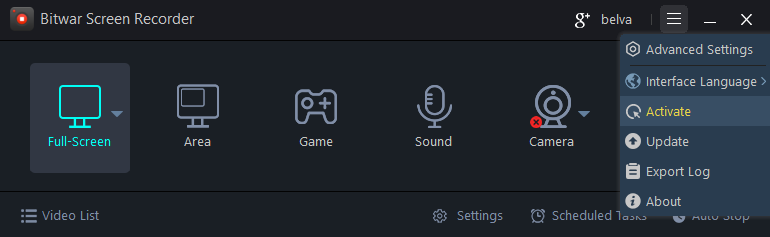
- Copy the License code from the email, paste it into the blank space, and click on Activate to activate the software.

- Once you successfully activate the software, your account will become a VIP account and enjoy membership rights.
Check License Validity Time
Users can check the license expiry date by clicking the My Account icon.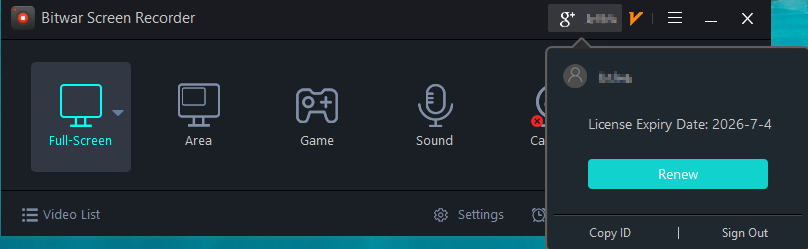
Software Update
Users can always get the latest version of the software after its release.
- Launch Bitwar Screen Recorder.
- Click on More Menu button and choose Update.
- If there is a new version, follow the instructions to update the software. If not, there will be a message saying Already the latest version!