Исправление: Windows Explorer отсутствует в Task Manager в Windows
Most of the time, Windows Explorer, taskbar, and Start menu issues can be fixed with a simple reboot. However, restarting Windows 10/11 means saving your work and closing your running apps. So, restarting the Windows Explorer process is often recommended instead of restarting the PC for Start, taskbar, and Windows Explorer issues. Besides, there are several methods to help you fix the Windows Explorer missing from Task Manager issue, let’s start!
Оглавление
Methods to Fix Windows Explorer Missing
Method 1: Restart Windows Explorer
- Open This PC, Quick Access, or any other folder located anywhere on your computer. This operation will start the Windows Explorer process.
- Next, press Победа + Х keys and click Task Manager to open Task Manager window.
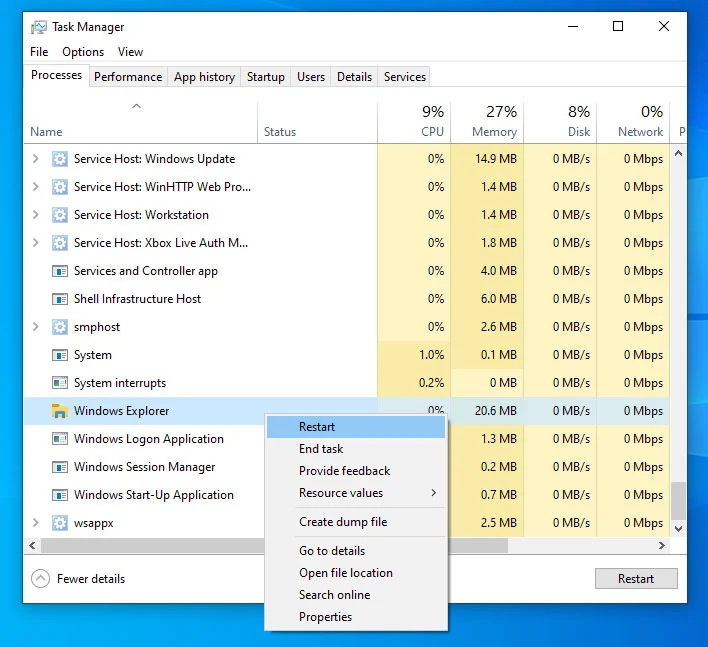
- Under the General tab, the Windows Explorer process should show up. Right-click on it and then click the Restart option to restart the Windows File Explorer process.
Method 2: Restart Your PC
If your computer runs into trouble, the first way to try should be restarting, which is a simple solution to fixing many common issues that appeared suddenly on a PC. But before restarting your PC, you need to save your important files and exit programs safely.
Method 3:Change Folder Options
- Пресс Победа + Е на клавиатуре и выберите Посмотреть> Опции> Изменить папку и параметры поиска.

- Переключиться на Вид вкладка в верхней части Опция папки окно.
- Найдите раздел «Расширенные настройки» и просмотрите параметры там. Найти Запустить окна папки в отдельном процессе вариант и снять это.
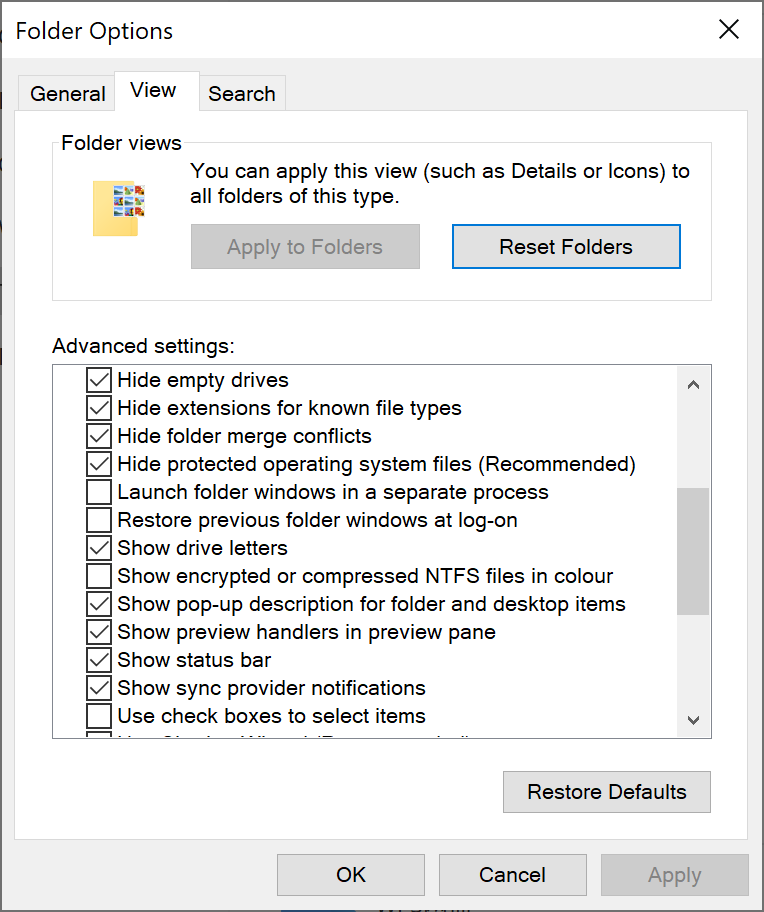
- Нажать на Применять кнопка и ОК кнопка, чтобы закрыть окно.
- Наконец, перезапустите компьютер Windows 11.
Метод 4: Измените реестр
- Пресс Победа + Р Чтобы открыть коробку с пробежкой и введите Регедит открыть редактор реестра.
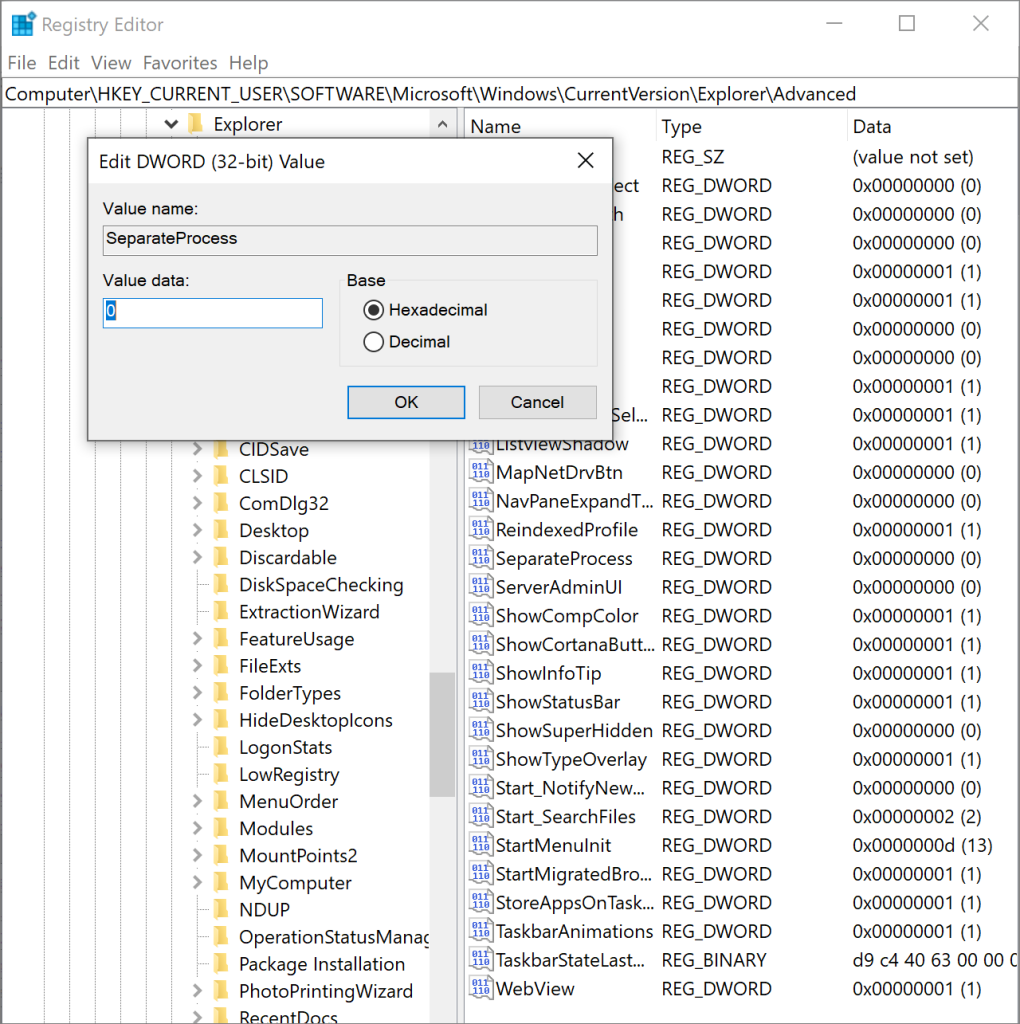
- Идите на этот путь: Компьютер \ hkey_current_user \ Software \ Microsoft \ Windows \ CurrentVersion \ Explorer \ Advanced.
- Щелкните правой кнопкой мыши на пустое пространство, затем выберите новый > DWORD (32-битное) значениеи назовите это как Отдельный процесс.
- Дважды щелкните значение, чтобы открыть его и установить данные значения на 0.
- Нажмите ОК подтвердить.
Метод 5: Обновить графический драйвер
Если ни один из них не работает, вы должны убедиться, что вы запускаете последнюю версию вашего драйвера видеокарты.
Перейдите на официальный сайт производителя. Ищите последнюю версию драйвера для вашей видеокарты. Затем загрузите и установите драйвер правильно. После этого перезапустите компьютер, чтобы изменения вступили в силу.
Заключение
Надеюсь, все 5 упомянутых выше методов помогут вам решить проблему Windows Explorer отсутствует в Manager Task Manager. Если у вас есть более полезные методы для рекомендации, добро пожаловать, чтобы оставить их ниже!
Предыдущая статья
How To Convert PDF To PNG On Mac? Summary: Windows File Explorer (formerly known as Windows Explorer) is a basic tool for browsing the file and folder structure...Следующая статья
Recover Unsaved/Deleted WordPad Documents in Windows 10 Summary: Windows File Explorer (formerly known as Windows Explorer) is a basic tool for browsing the file and folder structure...
About Bitwar Data Recovery
3 Steps to get back 500+ kinds of deleted, formatted or lost documents, photos, videos, audios, archive files from various data loss scenarios.
Learn More



