How to Enable USB Debugging on an Android Device
概要: Users confounded by how to enable USB debugging mode can refer to the following content to learn it.
目錄
Android 4.1 and Lower
By default, the Developer options menu is available in these versions. Two general paths are shown below.
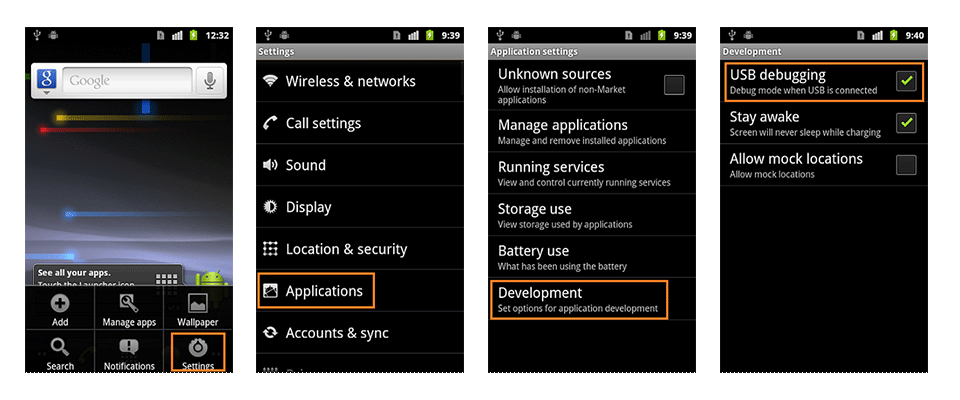
Android 2.0-2.3.x
Settings > Applications > Development > USB Debugging
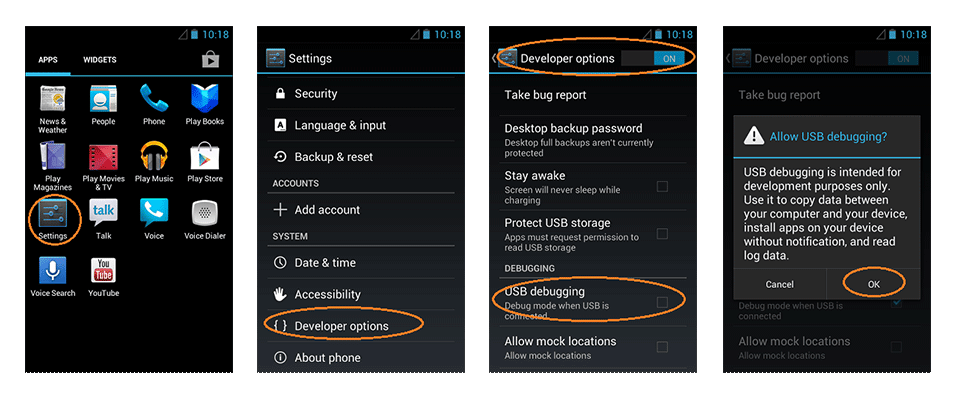
Android 3.0- 4.1.x
Settings > Developer Options > USB Debugging
Android 4.2 and Higher
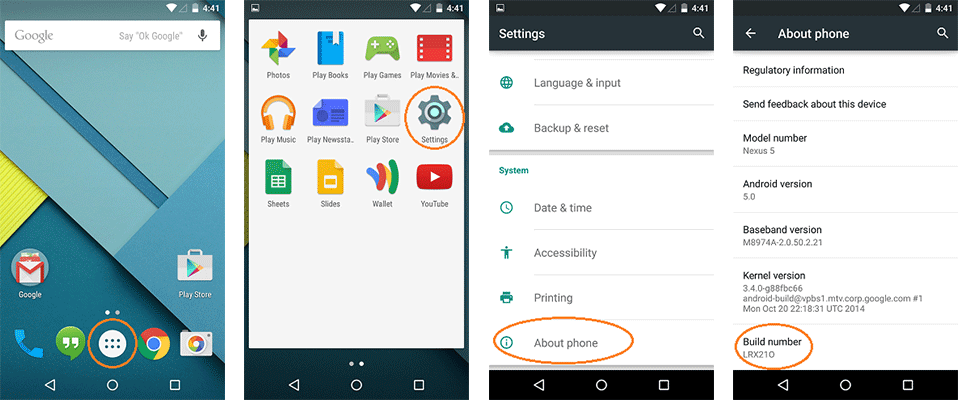
Step 1: Navigate to Settings > System > About Phone > Scroll to the bottom > tap Build number 7 times. Then a prompt will pop up in the lower area of your display and say that you are now a developer.
Step 2: Return to the previous page and tap the Developer options above About Phone.
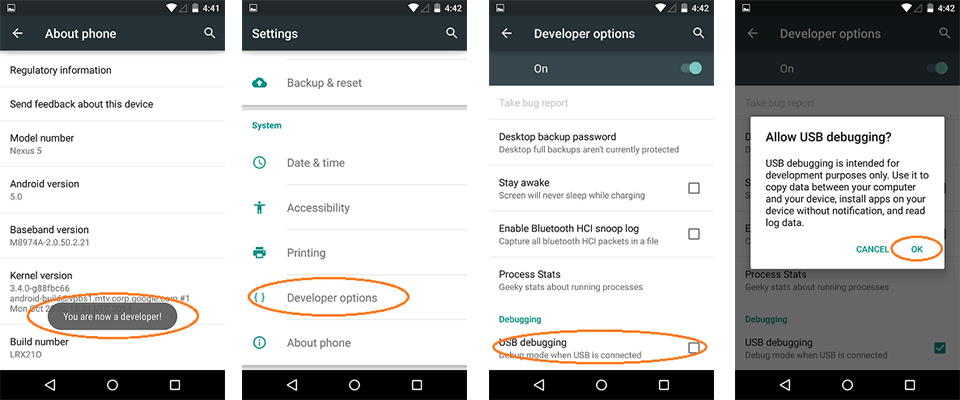
Step 3: Scroll down and enable USB debugging.
USB debugging mode is a powerful feature aimed at developers or users who, for instance, want to root their phones. After taking the first step toward rooting an Android phone, click the following link to learn the rest of the rooting steps:
How to Root an Android Phone (With PC)
How to Root an Android Phone (Without PC)





