Metode Masuk Akun VIP
Panduan pengguna di bawah ini akan menunjukkan langkah-langkah tentang cara masuk ke akun VIP Anda Perangkat Lunak Pemulihan Data Bitwar atau produk lainnya dari Bitwarsoft setelah pembayaran dilakukan. Jika Anda belum memiliki akun VIP, silakan merujuk ke artikel lain yang merinci cara mendapatkan akun VIP: Pembelian, Aktivasi, dan Pembaruan Perangkat Lunak
Daftar isi
Email Sukses Pembayaran
Jika Anda mengklik ikon keranjang belanja berwarna oranye di menu atas perangkat lunak dan menyelesaikan pembelian Anda dalam perangkat lunak tersebut, lisensi Anda telah segera terikat pada akun perangkat lunak Anda saat ini. Setelah pembayaran dilakukan, Anda akan menerima email di kotak masuk Anda yang memberitahukan cara masuk ke akun VIP Anda.
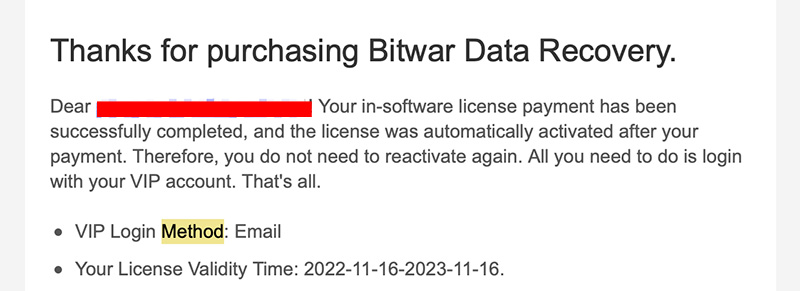
Jika Anda menggunakan metode login yang berbeda, metodenya berbeda-beda. Namun, semua metode login ini adalah:
- Metode Masuk VIP: Email
- Metode Masuk VIP: Google (Otentikasi Tanpa Kata Sandi)
- Metode Masuk VIP: Berkicau (Otentikasi Tanpa Kata Sandi)
- Metode Masuk VIP: Facebook (Otentikasi Tanpa Kata Sandi)
Metode Masuk VIP: Email
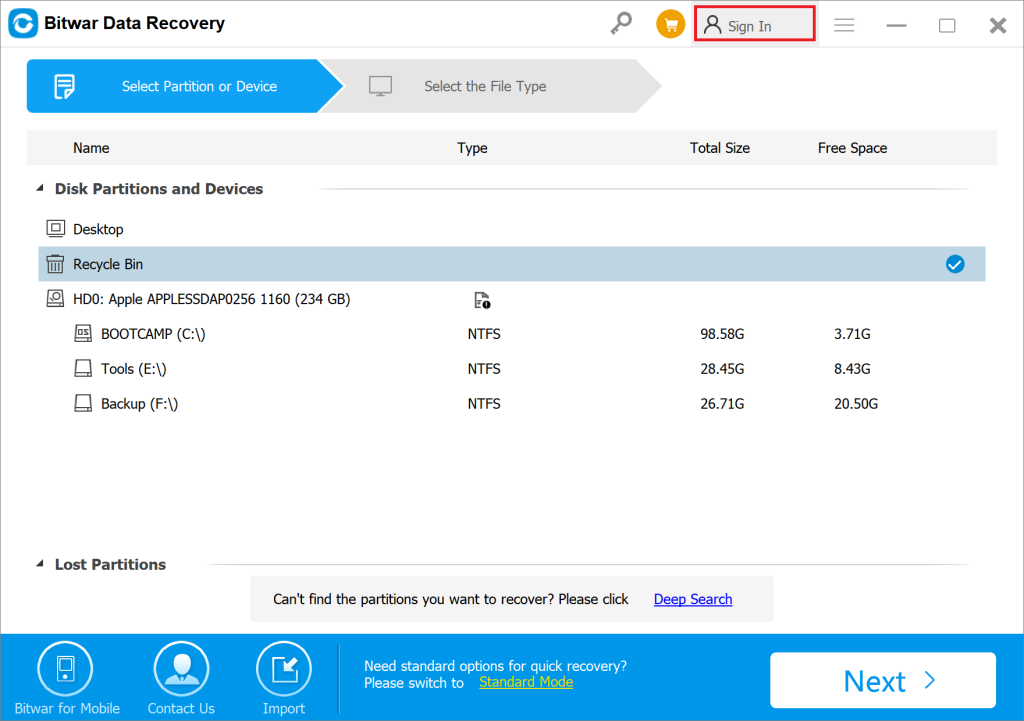
Langkah 1: Berlari Bitwar Perangkat lunak pemulihan data dan klik Masuk tombol pada bilah menu.
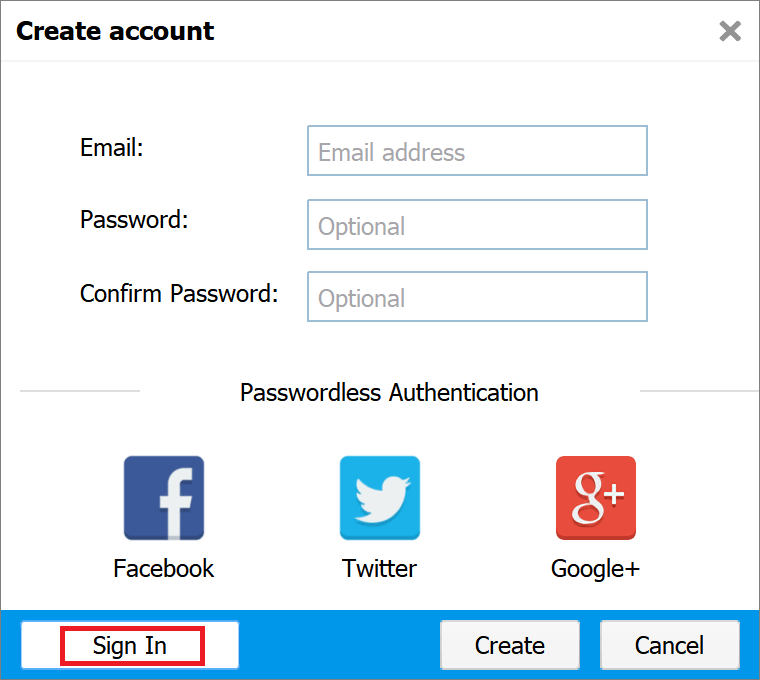
Langkah 2: Lalu klik Masuk di kiri bawah di Buat akun jendela.
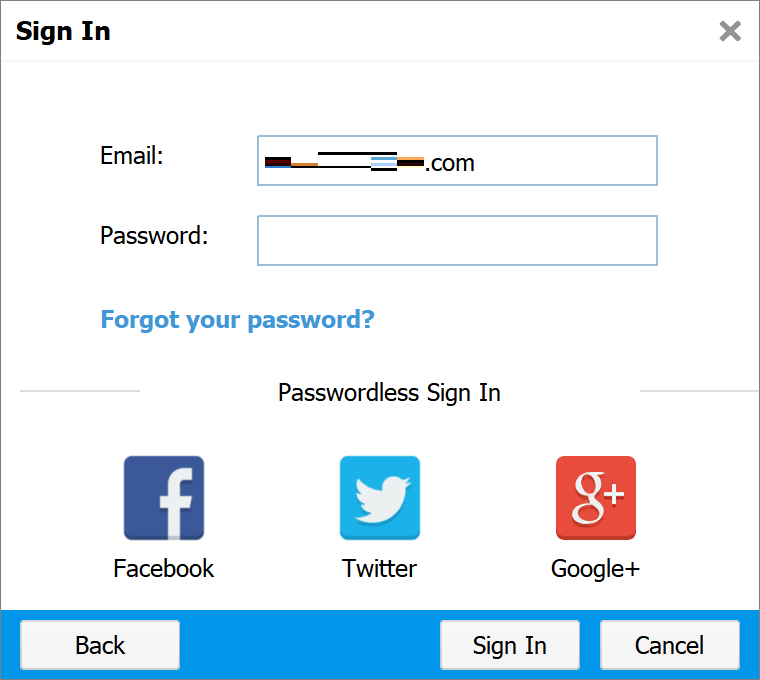
Langkah 3: Di Masuk page, the default login method is using the email account. This is the same email and password you entered when you created the account.
Metode Login VIP Menggunakan Akun Pihak Ketiga
When users create an account for Pemulihan Data Bitwar Software, they also can choose their Facebook, Twitter or Google accounts to create.
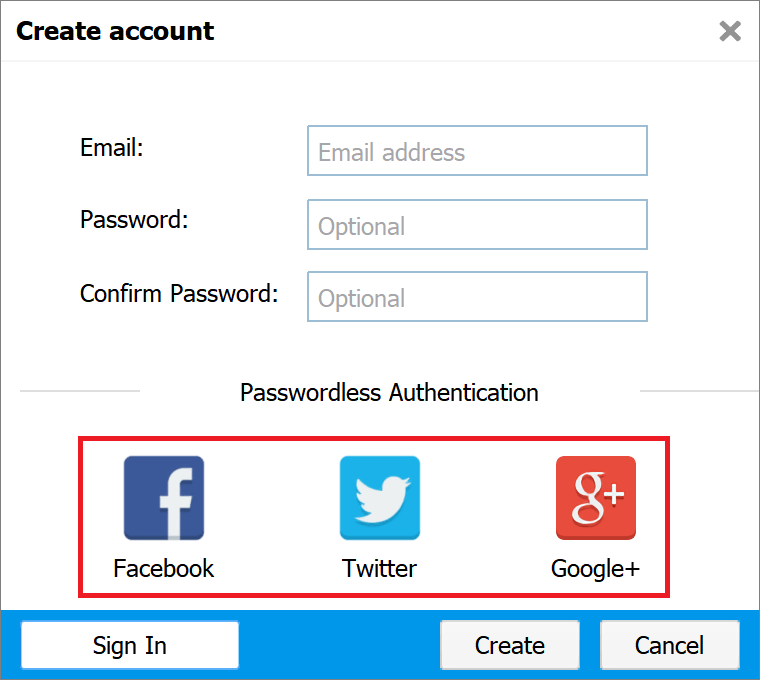
At this point, the license you purchased is bound to your third-party account, and you need to log in to your VIP account using your third-party account. For example, if you have used your Google account to create an account for Perangkat Lunak Pemulihan Data Bitwar, the steps to sign in to your VIP account are as follow:
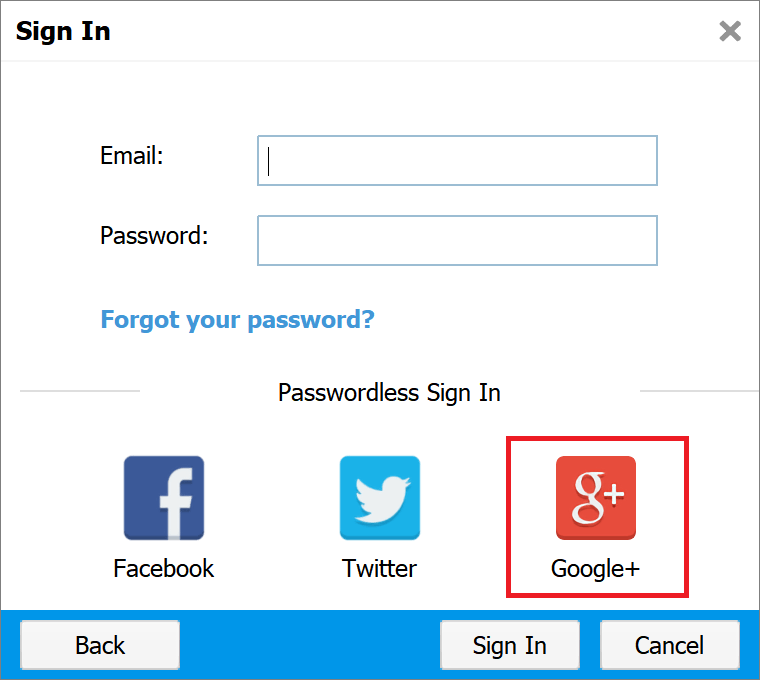
Langkah 1: Click the Google icon on the Sign In page.
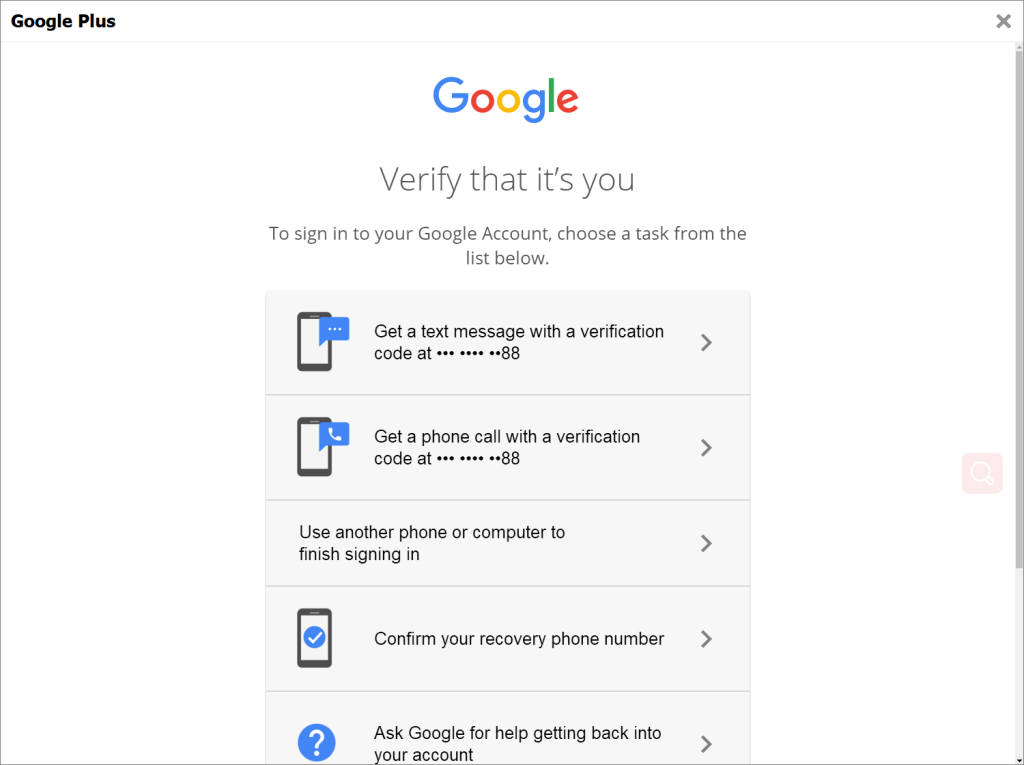
Langkah 2: After typing in your Google account, you will be asked to confirm the phone number tied to your Google account. Here advise you to choose the SMS verification code to verify.
Langkah 3: Once you’ve entered everything correctly, you’ll be able to log into your VIP account.
Notes: Please be noted that when you receive the payment success email and if telling you the VIP login method: Google, it’s not asking you to use the Metode Masuk VIP: Email to login your Google email account on Bitwar Data Recovery, alternatively, you need to click on Google+ icon and login your Google account there. For Facebook, and Twitter, the steps are the same, please follow the above VIP Login Method Using a Third-party Account to login.





