使用 Bitwar Screen Recorder 在您的電腦上錄製視頻
概要: Do you need to accurately showcase real-time content on your computer screen to others? Whether you’re creating tutorials or sharing video clips on YouTube, mastering screen recording is an essential skill. In this article, we will guide you on how to use Bitwar 螢幕錄影機 to record videos on your PC.
目錄
What is Screen Recording?
Screen recording is a technology that captures the activity on a computer screen and saves it as a video file. This technique is widely used for creating tutorials, presentations, gaming videos, and recording online meetings.
What Can Bitwar Screen Recorder Do?
Bitwar Screen Recorder is a powerful screen recording software that offers a range of features:
- Real-time Recording: Capture screen activity in real time, making it ideal for tutorials and presentations.
- Custom Recording Area: Users can select to record the entire screen or a specific region.
- Audio Recording: Supports the recording of system sounds and microphone audio, perfect for commentary and explanations.
- Video Editing: Provides basic video editing tools, enabling users to trim and adjust their recorded videos.
- Multi-format Export: Supports exporting in various video formats, including MP4, AVI, FLV, MP3, and WAV, to ensure compatibility and flexibility.
With these features, Bitwar Screen Recorder simplifies the screen recording process, making it efficient and user-friendly.
Steps for Screen Recording Using Bitwar Screen Recorder
- First, you need to download and install the Screen Recorder on your Windows computer. For the detailed steps, refer to another article: 開始使用 Bitwar 屏幕錄像機.
- After the installation, double-click to launch the Bitwar Screen Recorder tool. You will see various recording modes, including 全螢幕, 區域, 遊戲, 聲音 和 相機.
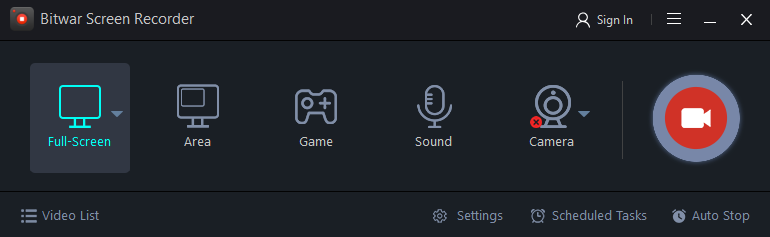
- Click on the Settings button on the main interface to enter the settings menu. Based on your recording needs, configure the video format, quality, FPS, and decide whether to enable system sound and microphone input.

- After adjusting your settings, return to the main interface and choose your desired recording mode, such as clicking on 全螢幕.
- 點擊 紅記錄 button to begin. You can also start recording the video using the shortcut key combination Alt + 1. Then the recording will officially start after a 3-second countdown, allowing you to perform your tasks. During the recording, users can also utilize the built-in editing tools during recording to add text, shapes, and other annotations to the video footage.

- Once you’ve finished, click the Bitwar Screen Recorder icon in the system tray to pause or stop the recording. Or use the shortcuts Alt+2 或 Alt+3 to stop or pause the recording.
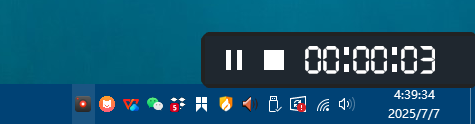
- After stopping the recording, the video will automatically save to the default location set by the software. Users also have the option to specify a custom save location by selecting the advanced settings.
- In the playlist, you can view the names, durations, and sizes of your recorded videos. Click the play button to watch them. Additionally, you can edit the recorded videos if needed.

結論
Overall, Bitwar 螢幕錄影機 features a clean interface and is easy to use. Whether for online teaching, game streaming, or creating tutorials, it effectively meets a wide range of needs. Besides, there is always technical support for you to contact for free. If you are interested in this software, click the following link to learn about its Purchase, Activation and Update.