Fixed: External Hard Drive Not Recognized
Sammanfattning: Have you ever faced such an issue that when you connect your external hard drive to your computer, you may find that it doesn’t show up or be recognized, which can lead to data loss. In this post, we will introduce the best way to fix the issue of an external hard drive not being recognized.
Innehållsförteckning
Overview of External Hard Drive not Recognized
As for the external hard drive not recognized issue, whether you plug in a new hard drive or an old hard drive in your computer, you may not see it. Some people even reported that the external hard drive appeared in the device but not on the PC. This is not an uncommon problem; However, it has happened to many people and will happen to many more.
Before coming to fix the external hard drive not recognized issue, let us come to figure out the reasons that caused such an issue to occur.
- Insufficient power supply
- Lack of drive letter
- Outdated drivers
- File system issues
- Partition problems
- Dead USB port
Effective Solutions to Fix External Hard Drive not being Detected
If your external drive not showing up or recognized, do not worry, there are many useful workarounds to fix external hard drives not detected in Windows 10. In the following content, we will discuss the best methods to fix the issue of an external hard drive not recognized and undetectable.
Solution 1: Turn to Different USB Port or Computer
It may also happen that the USB drive does not show Windows 10 when the power to the USB port is insufficient. In this case, I recommend that you don’t use USB hubs, as some of them don’t provide enough power for external hard drives.
Solution 2: Check and Repair the Drive in Disk Management
Sometimes an external hard drive that doesn’t show up or recognized in PC (Windows Explorer) may show up in Disk Management. How to open Disk Management:
- Press Windows + X keys.
- Click the Disk Management option from the pop-up menu.
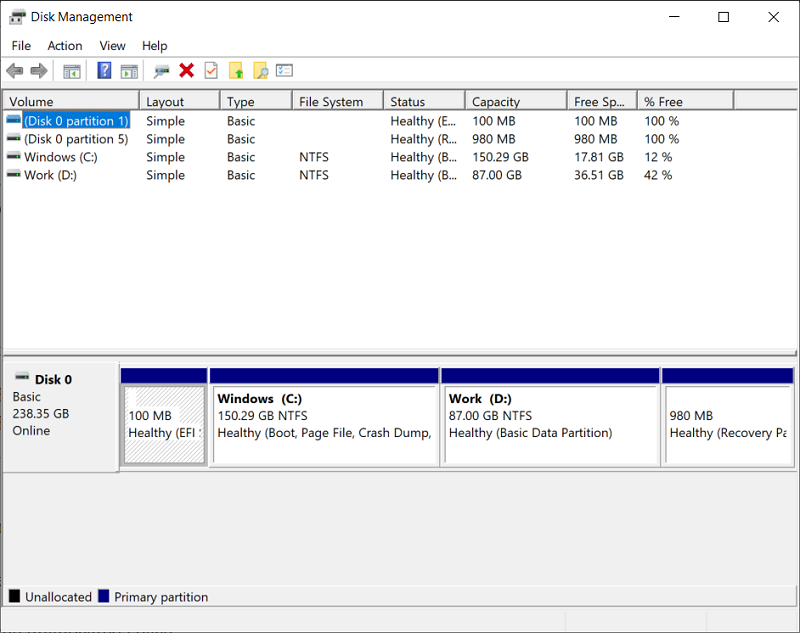
What is preventing the drive from appearing:
- External hard drive not assigned
- External hard drive not initialized
- external hard drive offline
- no drive letter
So as for the above mention 4 cases, what should we do to fix them?
Case 1: Create a new volume
- Right-click on the unallocated space.
- Select New Simple Volume.
- Click the Next button in the New Simple Volume Wizard welcome window.
- Specify the volume size and click Next.
- Finish assigning drive letters or paths, then click Next.
- Finish formatting the partition and click Next.
- Click the Finish button in the New Simple Volume Wizard Complete window.
- Wait for the operation to complete.
Case 2: Initializing the Disk
- Right-click the unknown uninitialized disk.
- Select Initialize Disk from the context menu.
- Select the partition style from MBR and GPT and click the OK button to confirm.
- Wait for the operation to complete.
Case 3: Online Setup
- Right-click the disk that shows offline.
- Select Online from the popup menu.
- Wait a moment.
Case 4: Change the drive letter and path
Another way to make unrecognized or undetectable WD external drives (WD Elements) appear on your PC is to change the drive letter.
- Right-click the disk partition without a drive letter.
- Select Change drive letter and path from the context menu.
- Click the Add button in the pop-up window.
- Assign a drive letter to the partition and click OK to confirm.
- Wait a moment. The drive will appear and work again.
Bonus Tip: How to Recover Files from Unrecognized External Hard Drive
Steg 1. Downloadochinstallera Bitwar Data Recovery software from the Bitwarsoft nedladdningscenter.
Steg 2. Ansluta your external hard drive to your PC via the USB port.
Steg 3. Launch the Bitwar Programvara för dataåterställning.
Steg 4. Select the external hard drive’s partition and hit Nästa to continue.
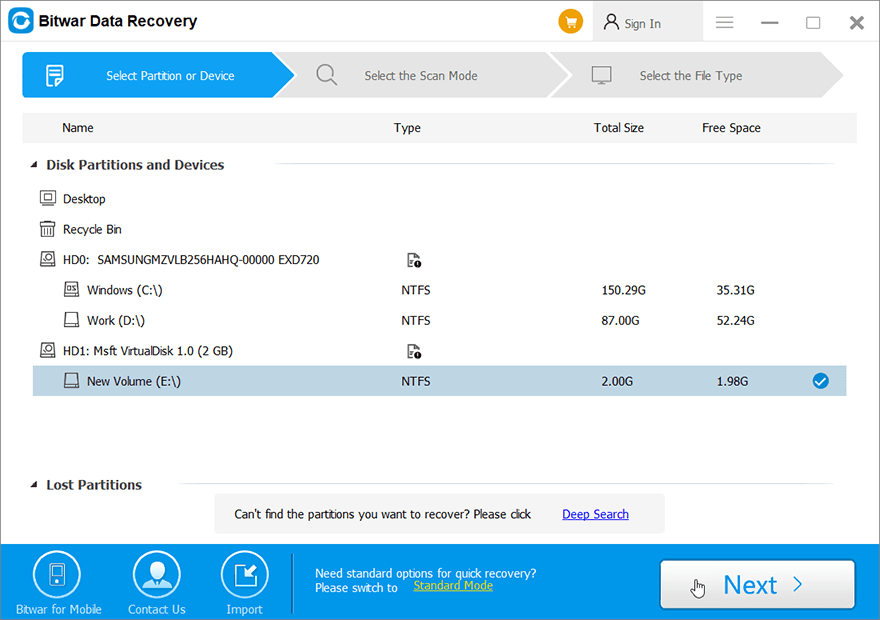
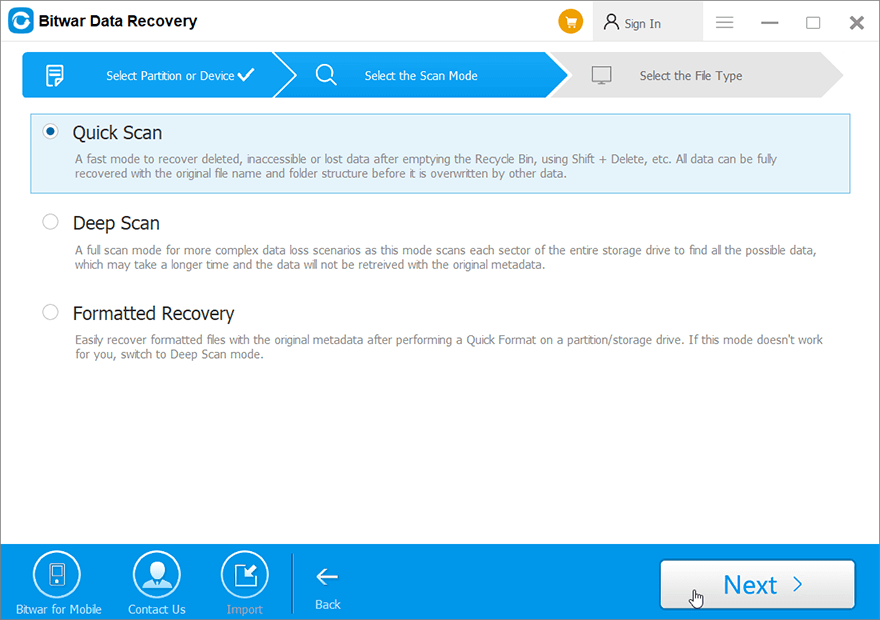
Steg 5. Select the Skanningslägeoch väljNästa.
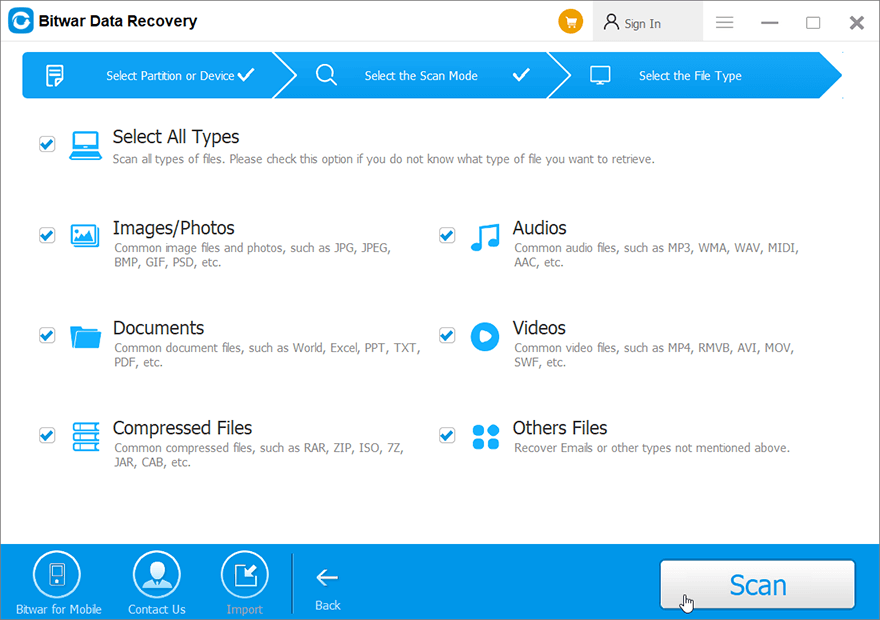
Steg 6: Select the filtyper you need to get back and click Nästa.
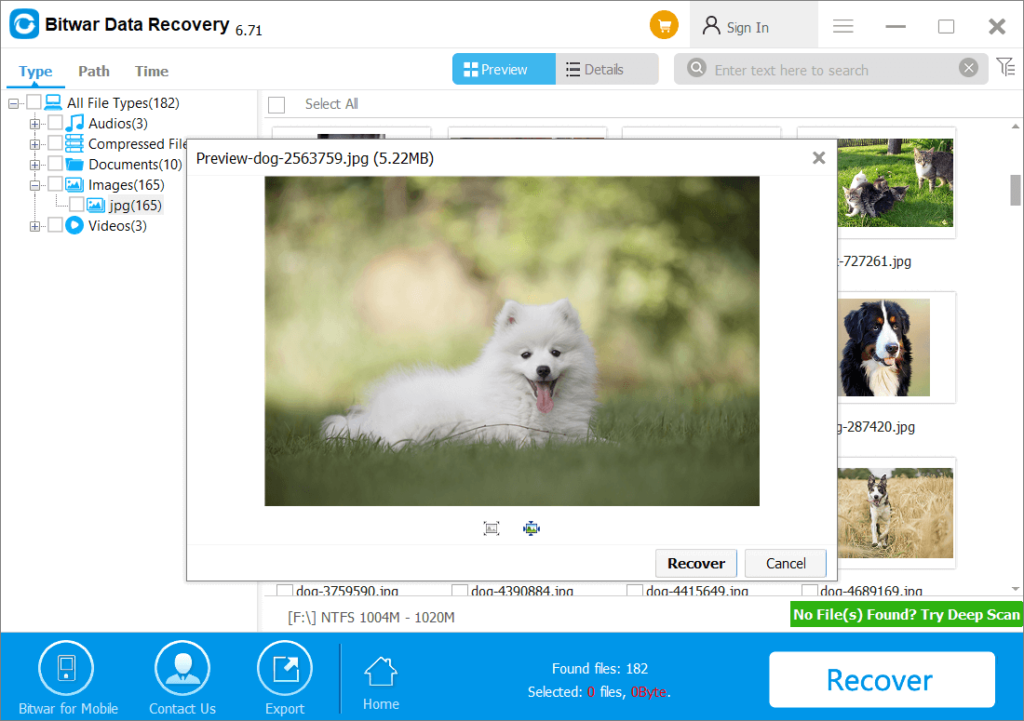
Steg 7: Förhandsvisning the scan results and click the Återvinna button to back up the important files from the external hard drive.
Slutsats
You may find that the external hard drive doesn’t show up or be recognized, which can lead to data loss. But thankfully, with the above mention solutions, you can fix this issue easily, and by the way, do not forget to use Bitwar Data Recovery Programvara once you have valuable data lost.
Föregående artikel
What’s New in Bitwar Video Repair V1.6.1 Summary: Have you ever faced such an issue that when you connect your external hard drive to your computer, you...Nästa artikel
What’s New in Bitwar Watermark Expert V2.1.7.0 Summary: Have you ever faced such an issue that when you connect your external hard drive to your computer, you...
Om Bitwar Data Recovery
3 Steps to get back 500+ kinds of deleted, formatted or lost documents, photos, videos, audios, archive files from various data loss scenarios.
Läs mer



