Fixed: There Is Not Enough Memory Or Disk Space To Run Word
要約: In this article, we will get you familiar with some of the best ways to resolve there is not enough memory or disk space to run word error and recover all your essential data using Bitwar データ復旧.
目次
Error: There Is Not Enough Memory Or Disk Space To Run Word
“Last Friday, when I am trying to open my existing Word file on my computer, an error message pops up and states that there is not enough memory or disk space to run word. What is happening here? Everything was normal before I closed my computer last Thursday night and I had checked my laptop memory, and there are still having free spaces in my disk. Not just that, my other Office suite programs, which include PowerPoint and Excel, have the same problem. Please help me!”
Everyone knows that Microsoft Office is one of the most used tools for managing words, organizing, and collecting data, including preparing presentations. If you are a working professional or a college student, your interaction with Office must be a daily affair.
But there is not enough memory or disk space to run word error blocks us from using all of the Microsoft Office programs on the computer such as Word or Excel. Then, what exactly the error is?
Possible Causes of Insufficient Memory or Disk Space
So before we get into the solutions, let’s see the reasons behind this issue on Windows! The lists below will show you some of the reasons that can cause there is not enough memory or disk space to run word error to take place:
- Corrupted font cache
- Font folder permissions are not enough
- Broken office installation
- Corrupted Normal.dotm file
- Problematic Add-ins
The error message usually occurs when there is insufficient memory space in the disk, but actually, besides disk space being full, there are still other possible reasons for the error. Moreover, please carry on with the below best solutions to overcome the issue.
Best Fixes For There Is Not Enough Memory Or Disk Space To Run Word Error
Solution 1: Reset Word’s Registry Entries
ステップ1: Open the ラン box by pressing Wins + R keys at the same time.
ステップ2: Type the command Registry to launch the Registry Editor.
ステップ3: Use the folder list to go to HKEY_CURRENT_USER\Software\Microsoft\Office\xx.0\Word, where xx is your Word version.
ステップ4: Right-click on the Data folder and choose the Export option to save your present settings’ backup.
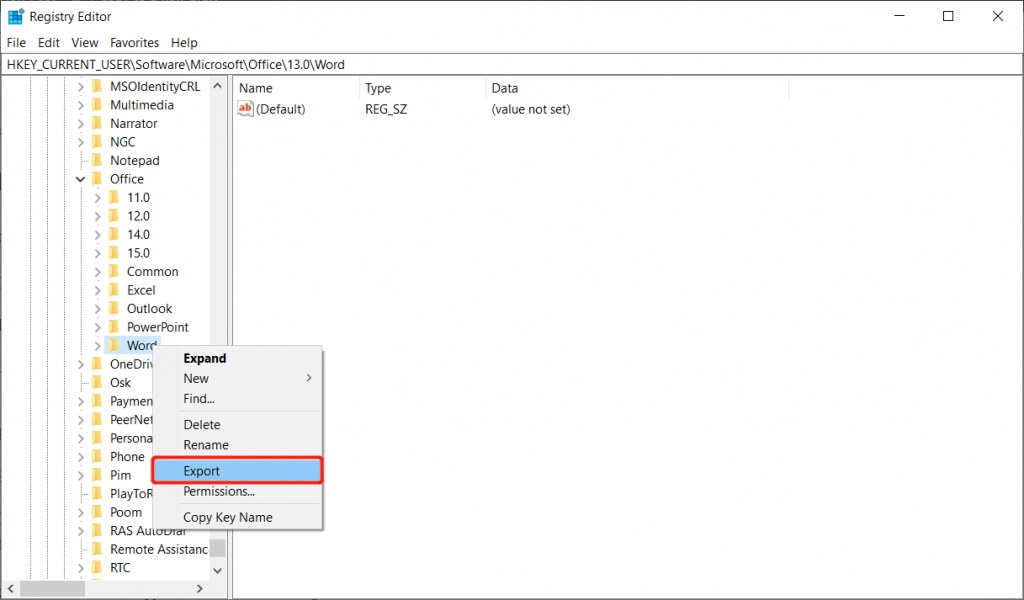
ステップ5: Right-click on the folder again and choose Delete.
ステップ6: Open Microsoft Word to see if the issue has been resolved. In case the issue still exists, double-click on the Backup and 回復 settings, followed by performing the same solution on the Options folder.
Solution 2: Increasing Virtual Memory on Windows 10
ステップ1: Go to Start and click on the [設定] option to type Performance.
ステップ2: Select the Adjust the appearance and performance of Windows オプション。
ステップ3: をクリックします Advanced and then Change… settings below the Virtual memory セクション。
After performing the steps above, check for the Recommended value and its comparison with the Currently allocated value from the bottom of the new window. In case the value is noticeably less than the Recommended value, then disable the Automatically manage paging file size for all the drives box located at the top of the same window, followed by clicking on Custom size.
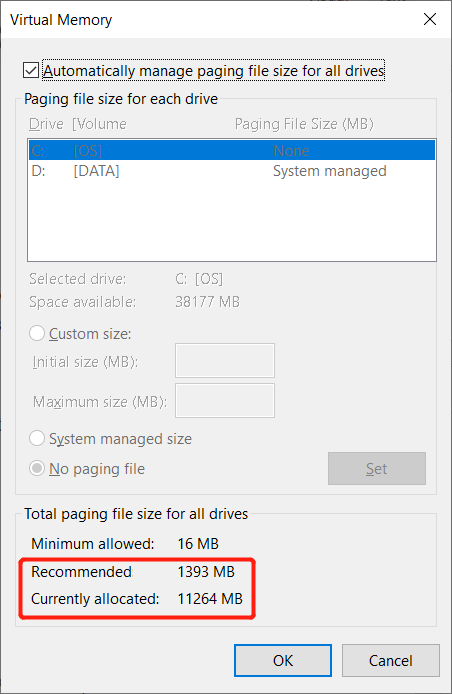
ステップ4: At last, input the Recommended value for the Initial Size box and a larger value in the Maximum size box.
ステップ5: プレス [OK] to confirm and save changes.
Solution 3: Obtain Permissions
ステップ1: Launch ラン dialog window.
ステップ2:入力してください Powershell and tap the Ctrl + Shift + Enter button together.
ステップ3: Key in Get-acl C:\Windows\fonts\arial.ttf | Set-Acl -path c:\windows\fonts\*.* and tap 入力します.
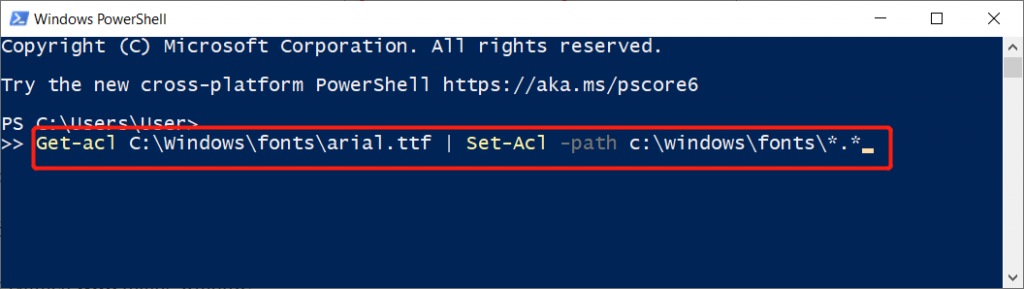
ステップ4: Key in Get-acl C:\Windows\fonts\arial.ttf | Set-Acl -path c:\windows\fonts and tap 入る again.
ステップ5: Wait patiently until the commands finish.
Solution 4: Reassemble the Font Cache
ステップ1: プレス Win + R to open the ラン dialogue box.
ステップ2: Key notepad and tap 入力します.
ステップ3: Copy and Paste the content below to the notepad:
@decho off
:: Stop and disable ” Windows Font Cache Service ” service
:FontCache
sc stop “FontCache”
sc config “FontCache” start = disabled
sc query FontCache | findstr / I / C : ” STOPPED”
if not %errorlevel%== 0 (goto FontCache)
:: Grant access rights to current user for “%WinDir%\ServiceProfiles\LocalService”
icacls “%WinDir%\ServiceProfiles\LocalService” /grant “%UserName%” :F /C /T /Q
:: Delete font cache
del /A /F /Q “%WinDir%\ServiceProfiles\LocalService\AppData Local\FontCache \*FontCache”
del /A /F /Q “%WinDir%\System32\FNTCACHE.DAT”
:: Enable and start “Windows Font Cache Service” service
sc config “FontCache” start=auto
sc start “FontCache”
ステップ4: Tap on the ファイル button and select Save.
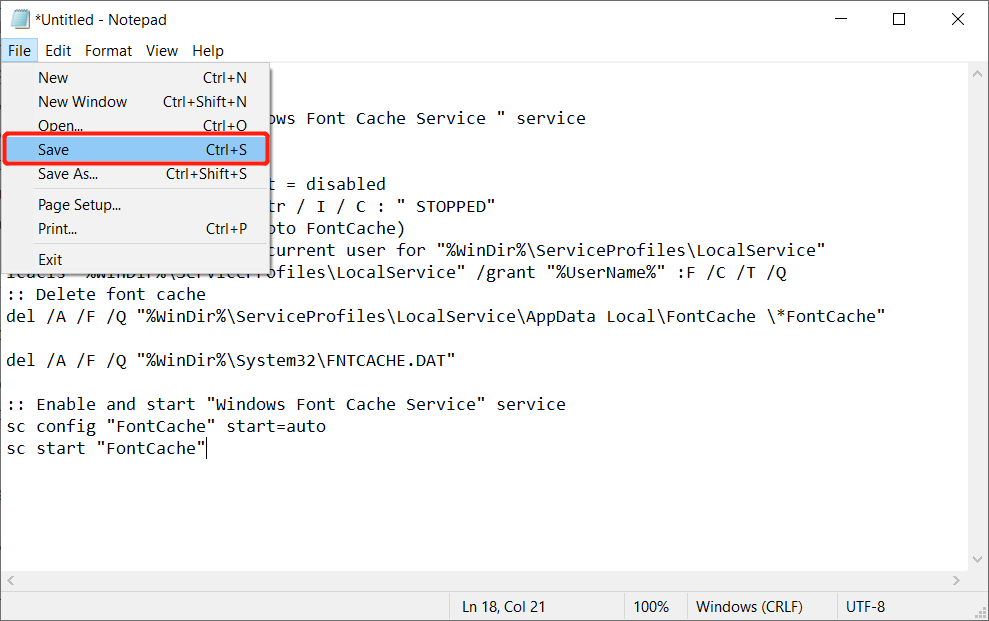
ステップ5: Name the notepad file with .bat behind.
ステップ6: Click Save. Then, Right-click on the saved file and choose 管理者として実行.
ステップ7: Wait for the process to complete.
Solution 5: Clean Up Memory or Disk Space
Sometimes, cleaning up memory or disk space accordingly is also a trick to easily free up a huge amount of disk space and get rid of there is not enough memory or disk space to run word error, there are some best ways can help clean the memory or disk space, such as:
- Delete unwanted data from disk
- Clean using Diskpart
- コマンド・プロンプト
- Perform disk cleanup
The last 4 methods also apply to solve the problem that there is not enough memory or disk space to run other programs error, such as Outlook 2010、Grammar checker 2013. Moreover, we have comprised the full guide to show you the 15 ways on how to free up drive space giantly, please refer to the below article to learn more.
Recover Accidentally Deleted Data with Data Recovery Tool
Bitwar データ復旧 is able to restore deleted, formatted, inaccessible, or lost documents, videos, audios, photos, and archive files from any of the storage drives such as internal & external hard drives, USB flash drives, SD memory cards, etc. on Windows PCs or Mac computers.
Moreover, data recovery steps are also very straightforward to follow, which requires no skilled computer knowledge, what you need to do is quickly follow the easy steps below and get back all the essential data from the disk:
ステップ1: Go to the Bitwarsoft Download Center へ ダウンロード and Install the データリカバリソフトウェア.
ステップ2: Open the software and select the Partition or Disk and then press 次.
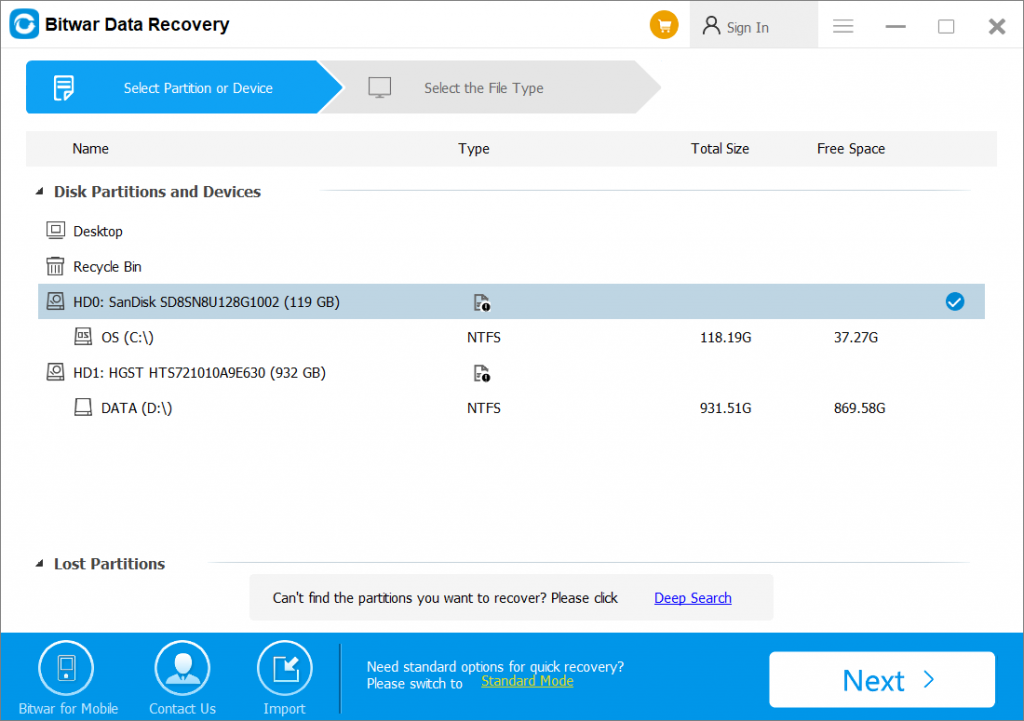
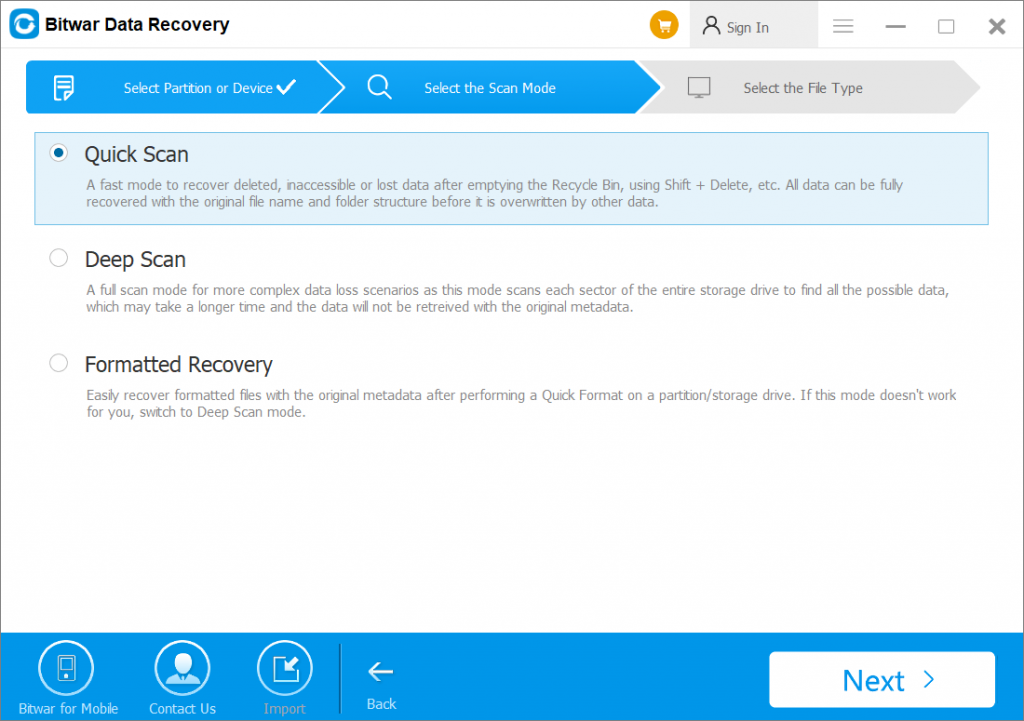
ステップ3: Choose ディープスキャン mode because it will search for all data in every sector of the disk or partition. Then, click on 次.
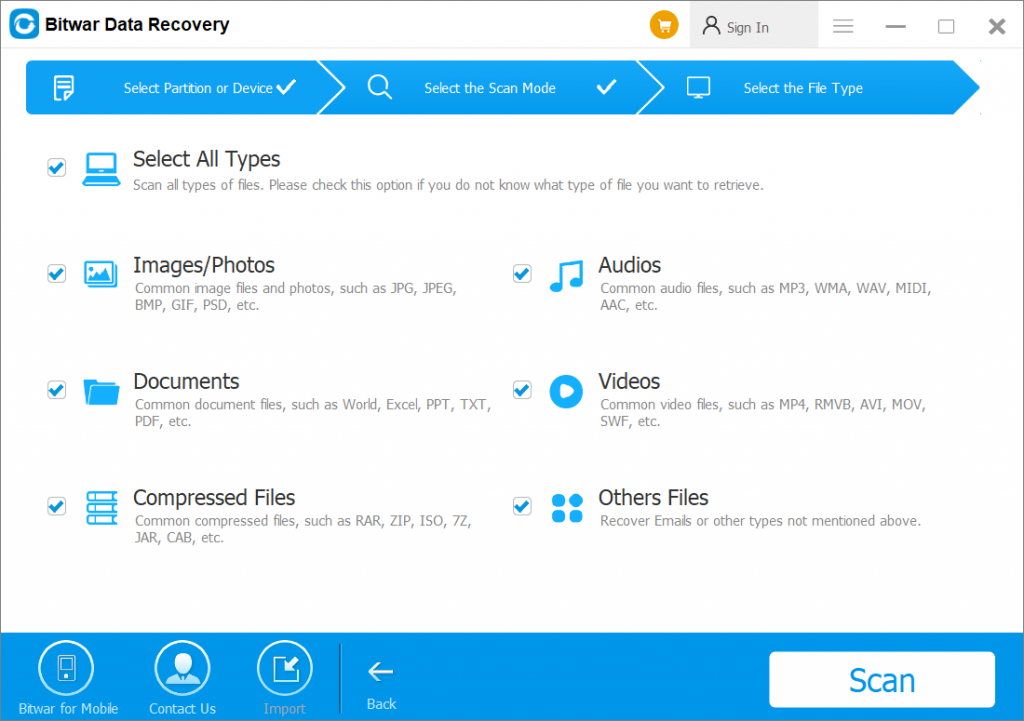
ステップ4: Select the File types that need to be restored and press on Next again.
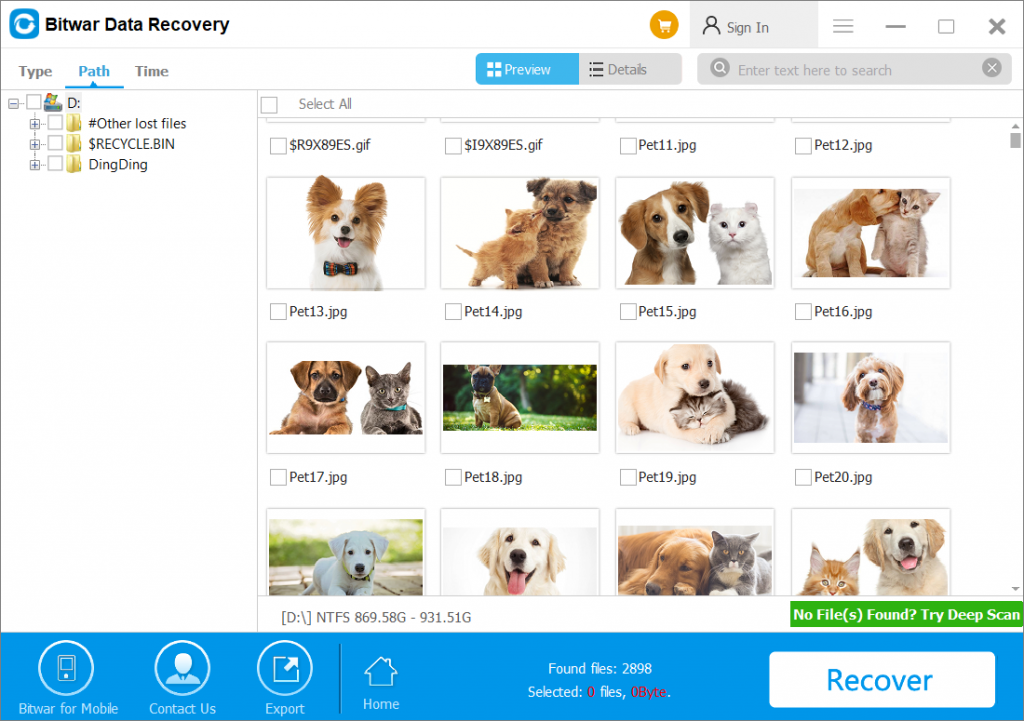
ステップ5: プレビュー the scan results and select the data that you need. Finally, tap on 回復 to get back the data.
Extra Solutions to Resolve Insufficient Memory Or Disk Space To Run Word
Right now, you had learned how to recover data using Bitwar Data Recovery, and the best fixes for that there is not enough memory or disk space to run word error. Then, carry on with below extra solutions if the above fixes failed.
Solution 6: Delete Normal.dotm file
If the issue is caused due to Normal.dotm file, then there are two ways to fix the there is not enough memory or disk space to run word error.
Method 1: Delete Normal Template
ステップ1: プレス Wins + R keys simultaneously.
ステップ2: Type in the command cmd.
ステップ3: Paste the following command and then press 入力します to execute.
ren %userprofile%\AppData\Roaming\Microsoft\Templates\Normal.dotm OldNormal.dotm
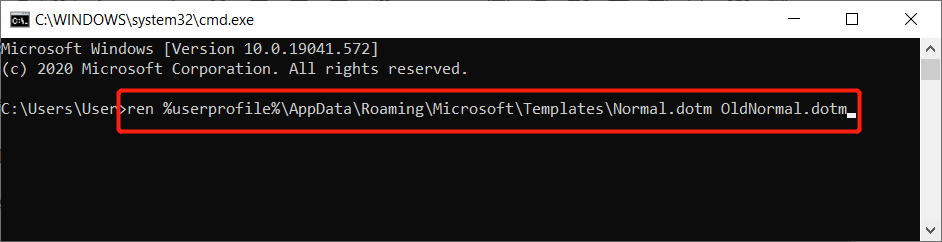
ステップ4: Lastly, close the window and check if you can access Word or not.
Method 2: Rename the Filename of Normal.dotm
After renaming the Normal.dotm file, it will force Microsoft Word to create new data the next time you launch the software. So it can help to solve the error if the corrupted Normal.dotm file causes it.
ステップ1: Go to Windows Explorer and open Local Disk (C:).
Step 2: Locate and open the Users folder.
ステップ3: Look for your username folder and open it.
ステップ4: Look for the AppData folder.
ステップ5: Continue to open Roaming, Microsoft, and Templates.
ステップ6: From the menu bar, choose View.
ステップ7: Look at the File name extensions in the show area.
ステップ8: Right-click the .dotm file and click Rename.
ステップ9: Add .old behind the Normal.dotm and tap 入力します.
Step 10: Click はい to finish the change.
Solution 7: Microsoft Office Programs
Besides fixing the error by deleting the Normal.dotm file, users can try to resolve there is not enough memory or disk space to run word issue through the Microsoft Office programs below:
Method 1: Run Fix-It Tool
Fit-It is a built-in Microsoft Office tool that can fix the majority of common word related problems. All you need is to visit the Microsoft support page’s official website to download the tool and run it to try to fix the issue.
Method 2: Disable Hardware Graphic Acceleration
Suppose that the fix-it tool is not able to fix the issue; follow the steps here to disable the hardware graphic acceleration in Word:
ステップ1: Open Microsoft Word and click on ファイル.
ステップ2: Go to Options followed by Advanced.
ステップ3: Search for the Display area from the right-side panel.
ステップ4: Disable the Disable hardware graphics acceleration option and then press [OK].
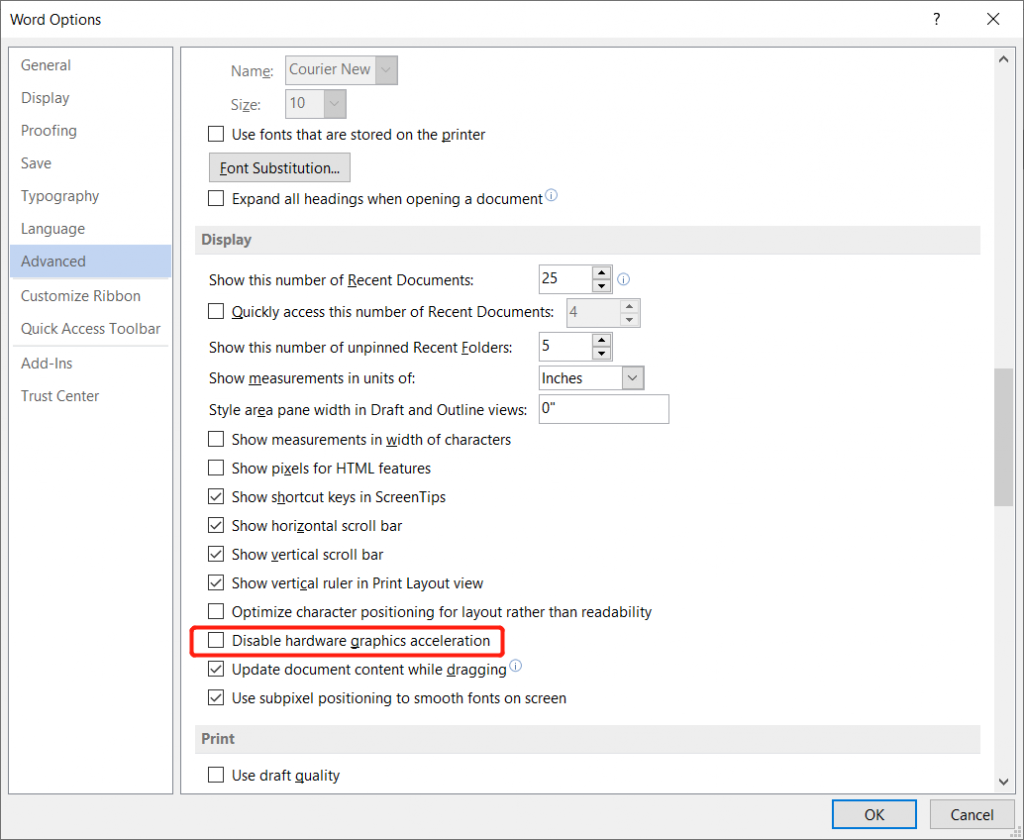
Now, open Word again to check if the error has been fixed or not.
Method 3: Turn Off the Auto-Spelling and Grammar Check (Support Word 2019, 17, 16, 13, 10, and 7)
ステップ1: をクリックします。 ファイル button and then Options menu.
ステップ2: をクリックします Proofing and Uncheck the checkbox of Check spelling.
ステップ3: Similarly, Uncheck the checkbox of Mark grammar too.
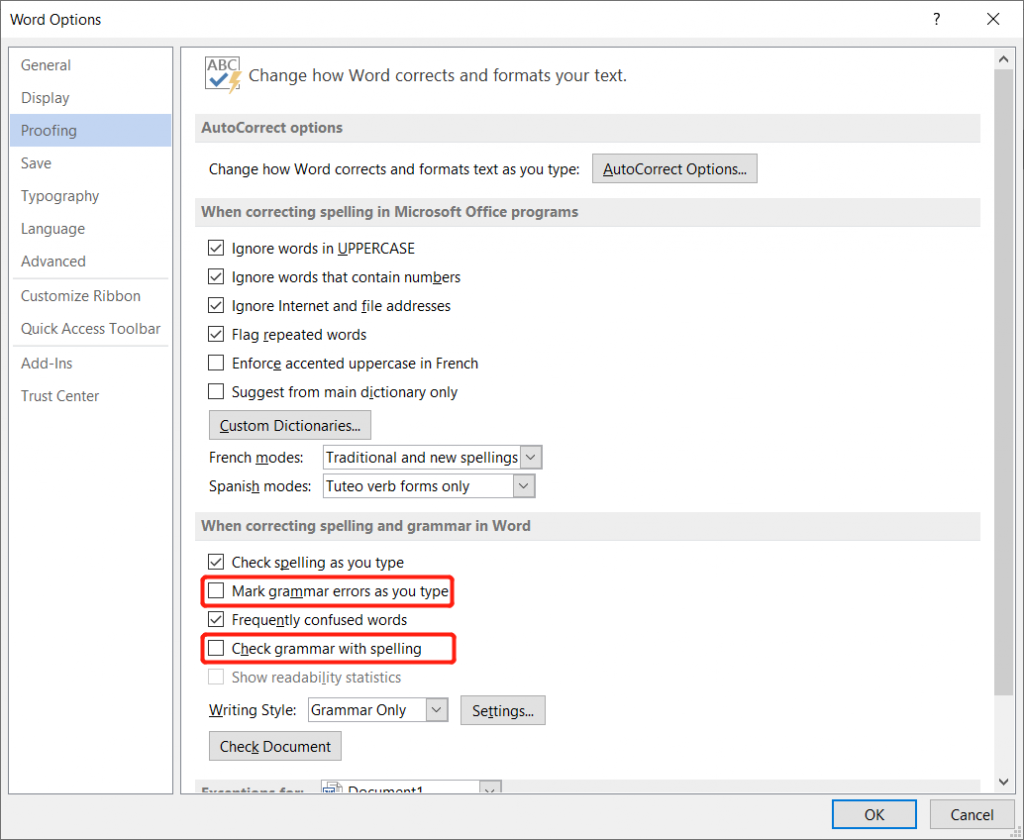
In case you are using Word 2000, 2002, or 2003, then replace the first step above by step 4 below and followed by applying steps 2 and 3 as stated above.
ステップ4: Go to the Tools menu and then click on Options. After this, select the Spelling and Grammar tab.
FAQ Regarding There Is Not Enough Memory Or Disk Space
What is disk space?
It is disk storage or storage capacity that refers to the total amount of data that the disk can store. Any other file that is installed on your computer will occupy some of the disk storage space.
What does it mean that there is not enough disk space?
This error message means there is no storage space left in the memory or disk space in your computer anymore, and you will need to clean up some space for new data to be stored. But sometimes, there will be other unusual reasons causing this error because your hard drive has run into some error and needs to be solved immediately.
Where can I check my disk space?
Method 1: Go to Windows > Settings > Storage >and refer to the Storage Capacity shown.
Method 2: Right-click Windows > Disk Management > Preview the Storage Space of each hard drive.
Learn It Now!
Suppose that you witness the error message: there is not enough memory or disk space to run word issues while accessing Microsoft Office Word and quickly refer to the solutions mentioned above. Besides, if you accidentally deleted any important data after cleaning your memory or disk space, remember to use Bitwar データ復元ソフトウェア to do the job!
前の記事
What Is Winsock? All You Need To Know Summary: In this article, we will get you familiar with some of the best ways to resolve there is not...次の記事
How To Password Protect Windows 10 PC? Summary: In this article, we will get you familiar with some of the best ways to resolve there is not...
Bitwar データ復旧について
3 つのステップで、さまざまなデータ損失シナリオから削除、フォーマット、紛失した 500 種類以上のドキュメント、写真、ビデオ、オーディオ、アーカイブ ファイルを取り戻します。
詳細はこちら



