[SOLVED] Solutions To Decrypt An Encrypted SD Card
要約: The article below will help users to decrypt an encrypted SD card and recover all important files from the SD card with the help of Bitwar データ復元ソフトウェア!
目次
SD Card Issue: Encryption and Decryption
Every user will store important data in an external storage device such as an SD card as a backup. Besides, some users may try to encrypt their SD cards to protect the data from stealing by other users. However, few people understand what is decryption and this can cause you a problem in the future in case you need to access or transfer some data from the SD card, as we will show you an example faced by a user:
“I always use a memory card to transfer and backup my data, therefore I will encrypt the device to make sure no one can access the data except me but one day I had purchased a new SD card to replace the old memory card but I had forgotten the encryption code. Is there anywhere I can recover my data back from the encrypted memory card?”
So we will introduce you briefly show you how what is decryption first, where you can decrypt the device just like how you encrypt the device at first. We recommend you decrypt the SD card first with your old password by following some of our useful solutions below!
Effective Solutions to Decrypt an Encrypted SD Card
Suppose that you use a third-party encryption tool like an Android device to encrypt the device in the past, then you can decrypt it easily by using your Android phone with the password.
Solution 1: Decrypt SD Card with Password on Android
ステップ1: Insert the SD card into a Samsung phone device and restart the phone.
ステップ2: Go to the phone settings and click the Lock screen and security.
ステップ3: Scrow down and choose the Decrypt SD card オプション。
ステップ4: Enter your password and wait patiently for the decryption process to complete.
Sometimes, the process could take longer because it will take a longer time for a larger data file.
Solution 2: Decrypt SD Card without Password
In case you had forgotten your encryption password, then the other solution is to recover the encryption password by using another third-party app or performing diskpart clean all command.
Method 1: Third-party App
We highly recommend using FExplorer to do the job because it is efficient and easy to use. You can download the app from App Store and follow the guided steps below to decrypt your SD card.
ステップ1: Insert the SD card into your phone and connect the phone device to the PC through the USB cable.
ステップ2: Download FExplorer and run the app on your phone.
ステップ3: Go to the Internal Storage and locate the folder name: mmcstore.
ステップ4: Rename the folder to mcstore.txt and copy the file to your PC
ステップ5: Open the file with Notepad and you can check the password of the encrypted SD card.
ステップ6: Finally you can follow back to solution 1 above to decrypt the SD card with the password.
Method 2: Diskpart Clean All Command
Suppose that you don’t have any important files on the SD card and all you need is to decrypt the device then you can follow the guideline below to perform the DiskPart clean all command.
ステップ1: Insert the SD Card through the SD card reader to your PC.
ステップ2: プレス Windows + S to open the search menu and type in cmd.
ステップ3: In the コマンド・プロンプト type diskpart and hit enter.
ステップ4: Type list disk > select disk * (replace * with the affected device) > clean all > create partition primary > format fs=fat32.
Please wait for the process to complete and connect the SD card to other devices to check whether or not it is decrypted.
Bonus Tip: Recover Lost or Deleted Files from Encrypted SD Card
In case you couldn’t decrypt the SD card after following all the solutions above, then the only way to rescue your data is to recover them by using データリカバリソフトウェア.
The best software to do the job is Bitwar データ復旧 ソフトウェア. It provides efficient scan to allow users to restore all kinds of files from any external or internal storage devices which includes SD card, flash card, external hard drive, memory card, and others.
ステップ1: Go to Bitwarsoft Download Center and download the data recovery software on your PC.
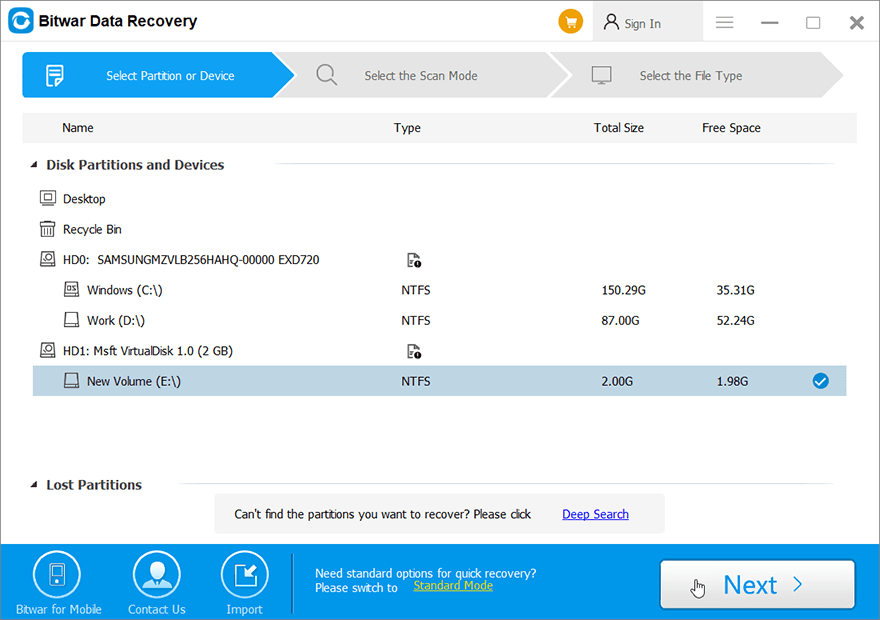
ステップ2: Select the encrypted SD card from the list of partitions and devices and click 次.
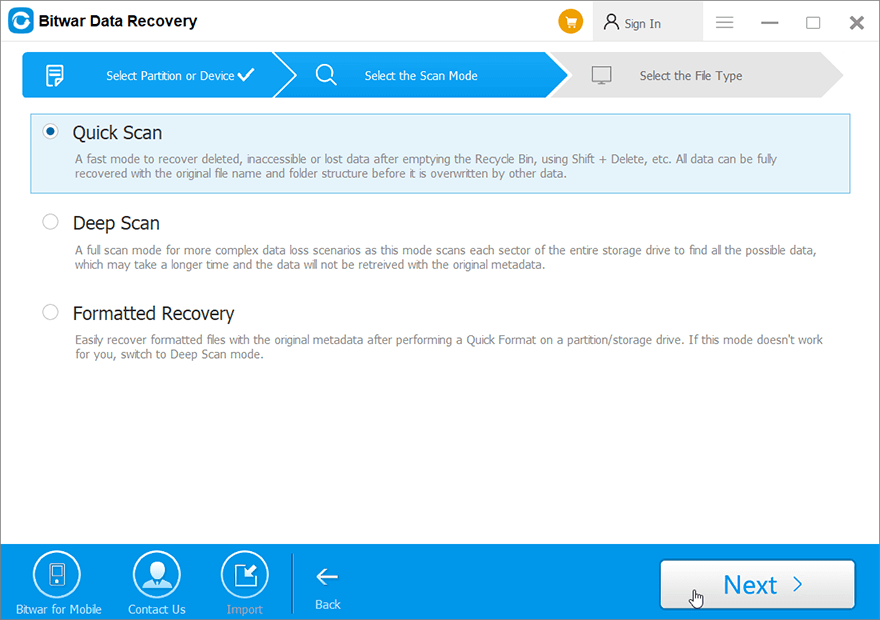
ステップ3: Choose the Scan mode and click on the 次 ボタン。
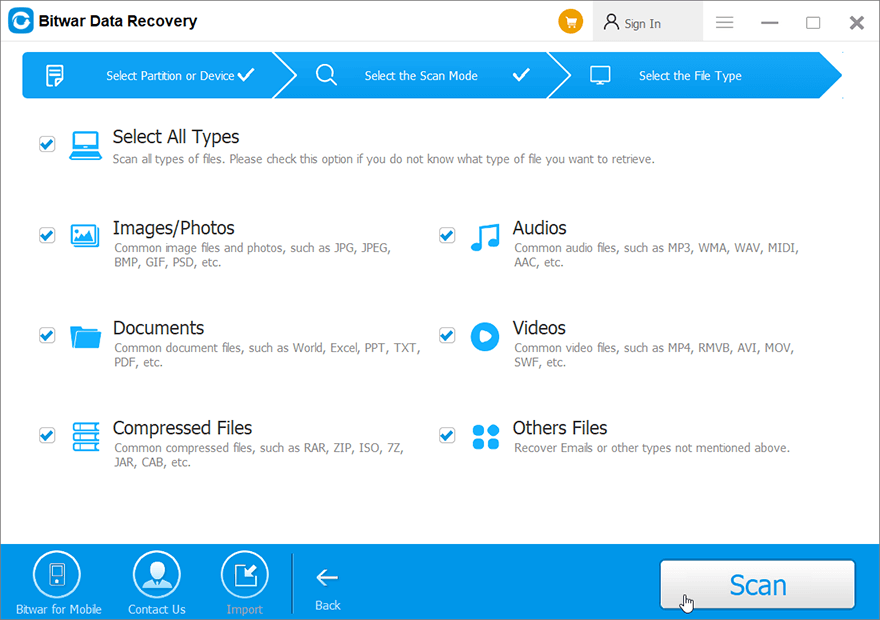
ステップ4: Select the file type you need to restore and click 次.
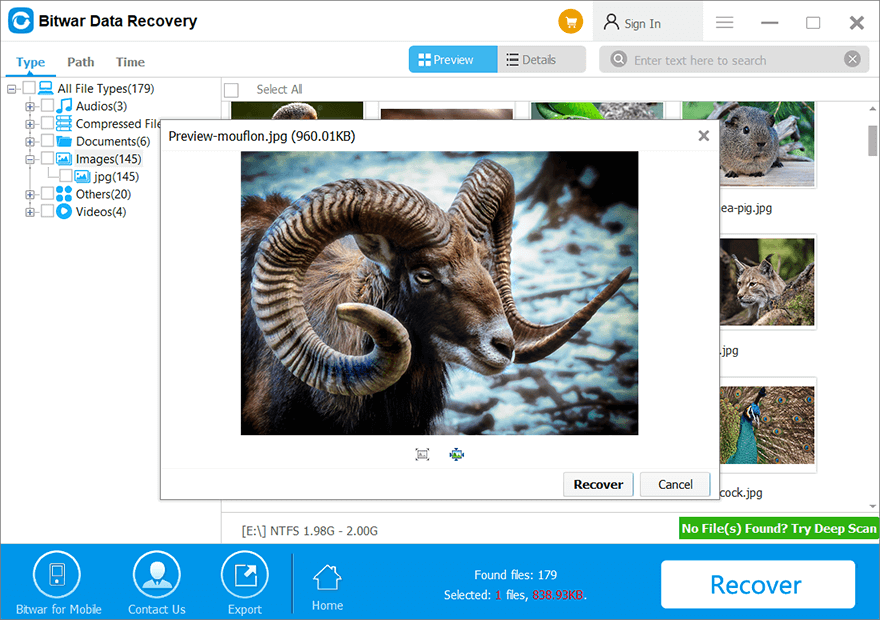
ステップ5: プレビュー the scan results and click the 回復 button to start the recovery.
Decrypt SD Card!
An encrypted SD card is always the best precaution to protect our data from stolen by other users, but it can be a problem if we forget the encryption password. Therefore, follow the solutions given above to fix it and in case you need to rescue your important data back, remember to use Bitwar データ復元ソフトウェア to retrieve the lost data on the SD card easily!
前の記事
Effective Solutions To Show and Recover Hidden Files On Memory Card Summary: The article below will help users to decrypt an encrypted SD card and recover all important files from the...次の記事
Best Solutions To Fix Memory Card Not Formatted Error On Windows Summary: The article below will help users to decrypt an encrypted SD card and recover all important files from the...
Bitwar データ復旧について
3 つのステップで、さまざまなデータ損失シナリオから削除、フォーマット、紛失した 500 種類以上のドキュメント、写真、ビデオ、オーディオ、アーカイブ ファイルを取り戻します。
詳細はこちら



