How To Access Alarm On Windows 10
Table des matières
Understanding Alarms & Clock on Windows 10
Windows 10 provides a useful app which is the Alarms & Clock. It is actually a digital alarm clock that you can set an alarm to make sure you are not late for school, meetings, events, or other important events.
Users can set the alarm and turn it off manually on Windows operating system. Besides, when the alarm rings, the desktop notification will appear with the snooze and dismiss option.
How to Set Alarm on Windows PC
Étape 1: Presse Wins + S and types in Alarm & Clock to open the app.
Étape 2: Select the Alarm menu from the app and click on the Add an alarm bouton.
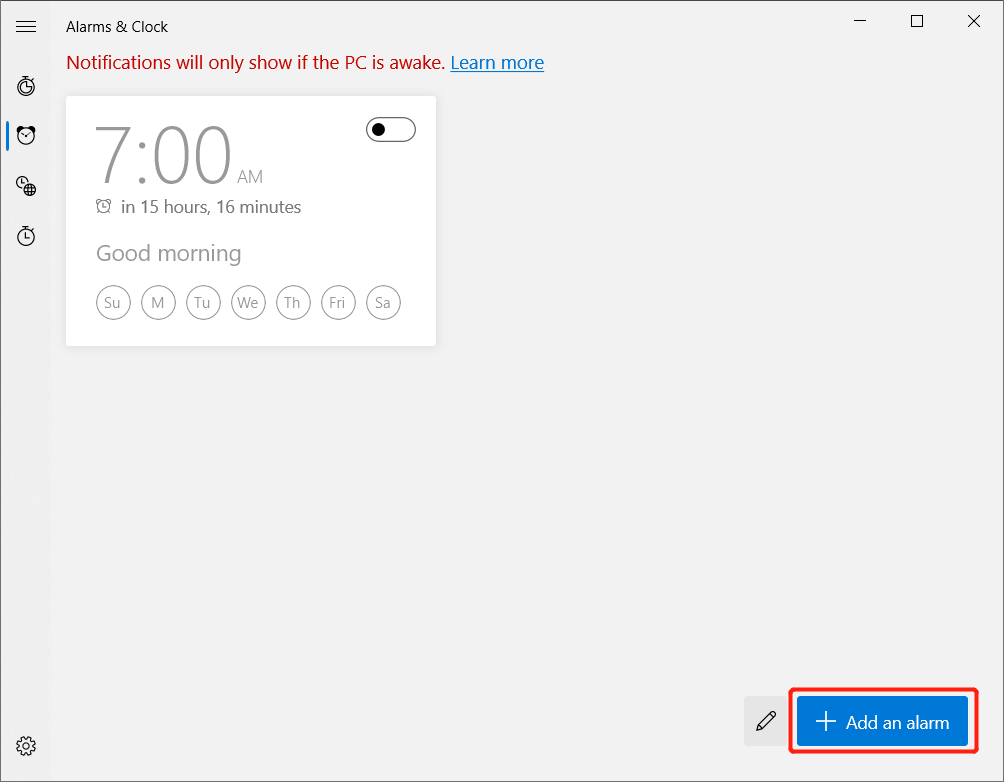
REMARQUE: Suppose that you saw the message: Notifications will only show if the PC is awake in the alarm app, you will need to change the auto-sleep or auto-hibernation on your PC.
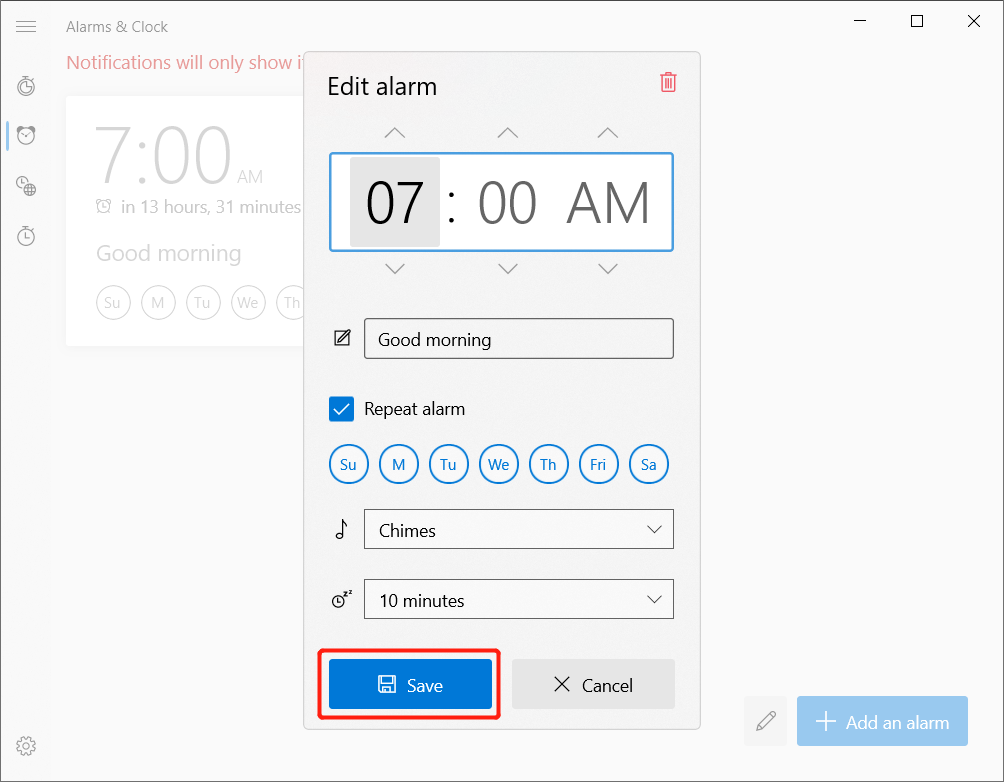
Étape 4: Set the alarm settings you need and finish by clicking Save.
How to Remove Unwanted Alarm
After adding an alarm, you can also remove the unwanted alarm through the alarm app.
Étape 1: Open the same Alarm & Clock app.
Étape 2: Go to the alarm menu again.
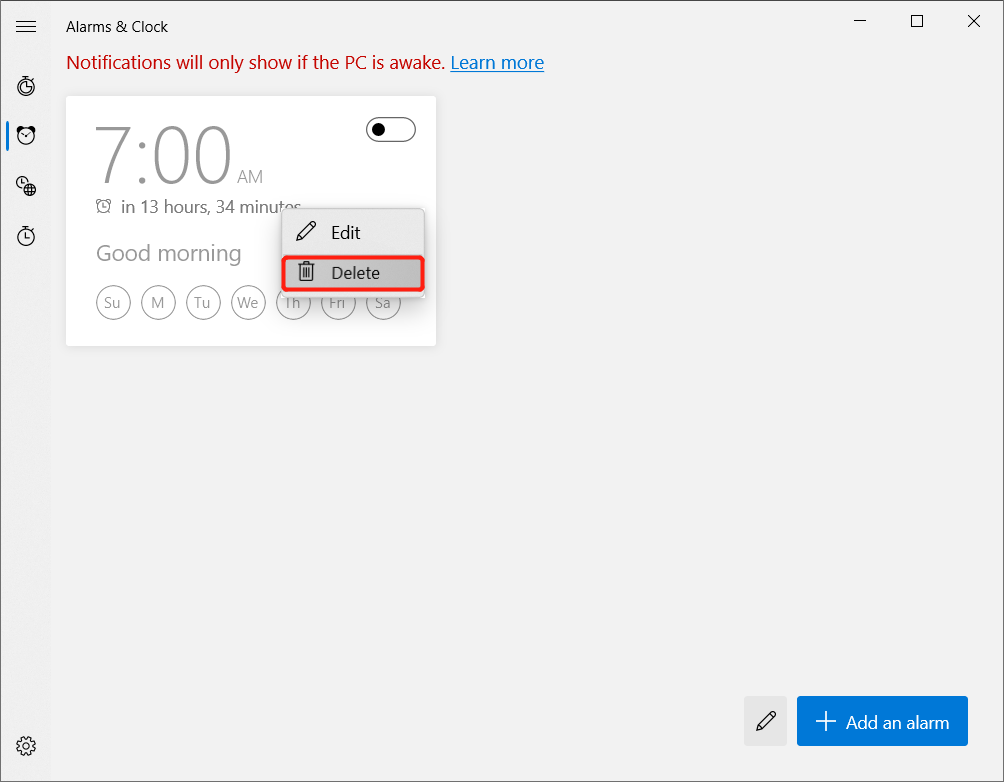
Étape 3: Right-click on the unwanted alarm and click the delete option.
How to Edit an Existing Alarm
Some users may want to edit the alarm instead of removing them.
Étape 1: Proceed back to the Alarms & Clock app.
Étape 2: Right-click on the alarm and click the Edit option.
Étape 3: Configurer the changes and click the sauvegarder bouton.
How to Turn Off an Active Alarm
Besides, deleting the unwanted alarm, you can turn it off to prevent any accidental delete.
Étape 1: Ouvrez le Alarms & Clock app through the Windows Search menu.
Étape 2: Select the Alarm menu.
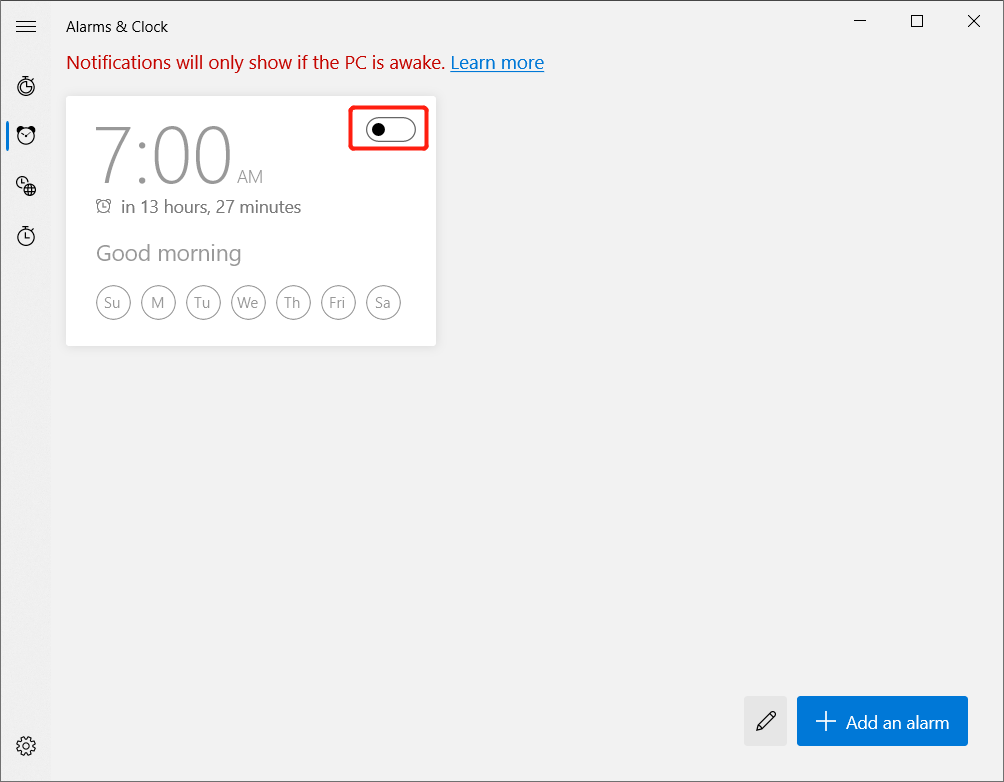
Étape 3: Choose the alarm et toggle it off to turn off the alarm.
Learn to Access Alarms Easily!
There are many useful apps on Windows for users to experience and the alarm is one of them! Therefore, learn all the best ways to access the alarm on your Windows 10 through the tutorial above.
Article précédent
[2025] Best 4 Methods to Speed Up Windows Boot And Startup Time Summary: The text below will show users how to access the alarm on Windows 10 with the help of Bitwar...Article suivant
3 Methods To Empty Storage Space On iPhone and iPhone Pro Safely Summary: The text below will show users how to access the alarm on Windows 10 with the help of Bitwar...
À propos de la récupération de données Bitwar
3 étapes pour récupérer plus de 500 types de documents, photos, vidéos, audios et fichiers d'archives supprimés, formatés ou perdus à partir de divers scénarios de perte de données.
Apprendre encore plus



