[Solved] Blue Screen of Death 0xc0000428 Error
ملخص: It’s annoying to get a Blue Screen of Death (BSOD) each time when you are working on your computer. What compounds the problem is that your computer might later be subject to a loss of data. For instance, if you are playing a video game and suddenly a BSOD error strikes, the game will not be saved. Since reasons for BSOD problems are hard to pin down, users are often confused about what causes it and what they should do to fix the problem and recover lost files. In this article, we will walk you through how to fix the 0xc0000428 Error and recover lost data with the help of استعادة البيانات Bitwar.
جدول المحتويات
What Causes Error Code 0xc0000428?
In this part, we will list some reasons that may prompt the BSOD 0xc0000428 error.
1. Outdated BOOTMGR file
It’s reported that a newer version of Windows 10 might be incompatible with an outdated BOOTMGR file. Consequently, that could trigger the 0xc0000428 error.
2. The digital signature for this file couldn’t be verified.
Digital Signature is used to prove the authenticity of an application or program. If the operating system fails to verify the digital signature of every hardware or software you have inserted or installed, the 0xc0000428 error might well occur.
How to Solve the Error Code 0xc0000428?
Solution 1: Use Bootrec Command
In some cases, the 0xc0000428 error occurs when the computer is in the process of booting. To handle it, we need a tool called Bootrec.exe, which is reserved for dealing with multiple issues related to the boot phase. Follow the instructions below:
الخطوة 1: Restart your computer and wait for the boot screen.
الخطوة 2: Boot to the Windows Advanced Options menu by pressing the required key.
الخطوة 3: There will be a list of options available in the window.
الخطوة 4: Use the arrow keys to select the Safe Mode with Command Prompt اختيار.
الخطوة 5: After Command Prompt has opened, type in the following command lines and press أدخل after each one.
bootrec/fixBoot
bootrec/rebuildBCD
الخطوة 6: Reboot your computer and then try to enter the Windows Advanced Options menu again. If the computer fails to do so, try booting it with a recovery USB drive.
الخطوة 7: After the computer has successfully booted, select the language you want to use and then click the قم بإصلاح جهاز الكمبيوتر الخاص بك اختيار.
Step 8: يختار موجه الأمر and then type in the same command lines listed in step 5.
Solution 2: Disable the Driver Signature Enforcement
Since there is a high prospect that the driver signature for some application or program is outdated, hence triggering the 0xc0000428 error, in this case, disabling the driver signature enforcement should work. You can download and install a third-party tool aimed to do so or follow the instructions below.
Method 1: Via the Login Screen
الخطوة 1: Go to the computer’s login screen. You can do so by logging off your current account.
الخطوة 2: اضغط على اعادة البدء button and the Shift key together until you see the Choose an option screen.
الخطوة 3: Click on Troubleshoot and then Advanced options to get to the Advanced Startup options menu.
Method 2: Via Settings
الخطوة 1: Right-click on the Start menu button and then select الإعدادات.
الخطوة 2: Navigate to Update & Security > Recovery.
الخطوة 3: Scroll down the right pane of the window and look for the انطلاقة متقدمة قسم.
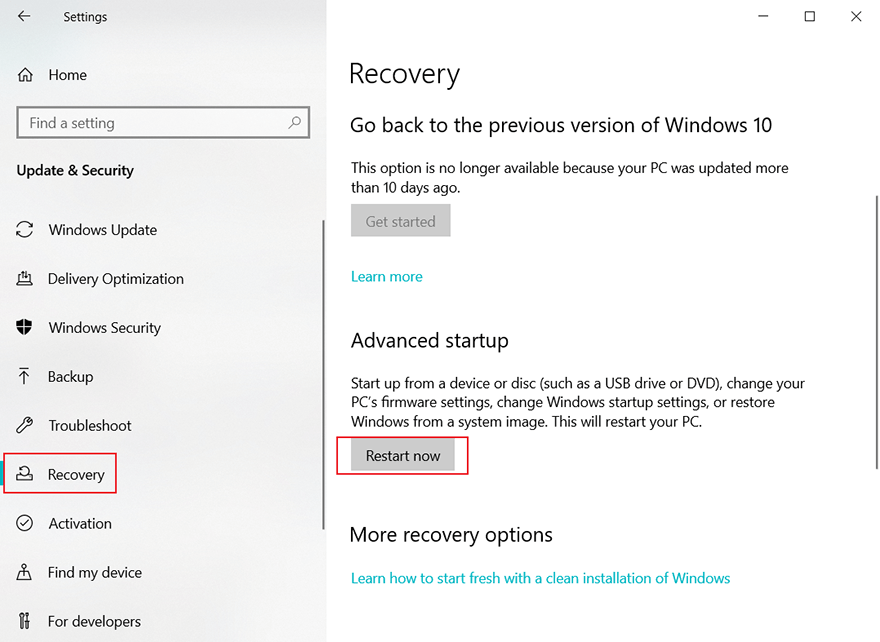
الخطوة 4: انقر على اعادة البدء now button.
Method 3: Use Command Prompt
الخطوة 1: Right-click on the بداية menu button and then select the موجه الأوامر (المسؤول) اختيار.
الخطوة 2: Copy and paste the following command line and then press Enter.
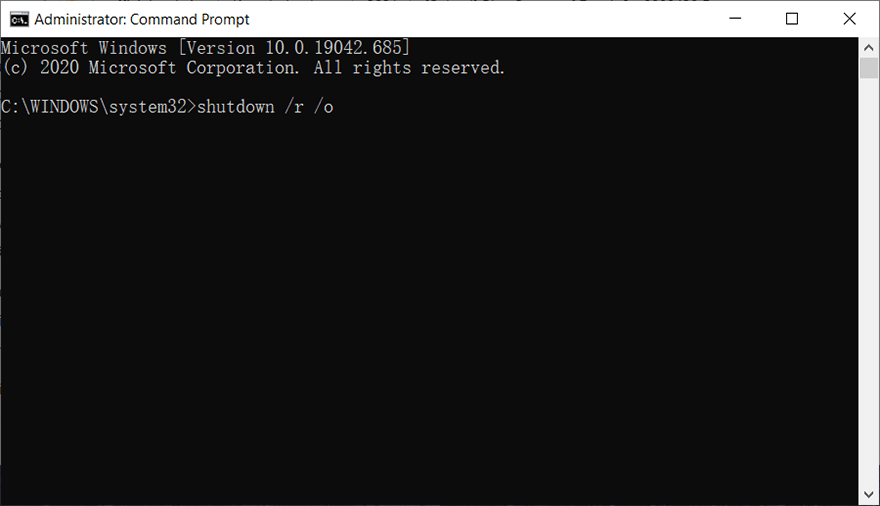
الخطوة 3: A message will prompt saying that You’re about to be signed off. Click on the Close button.
الخطوة 4: Wait for the computer to restart and get to the Advanced Startup Options menu.
Method 4: Use Windows 10 Recovery Drive
الخطوة 1: Get a bootable Windows 10 DVD or USB drive that is properly configured.
الخطوة 2: Insert the bootable media and then turn on your computer.
الخطوة 3: The computer will boot from the drive you have just inserted. Follow the instructions it shows.
الخطوة 4: The Windows setup window will pop up and ask you to select the language and time and date settings.
الخطوة 5: After proceeding, choose the Repair your computer option at the bottom.
الخطوة 6: Advanced Startup options menu will come up.
After you have successfully got to the Advanced Startup Options, you can use the following steps to disable the driver signature enforcement.
الخطوة 1: انقر فوق استكشاف الاخطاء option located under the continue button.
الخطوة 2: Three will be three options presented on the new window. They are Refresh your PC, Reset your PC و Advanced options.
الخطوة 3: اضغط على Advanced options.
الخطوة 4: Click on the Startup Settings اختيار.
الخطوة 5: There will be an option called Disable driver signature enforcement. Press the number key on your keyboard according to the number next to the option (usually 7).
الخطوة 6: Press Enter to return to the operating system of your PC.
Solution 3: Use the Automatic Repair Functionality
Windows has pre-installed multiple troubleshooters aimed at solving different issues users might encounter while using one of Windows operating systems. Automatic Repair is one of those troubleshooters and capable of fixing the 0xc0000428 Error. Refer to the following steps to learn how to use it.
الخطوة 1: Use one of the 4 methods mentioned above to get to the Advanced Startup Options قائمة طعام.
الخطوة 2: اختر استكشاف الاخطاء option located below the تواصل زر.
الخطوة 3: انقر على Advanced options and then Automatic Repair.
الخطوة 4: Follow the on-screen instructions to start the Automatic Repair and fix your PC.
Solution 4: Update BOOTMGR
Since an outdated BOOTMGR file might well lead to the 0xc0000428 error, you could try updating the file manually. Use the following instructions to do so:
الخطوة 1: Get a bootable USB drive and connect it to the faulty PC.
الخطوة 2: Boot the computer from the USB drive.
الخطوة 3: Select the language, time, and keyboard input and then click on Next.
الخطوة 4: Select Repair your computer.
الخطوة 5: Navigate to استكشاف الاخطاء>Advanced Options>Command Prompt.
الخطوة 6: Type in the following command and then press أدخل.
الخطوة 7: Reboot the computer in the normal way to see whether the solution works.
استرداد البيانات المفقودة باستخدام استرداد بيانات BitWar
As we have discussed before, besides an unexpected BSOD triggered by this error, what may follow immediately is data loss. Although the BSOD error doesn’t necessarily end up data loss, it may cut short your current work, making it impossible to find the work on which you had been working. To help users handle this problem, we would like to recommend our effective and reliable recovery tool, Bitwar Data Recovery. which is capable of recovering lost data in many different scenarios.
الخطوة 1: Download Bitwar Data Recovery from our الموقع الرسمي.
الخطوة 2: After that, run the recovery program and choose the drive from which you want to recover your lost data, and then press the Next button.
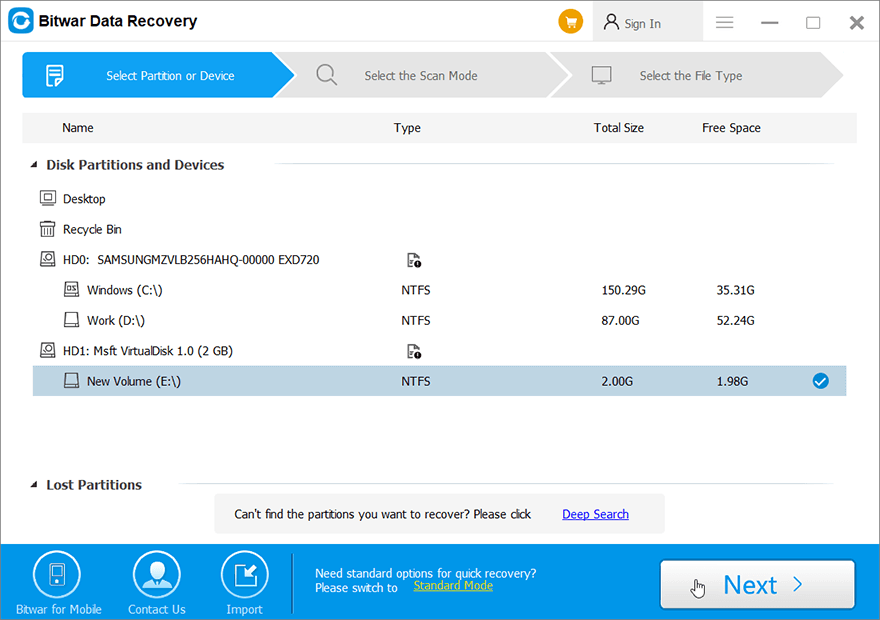
الخطوة 3: Select a scan mode. To beginners, we recommend مسح سريع, which is capable of recovering most files. If it doesn’t work, you can try المسح العميق next time.
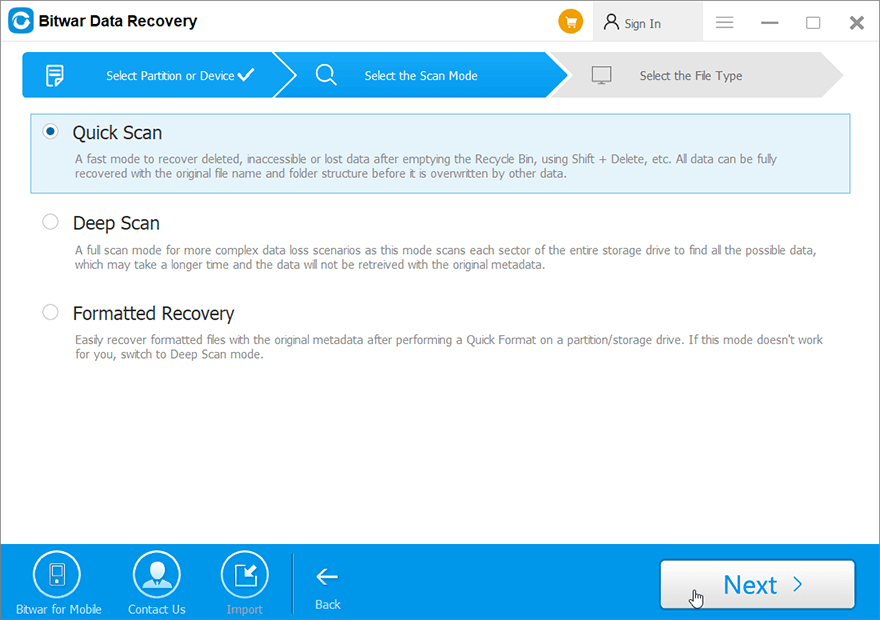
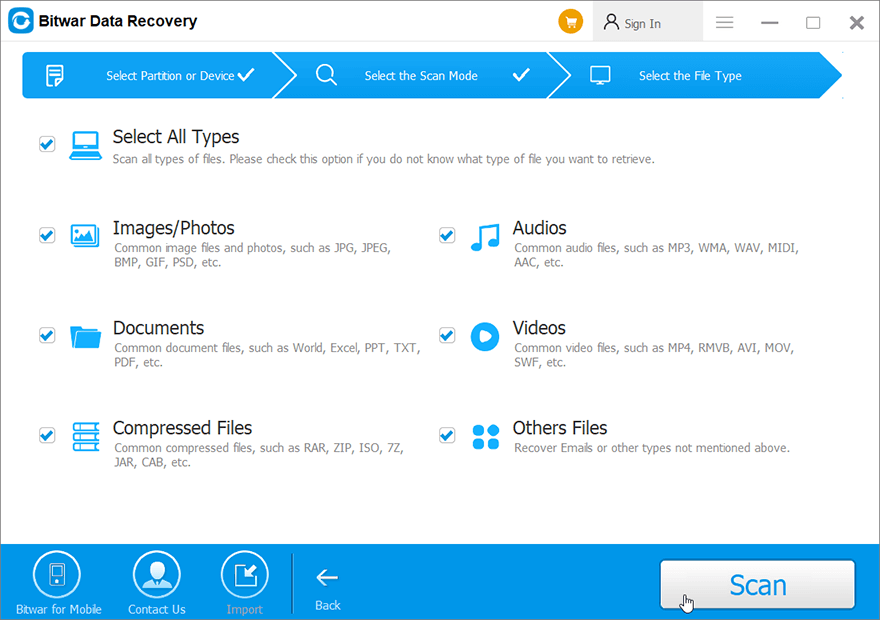
الخطوة 4: Now choose the file types you want to retrieve and then press the التاليزر.
الخطوة 5: معاينة all the selected data.
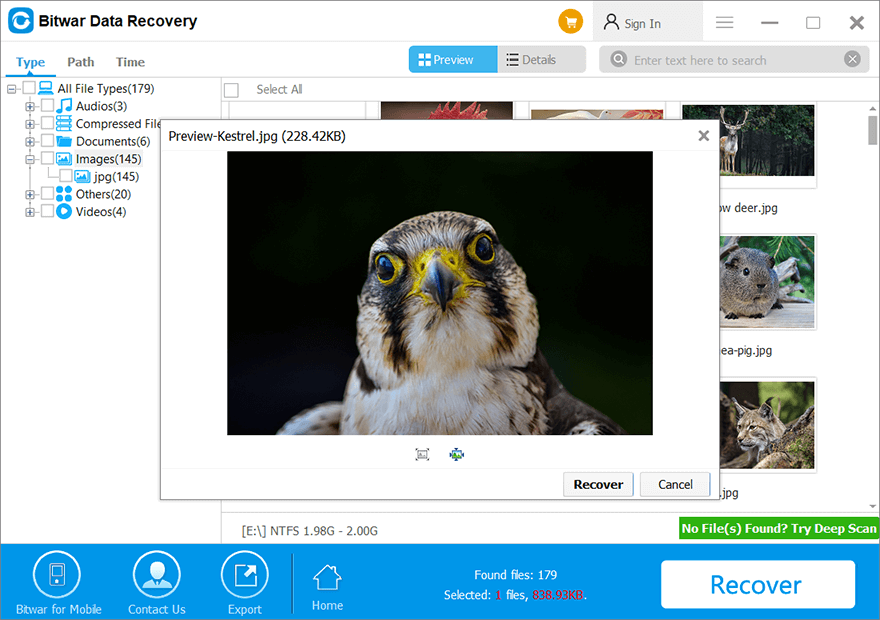
الخطوة 6: Lastly, after choosing and previewing the files you want, click on the استعادة button to begin the data recovery process.
استنتاج
0xc0000428 is one of those vexed Blue Screen of Death errors that users might well encounter during regular use of their PCs. In this article, we have explained x commonly used solutions to help users fix it. Like other BSOD errors we have discussed before, this error could lead to data loss. Hence, on top of those solutions, we also recommend users to use the effective and reliable recovery tool, Bitwar Data Recovery, to get back lost data.
مقال سابق
Solved: The Request Failed Due To A Fatal Device Hardware Error Summary: It's annoying to get a Blue Screen of Death (BSOD) each time when you are working on your computer....المقال التالي
7 Effective Solutions to Fix ‘Mac Stuck on Loading Screen at Login’ Error Summary: It's annoying to get a Blue Screen of Death (BSOD) each time when you are working on your computer....
حول Bitwar Data Recovery
3 خطوات لاستعادة أكثر من 500 نوع من المستندات والصور ومقاطع الفيديو والتسجيلات الصوتية وملفات الأرشيف المحذوفة أو المنسقة أو المفقودة من سيناريوهات فقدان البيانات المختلفة.
أعرف أكثر