[Full Recovery] How To Recover Lost Data By DISKPART Clean/Format
要約: This article will introduce you to the complete recovery steps to recover lost data by DISKPART clean or format using the powerful and reliable Bitwar データ復旧.
目次
Introduction of DISKPART
DISKPART is an inbuilt command-line utility that lets the users manage internal and external hard drives by adding, deleting, cleaning, creating, formatting, and resizing commands on the Windows operating system. If any of these commands are coming from the clean and format that are not used properly, it can cause serious data loss.
In case your data is lost while using these two commands, leave all your worries up to us as we will help you recover all your data by using a couple of easy steps. However, at times many users end up losing their data due to the accidental performance of DISKPART.
A typical case of accidental deletion of data using DISKPART clean is given below:
“I was working on Windows 8 with proper 4 partitions, with one of the partitions being purely for the operating system. Later, I planned an upgrade to Windows 10. While installation, I lost all partitions while running DISKPART clean command, though I only opted for a single partition clean up. How to recover data lost by DISKPART clean?”
Therefore, many reasons can end up causing you to perform DISKPART clean-up accidentally, which can cause data loss after the process, so don’t worry as we will show you how to recover lost data by using データリカバリソフトウェア.
Data Recovery Tool for Windows
Bitwar Data Recovery software will be the best recovery tool as it offers 100% clean and complete data recovery without tampering around with your data. It provides a quick and reliable recovery solution capable of recovering any data like images, videos, audios, docs, or other data from any storage devices such as internal or external hard disk, flash drive, memory card, or USB.
How to Recover Lost by DISKPART Clean/Format
Two cases will cause you to lose data by DiskPart clean on Windows, including clean command and format command. So we will show you how to recover the lost data by using the data recovery tool based on the different cases as below:
Case 1: DiskPart Clean Command
If you lost your data through the DiskPart clean command, you would need to use the Lost Partition Recovery tool to retrieve your data.
ステップ1: Download Bitwar data recovery software from Bitwarsoft Download Center. After the download is complete, install it on your system.
ステップ2: Launch the data recovery software, choose the Standard Mode, and choose the Lost Partition Recovery オプション。
ステップ4: Select the lost partition from the Lost Disk Partitions and click on 次. If you cannot find the partition, choose the Deep Search mode to look for more partitions and then select your partition, followed by a click on the 次 ボタン。
ステップ5: Select the file types that need to restore and click on 次.
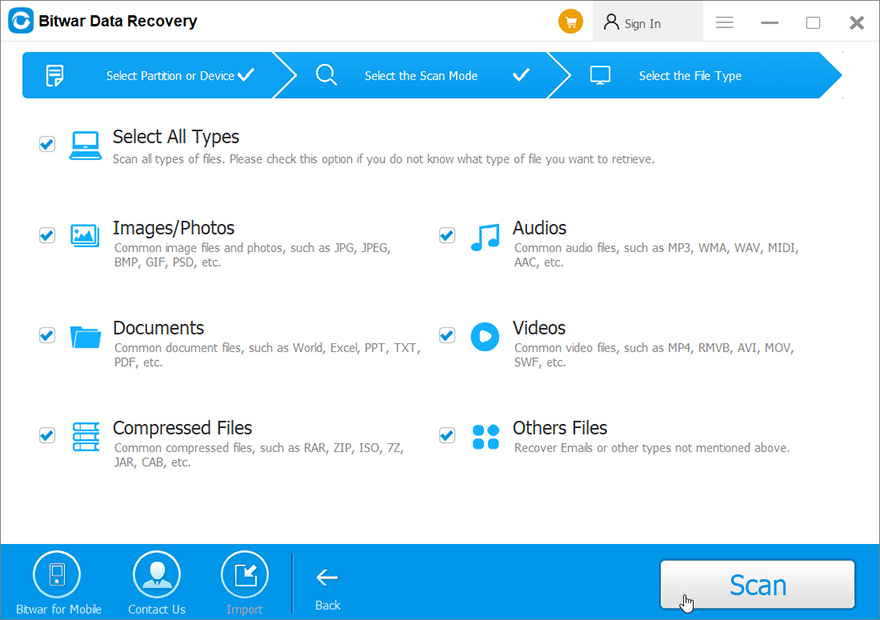
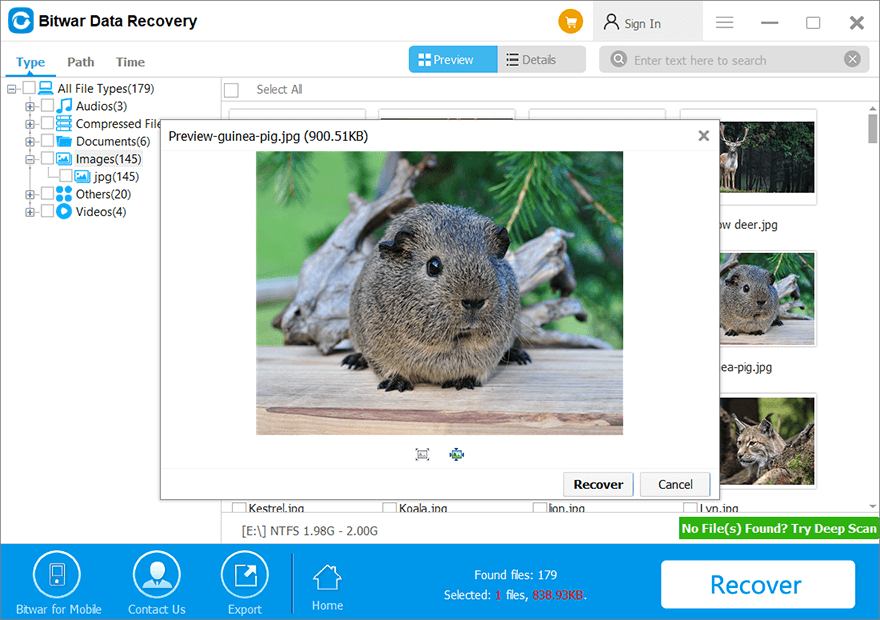
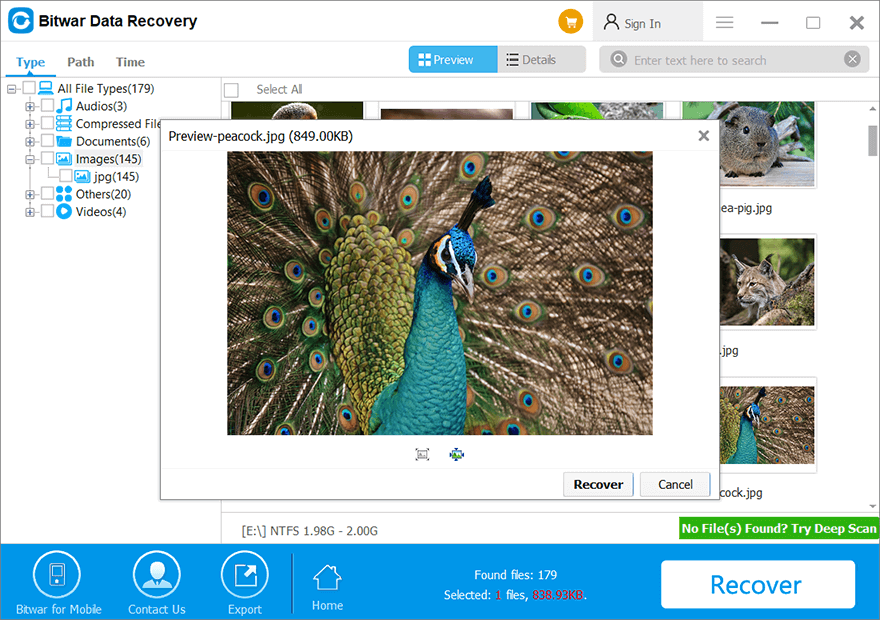
ステップ6: Lastly, preview the selected data and click on the 回復 to start data recovery.
Case 2: DiskPart Format Command
While supposing that you perform Diskpart format and lose some important data, you can perform a deep scan to scan and restore data from the drive.
ステップ1: Download and install Bitwar データ復旧 on your computer.
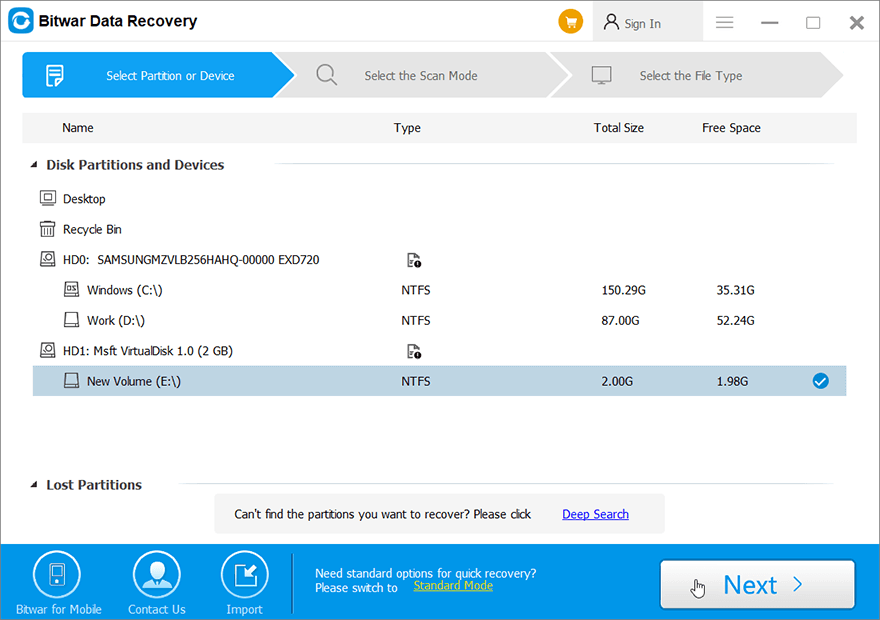
ステップ2: Open the software and select the affected drive, followed by pressing the 次 ボタン。
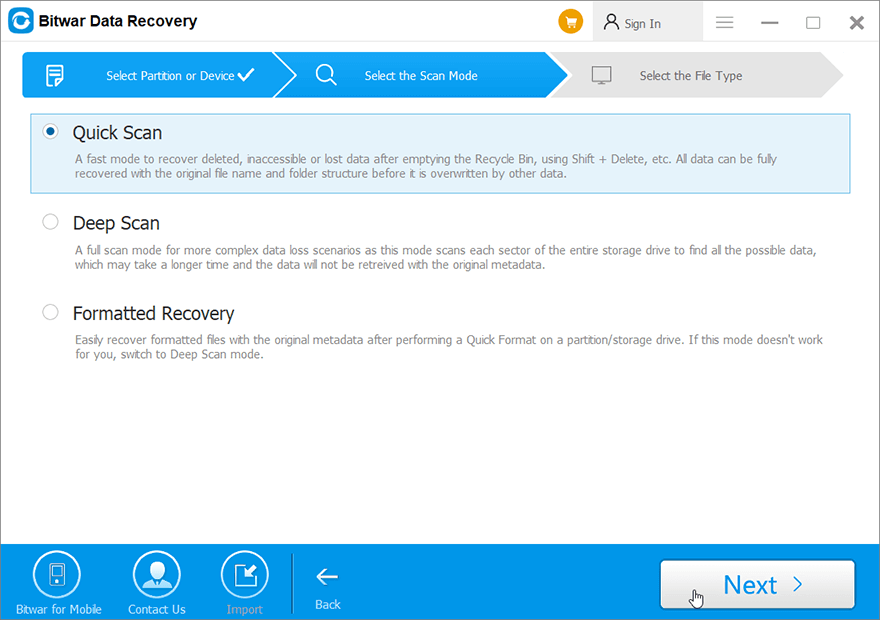
ステップ3: Choose the Deep scan モード。詳細な検索を実行して、ドライブの隅々までデータを探します。その後、 次 ボタン。
ステップ4: Select the file types you want to retrieve and press the 次 ボタン。
ステップ5: プレビュー all the selected files and click the 回復 button to initiate the data recovery process.
FAQ Recover Lost Data from DiskPart Clean
How long does it take for the DiskPart clean process?
It depends on your device and system, but most of the time, it takes about 30 minutes or longer to clean all the data from an 8GB USB. Please wait patiently for the process to complete.
DiskPart delete data?
By performing different DiskPart commands will delete data on your computers such as delete partition command, format partition, or others. Still, you can recover lost data with the help of Bitwar Data Recovery.
How to protect your data from being lost?
Data loss can happen to anyone due to viruses, malware, bad sectors, and accidental deletion of data. The best way to deal with data loss is to ensure creating a backup of all your data. You can do it manually by referring to the data recovery tool above to create a backup of all your vital data.
How to undo a DiskPart clean command on Windows?
ステップ1: Go to the 検索 menu and type cmd.
ステップ2: Right-click the Command Prompt and run it as administrator.
ステップ3: Key in the disk part and tap Enter on your keyboard.
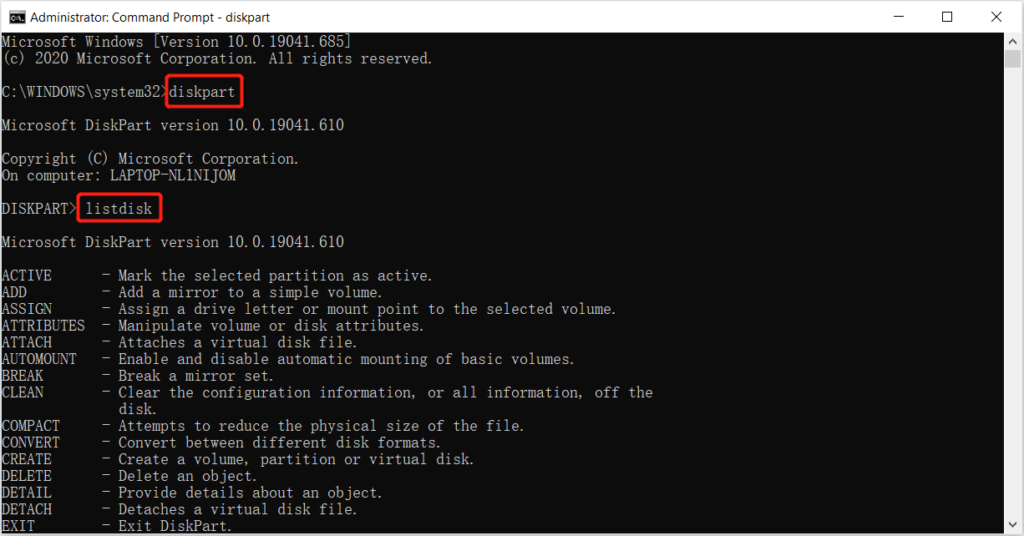
ステップ4: Type the commands: list disk > select disk E > list volume > select volume E > assign letter=E and hit 入力します after each command. (Replace the E with your own drive letter.)
Recover Data Lost Now!
Incorrect use of DiskPart clean and format commands can lead to serious data loss. At times many users perform DiskPart clean accidentally or mistakenly due to any reason. In case you happen to lose vital data using any of these commands, remember to use Bitwar データ復旧 software to get the data back immediately to prevent permanent data loss!
前の記事
[FULL] Solutions To Fix Windows Automatic Repair Not Working Issue Summary: This article will introduce you to the complete recovery steps to recover lost data by DISKPART clean or format...次の記事
[FULL SOLUTION] Fix Folder Keeps Reverting To Read Only On Windows 10 Issue Summary: This article will introduce you to the complete recovery steps to recover lost data by DISKPART clean or format...
Bitwar データ復旧について
3 つのステップで、さまざまなデータ損失シナリオから削除、フォーマット、紛失した 500 種類以上のドキュメント、写真、ビデオ、オーディオ、アーカイブ ファイルを取り戻します。
詳細はこちら



