4 Best Solutions To Fix External Hard Drive Access Denied Error
要約: The article below will show the best solutions to fix external hard drive access denied error on Windows and recover deleted data from the drive with the help of Bitwar データ復元ソフトウェア.
目次
Overview Access Denied Error on External HDD
Many users had reported that they cannot access their external hard drive on Windows 7, 8, and 10. This problem can be very annoying, as it restricts you from accessing your files that are stored in the external storage device.
Here we will show you a similar case of the HDD error:
“Yesterday, after I connected my external hard drive to my Windows 10 PC, an error message shows up saying that Location is not available. F:\ is not accessible. Access is denied. Is there anyone besides me that had encountered the error message? Please show me how to fix the error and I need to access my data as soon as possible!”
In case you cannot access the documents and folders, you can learn here how to fix the documents folder that is not accessible on Windows!
We will show you four of the best solutions and make sure you follow each of the solutions clearly to prevent any damage or data loss.
Solution 1: Gain Permission Access
Sometimes, you cannot access the external hard drive is because it restricts you from accessing the HDD so you need to follow the instruction below to gain access to your drive.
Step 1: Go to This PC and right-click the inaccessible external hard drive.
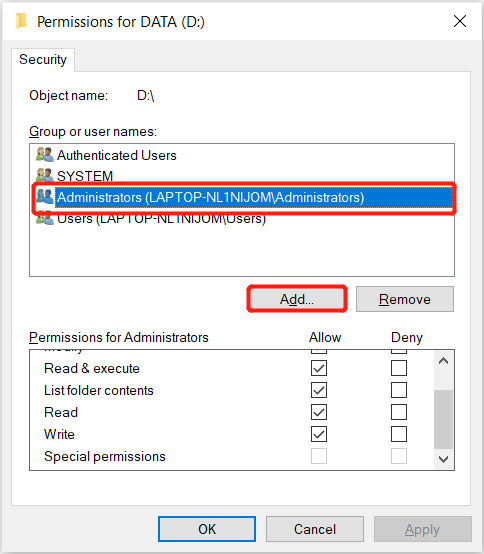
Step 2: Click Properties and go to the セキュリティー tab.
Step 3: Click on Edit and choose your username from the Group or username section.
Step 4: Click Add and OK to finish the keep the change.
Solution 2: Scan External Hard Drive for Error
Windows users can check the drive for errors and fix them manually by going through the hard drive properties.
Step 1: Connect the drive to your computer and go to This PC.
Step 2: Right-click the external hard drive and choose Properties.
Step 3: Go to the Tools tab and click on Check.
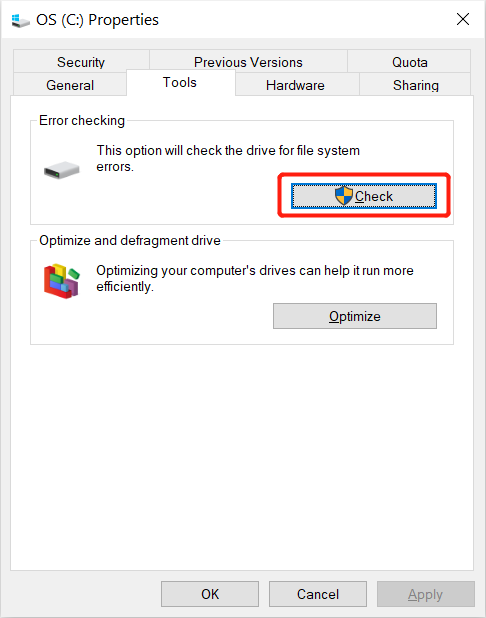
Please wait patiently for the scan to complete and follow the instruction given if there is an error found after the check.
Solution 3: Drive Letter
Besides scanning for errors, you can change the drive letter of the drive to access it on your computer.
Step 1: Right-click This PC and choose Manage.
Step 2: Choose Disk Management and right-click the external hard drive from the list.
Step 3: Click Change Drive Letter and Path option and click Change to assign a new drive letter for the drive.
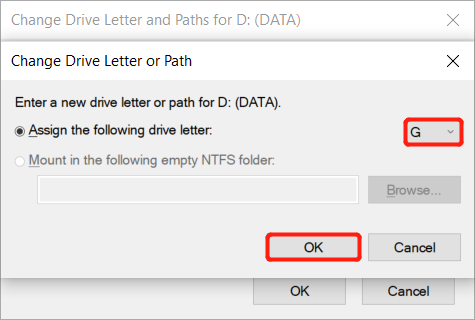
Step 4: Mark the drive as active and exit the Disk management to check whether or not the error is solved.
Solution 4: Format and Reset External Hard Drive
Suppose that all the solutions above cannot solve the external hard drive access denied error, then you will need to format and reset the drive to fix the error.
Step 1: Connect the drive to the PC and open Disk Management again.
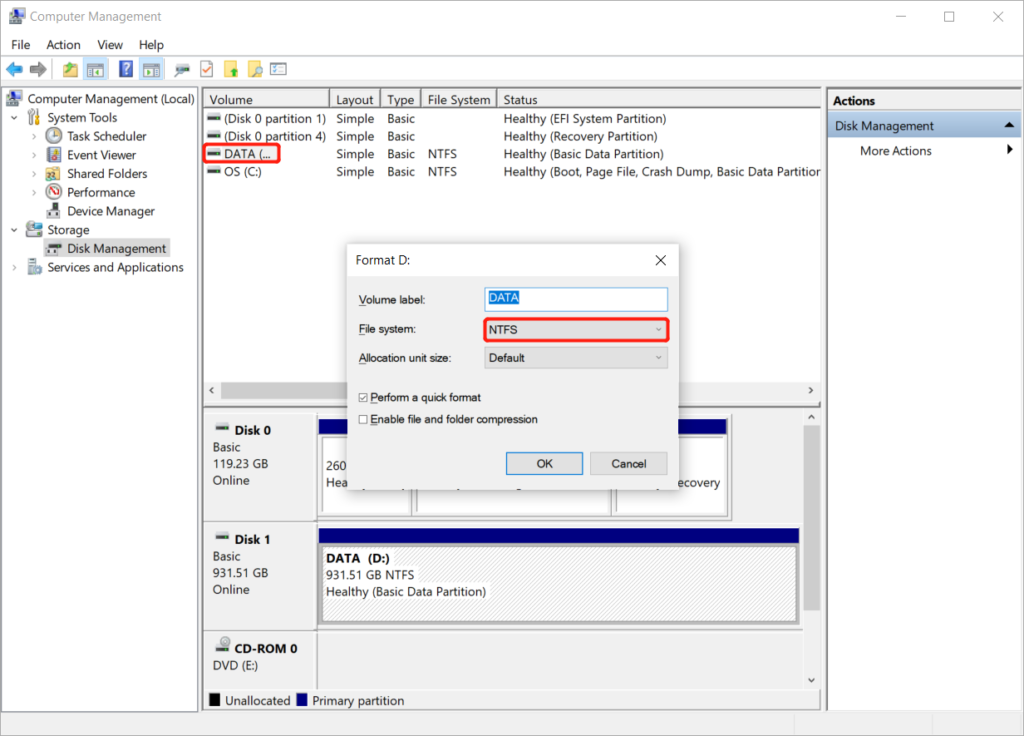
Step 2: Right-click the drive and choose Format volume.
Step 3: Rename and reset the drive to the NTFS オプション。
Bonus Tips: Recover Formatted Data from Inaccessible External Hard Drive
In case you forget to back up your data from the drive, you can still recover the important file back from the external storage device by using ビットウォー データ復元ソフトウェア.
It is one of the best third-party recovery software that can restore 300+ types of file formats from an internal or external storage device such as memory card, SD card, flash drive, external hard drive, and others on both Windows and Mac operating systems.
So follow the steps below to retrieve the lost data from the formatted external hard drive:
Step 1: ダウンロード and Install the data recovery software from Bitwarsoft Download Center.
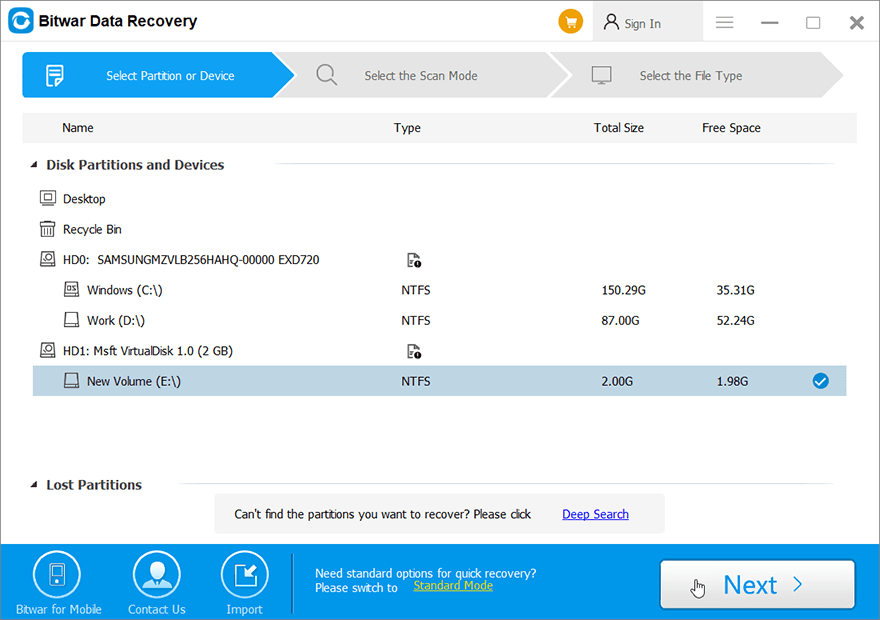
Step 2: Select the formatted external hard drive and click on 次.
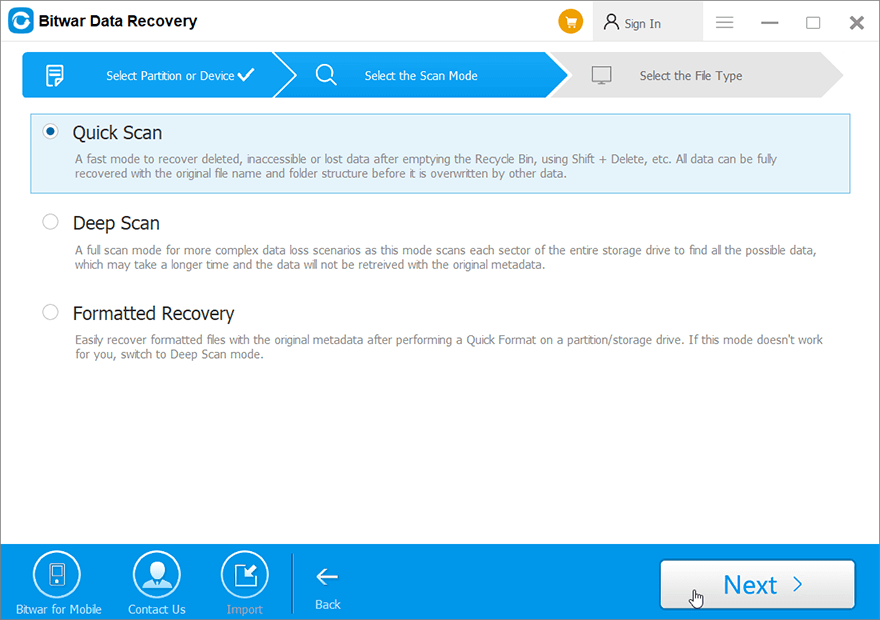
Step 3: Select the Scan Mode and select 次.
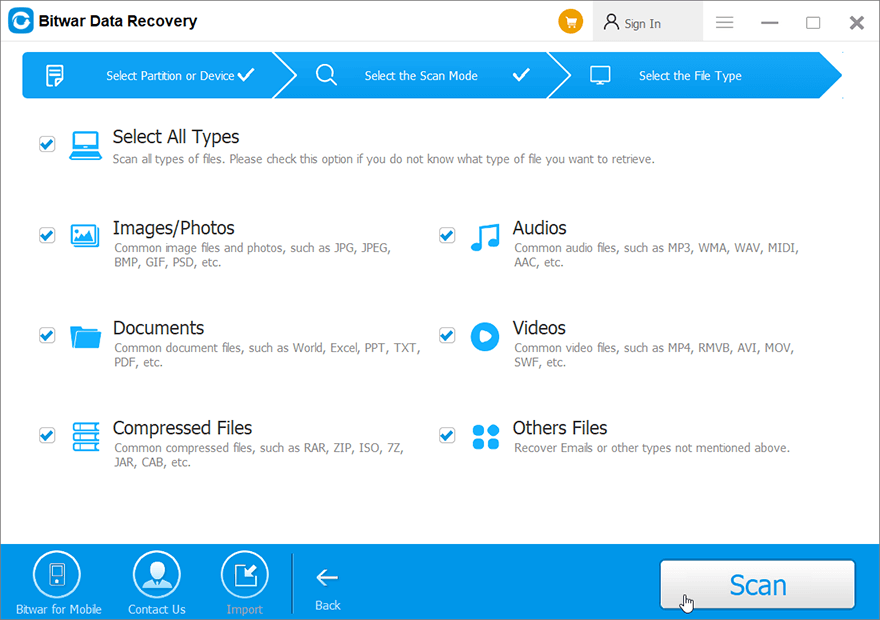
Step 4: Select the file types you need to get back and click 次.
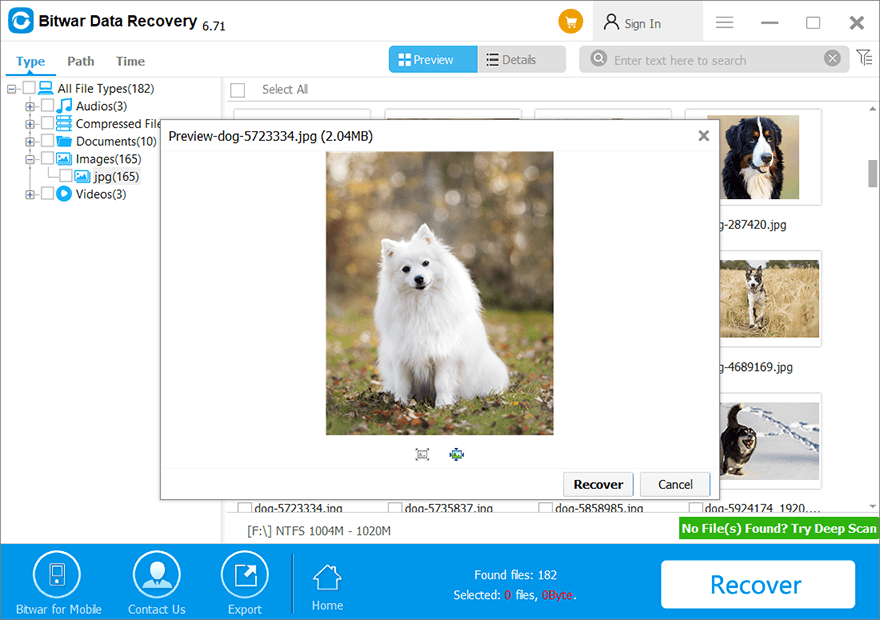
Step 5: Preview the scan results and click the 回復 button to recover the deleted files from the external hard drive.
Learn It Now!
Whenever you cannot access or get the external hard drive access denied error message on Windows, you can refer to the solutions above to overcome it and if there is any data loss after fixing the error, you can use Bitwar データ復旧 ソフトウェア to recover the deleted data from the external hard drive!
前の記事
5 Useful Solutions To Fix 0x00000109 Error Summary: The article below will show the best solutions to fix external hard drive access denied error on Windows and...次の記事
How to Fix the 0xA0000001 Issue Summary: The article below will show the best solutions to fix external hard drive access denied error on Windows and...
Bitwar データ復旧について
3 つのステップで、さまざまなデータ損失シナリオから削除、フォーマット、紛失した 500 種類以上のドキュメント、写真、ビデオ、オーディオ、アーカイブ ファイルを取り戻します。
詳細はこちら



