Tune the Software
Last Updated: 2020-10-09
Zusammenfassung: This article will tell you the preference settings Bitwar-Textscanner offers and how to configure it.
At the upper-right corner of the main interface, there lies a More icon, which has several options. Preference is what we refer to for configuration.
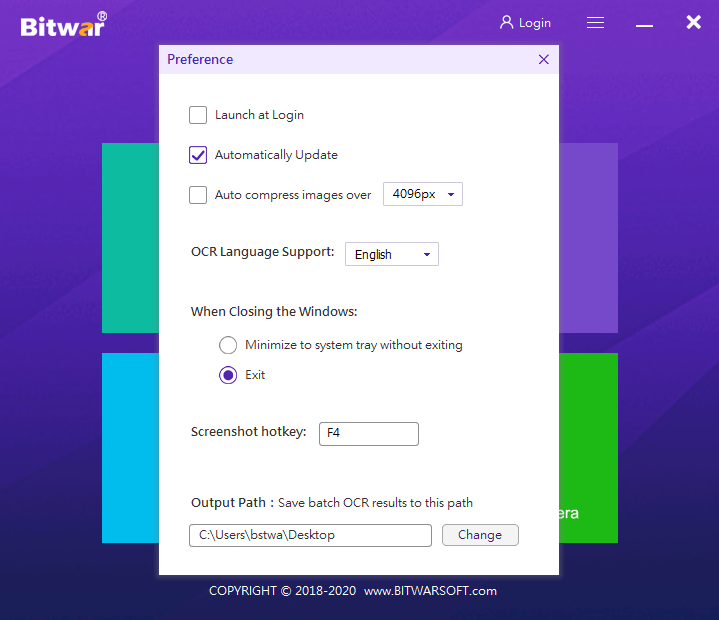
- Auto compress images over
Check off this option to activate it whenever the image size is over the selected size and shorten the OCR time.
- OCR Language Support
This tool supports several languages for files to be scanned. Change it according to the language of your files.
- Screenshot Hotkey
if you want to use the Screenshot OCR method, setting a hotkey will be convenient for you.
Interested in knowing how to purchase, activate and update the program? Check out the link below:





