Lock and Unlock PDF
Zusammenfassung: The user guide below will allow users to learn the tutorial to lock and unlock PDF files by using the Lock/Unlock PDF tool in Bitwar PDF-Konverter.
Inhaltsverzeichnis
Lock/Unlock PDF
The Lock/Unlock PDF tool in Bitwar PDF Converter is very efficient and reliable where users can lock PDF files or unlock PDF files too. The user guide below will be split into two parts.
Lock PDF
Steps to Lock PDF
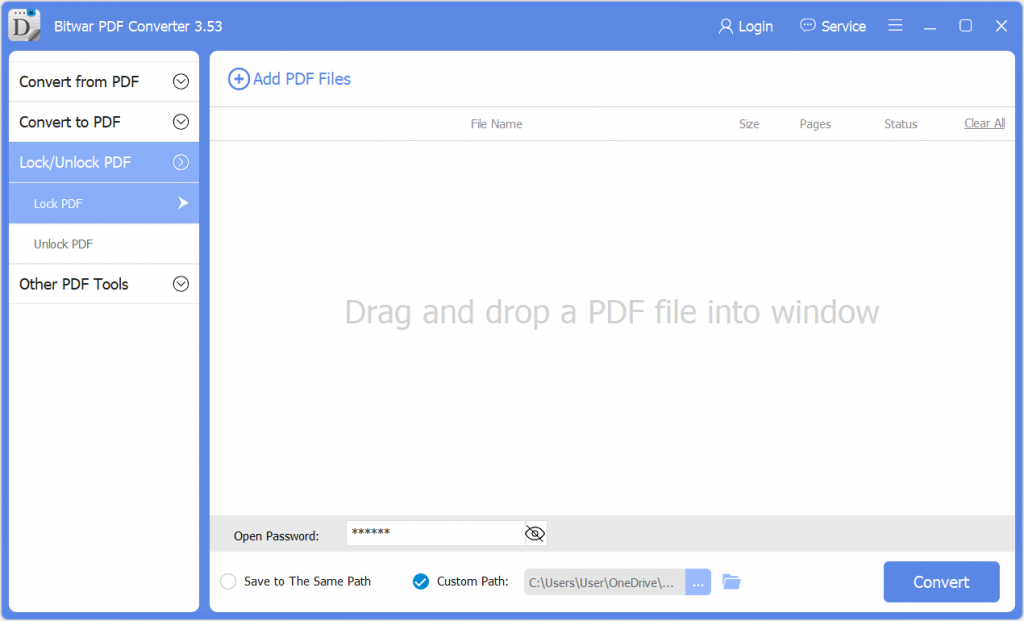
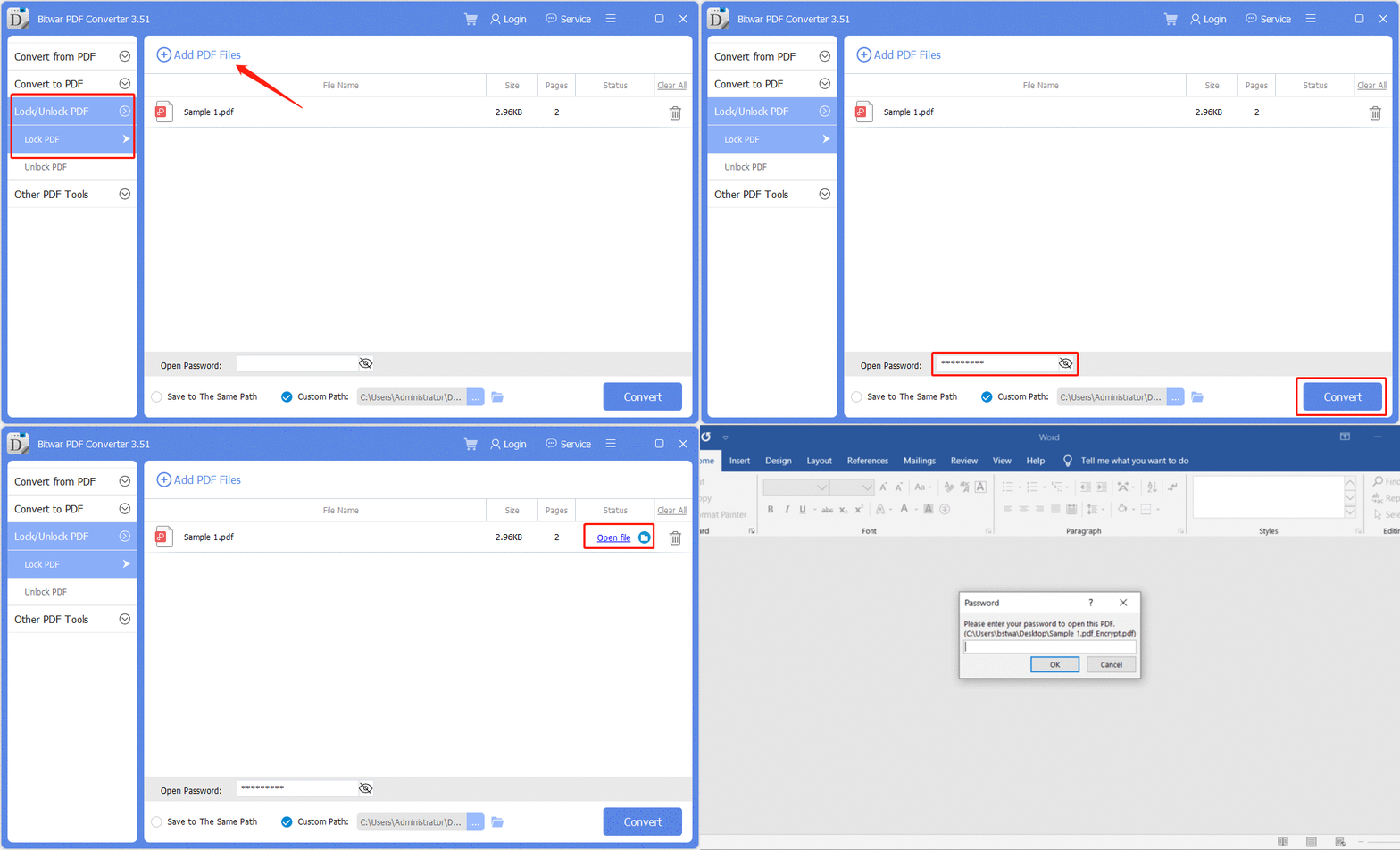
Select Lock PDF from Lock/Unlock PDF menu. Ziehen oder klicken Sie auf Add PDF Files to add the PDF file into the software. Type in the Password for the PDF file in the Open Password section and click Konvertieren to start the PDF lock. Click Open file when it is complete. Vorschau the new locked PDF file and key in the password to open the content of the PDF file.
Steps to Batch Lock PDF files
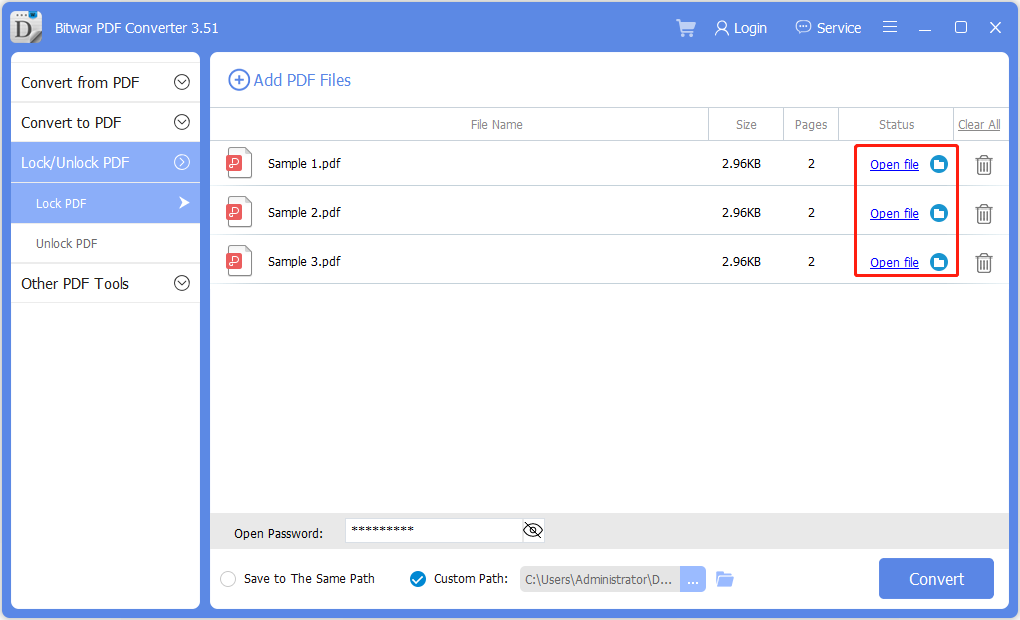
Select the Lock PDF from the Lock/Unlock PDF menu again and add all the PDF files into the software. Then, set the Password for all the PDF files and click Konvertieren to batch add the password to all the PDF files. When the process is complete, click Open file to Vorschau all the new Lock PDF Files.
Unlock PDF
Steps to Unlock PDF File
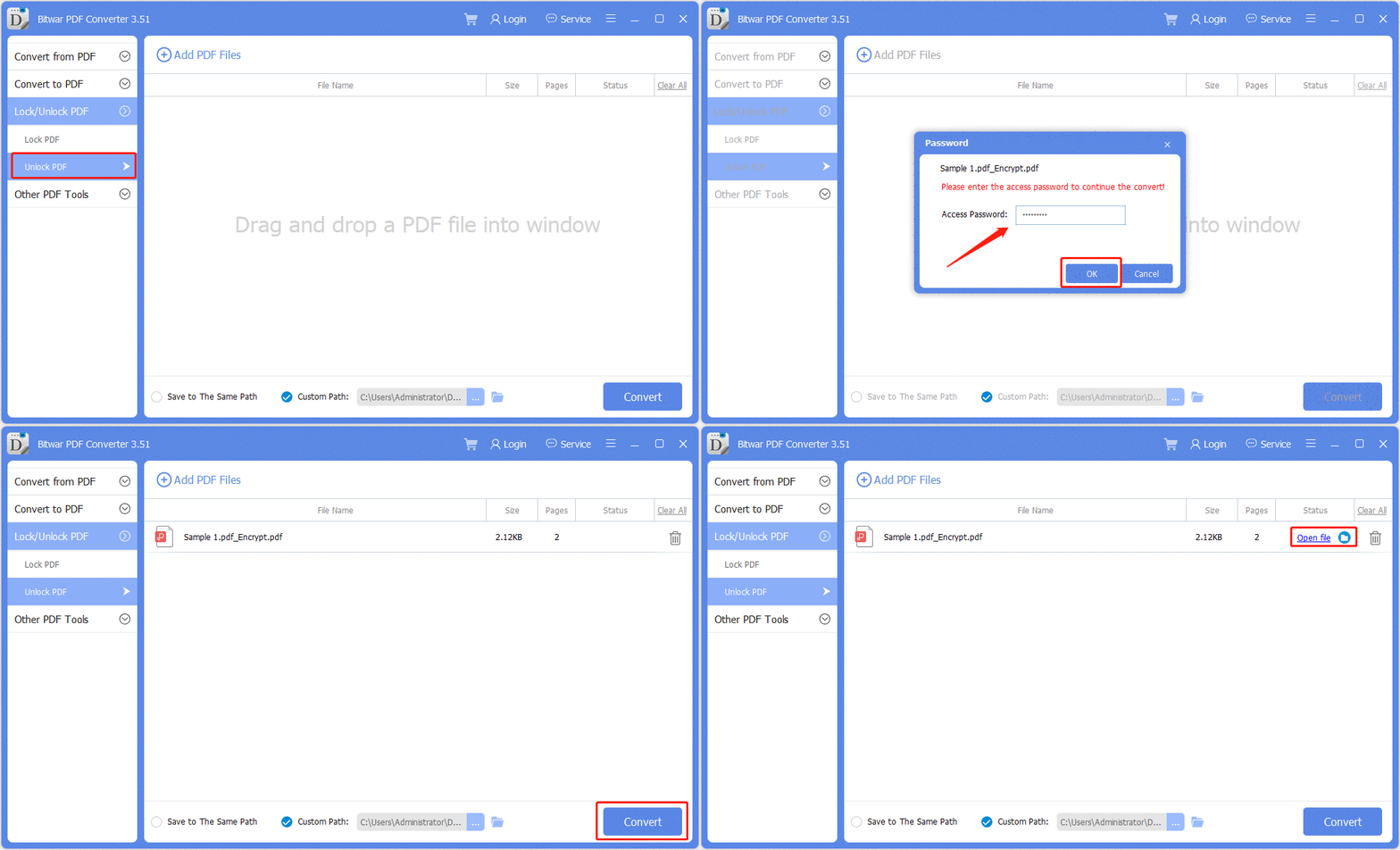
Wählen Unlock PDF from the Lock/Unlock PDF menu. Ziehen oder klicken Sie auf Add PDF Files to add the lock PDF file into the software. Then, key in the access password and click Ok. Hit Convert and choose Open file to preview the PDF file from the directory folder when the conversion is complete.
Steps to Batch Unlock PDF Files
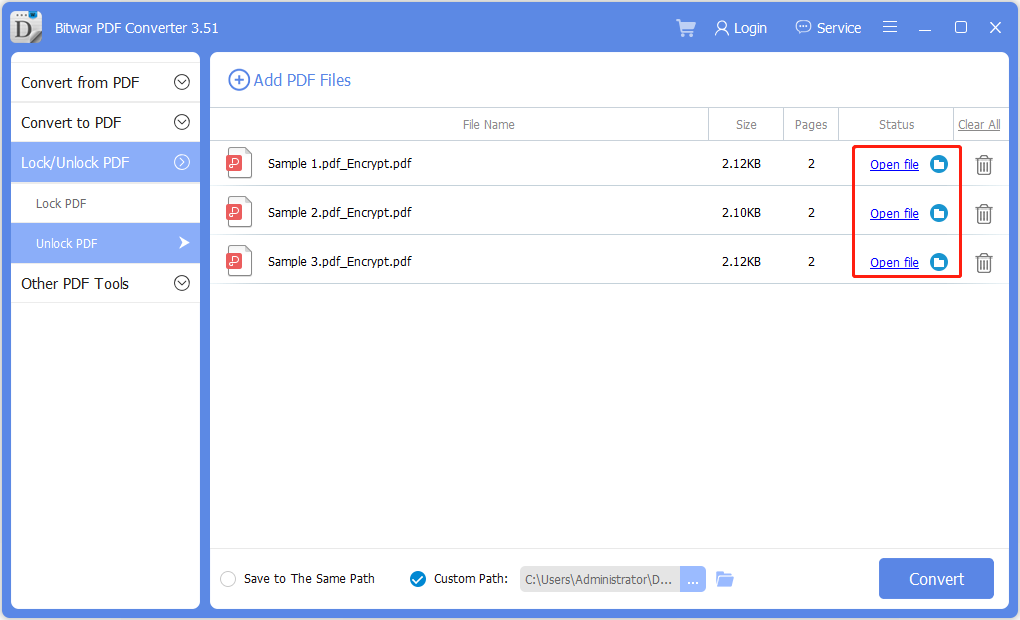
Choose the Lock PDF from the Lock/Unlock PDF menu and add all the PDF files into the software. Then, enter the Password for all the lock PDF files and click Konvertieren to batch unlock the PDF files. When the process is complete, click Open file to Vorschau all the new Unlock PDF Files.
For the Next Tutorial on Other PDF Tools, please click on the link below!





