How to Use Video Converter
Zusammenfassung: The user guide below will allow users to learn the tutorial on converting Video to other different formats by using the video converter tool in Bitwar-Videokonverter.
Inhaltsverzeichnis
Convert Video Format
Bitwar Video Converter allows users to convert video files to multiple types of formats, including protected formats: QSV, QLV, KUX to MP4, AVI, MKV, FLV, WMV, MOV, GIF, MP3, M4A.
Steps to Convert Video
Note: Videos can be converted to many types of video formats, and since the conversion steps are the same for other video formats, simply follow the below steps to convert your videos with ease.
1. Download Bitwar-Videokonverter and install it on your Windows computer.
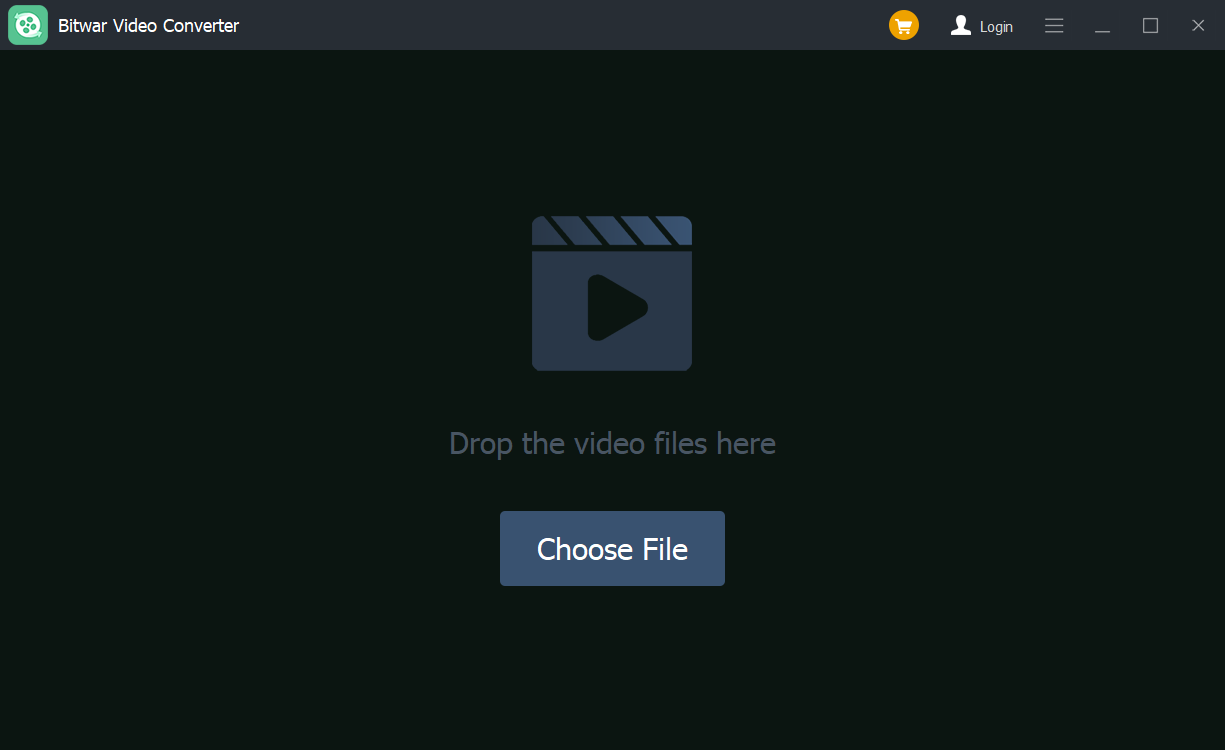
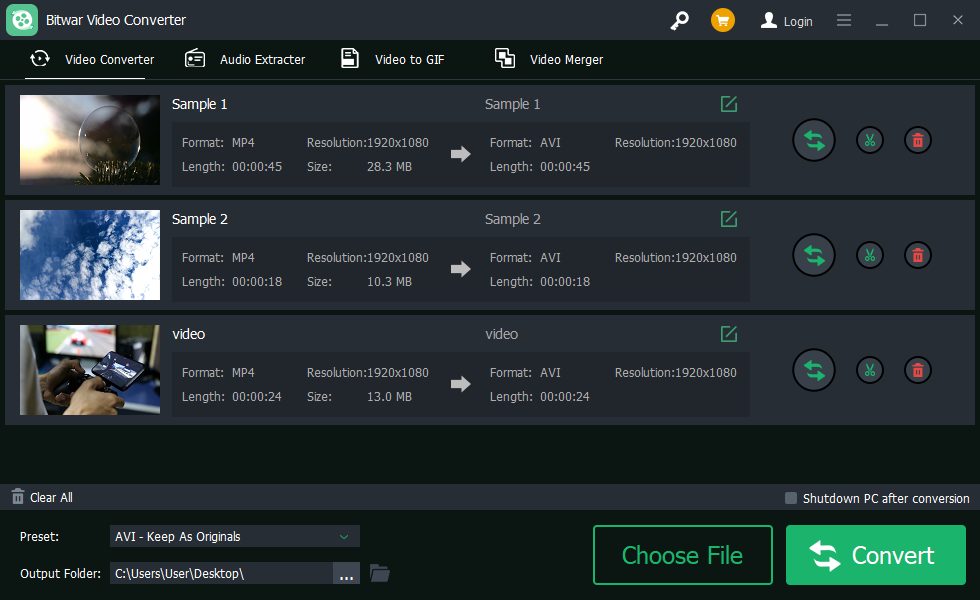
2. Drag the video file to the software, or click the Choose File button.
3. Wählen Sie die aus output format from Preset menu.
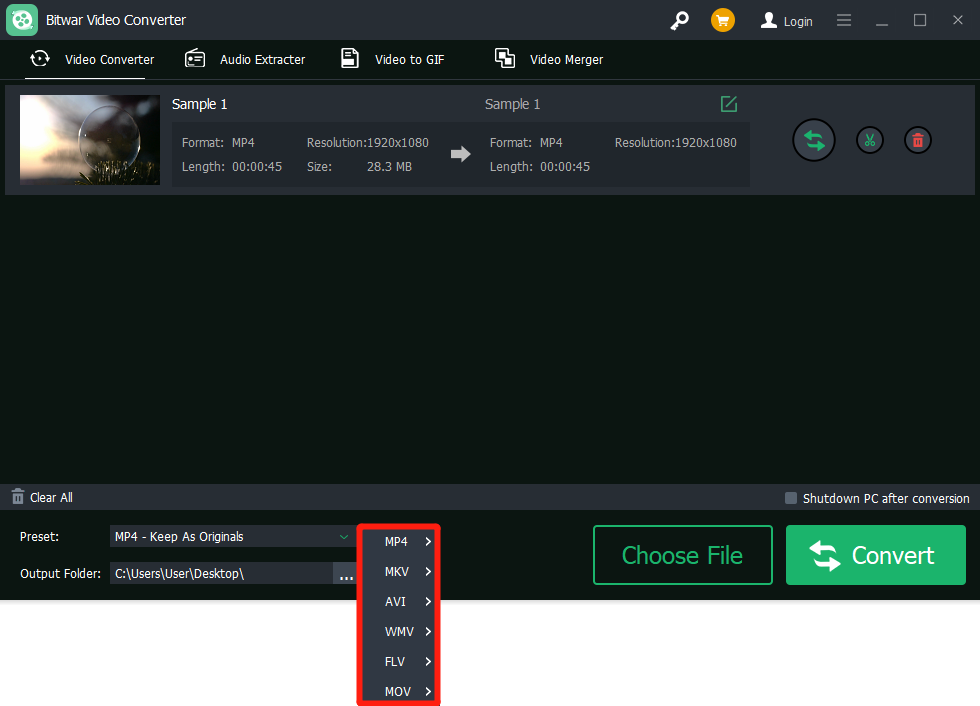
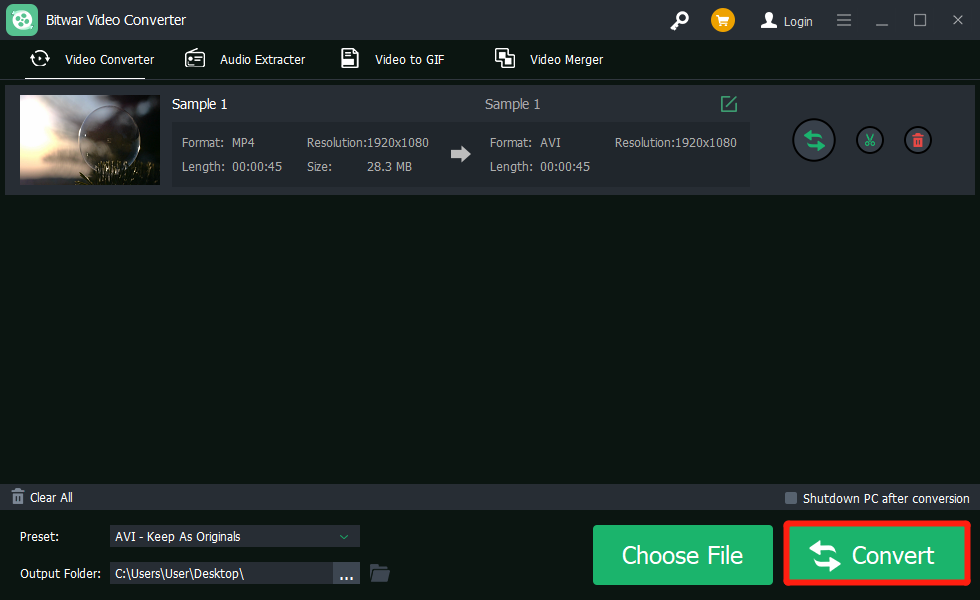
4. Click the Konvertieren button.
5. After the conversion is complete, click the video icon.
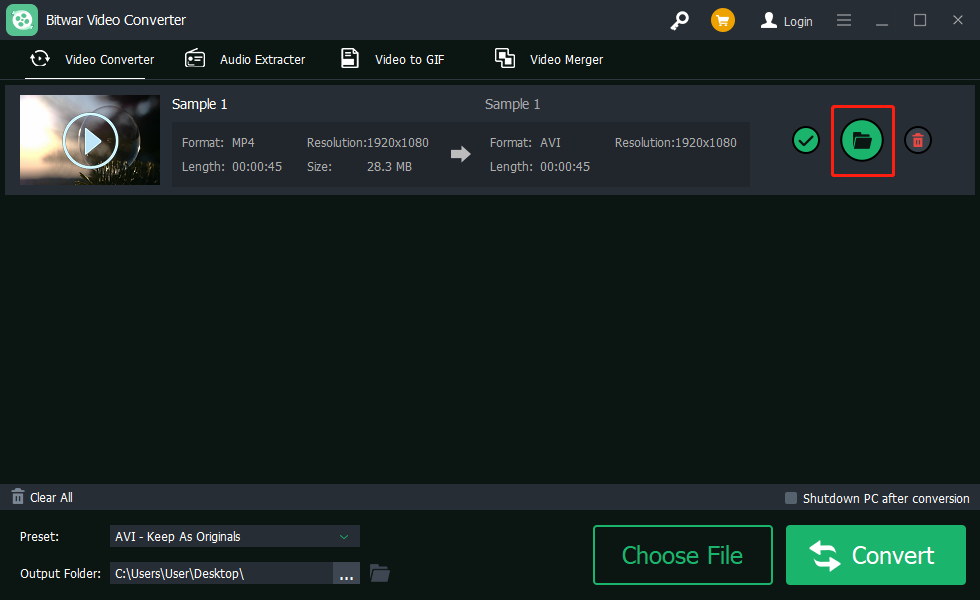
6. Vorschau the new video file.

Steps to Batch Convert Video
As with the beginning, start the software and drag all the videos into the software. Then, select your video format and click the Konvertieren button.
Check out the link below to learn how to purchase, activate and update the program!




