How to Disable System Integrity Protection (SIP) on All Mac Computers
ملخص: Since macOS High Sierra (macOS 10.13), the system partition may not be accessed by any other third-party software, those who want to use Bitwar Data Recovery for Mac to scan the system partition should at first disable the SIP. For users who don’t know how to do so, this article will delineate the steps you need to take.
جدول المحتويات
1. Disable System Integrity Protection for Non-M1 Mac
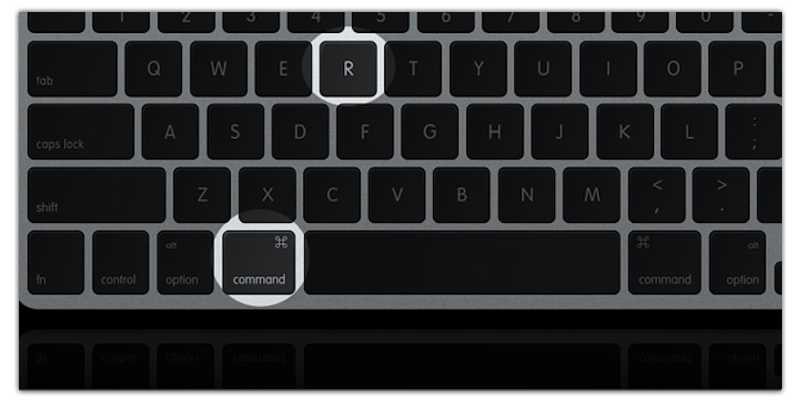
Step 1: Reboot the Mac device into Recovery Mode by pressing Command + R at the same time. Release the key until you see the screen below.
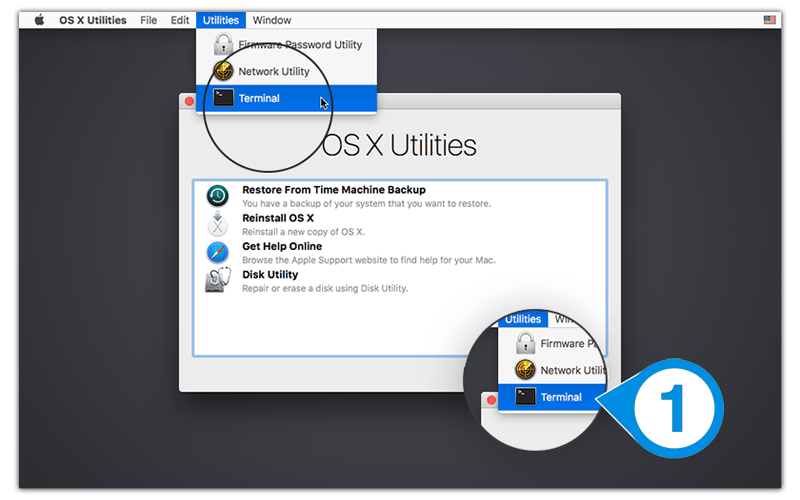
Step 2: Move to Utilities and Run the طرفية App.
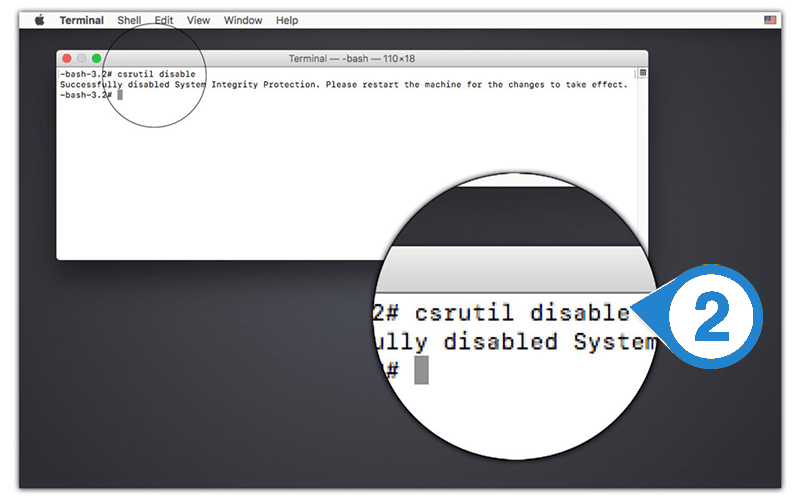
Step 3: Now, type the csrutil disable in Terminal Window, and then press Return to disable the SIP.
Step 4: After entering the command, click on the Apple Icon and Choose to Restart Mac Device.
2. Disable System Integrity Protection for M1 Mac
Step 1: Reboot the Mac device into Recovery Mode by pressing the Power button until you see the Options Screen shows up. Hit on the Continue Button.
 Repeat Step 2 and Step 3 from the first method.
You can now re-launch BitWar استرداد البيانات for Mac and select the System Partition to be continued with the data recovery.
3. Way to Enable System Integrity Protection
Once the recovery is complete, please remember to enter the Recovery Mode لتمكين SIP مرة أخرى.
لتمكينه، يرجى الكتابة تمكين csrutil في طرفية نافذة وأعد تشغيل جهاز كمبيوتر Mac الخاص بك. ملاحظة: إذا طلب منك M1 Mac تأكيد كلمة مرور المسؤول وإدخالها، فما عليك سوى اتباع الخطوات والانتهاء من تمكين SIP.





