Multiple Segment Trims on Same Video
Özet: If you have video watermarks displayed in different locations at the same video, and you want to remove these annoying watermarks, this article will serve you well as it describes in details on how to use the Segment Trim feature to make video watermark removal happen.
İçindekiler
Video filigran çıkarıcı

To remove different watermark locations from the same video, we’ll need to use Video Filigran çıkarıcı feature and then add the segment trims on the specific timelines to let the program know where the watermarks are. Below screenshot presents the Segment Trim button that we will use in the following contents.
Segment Trim Interface Button
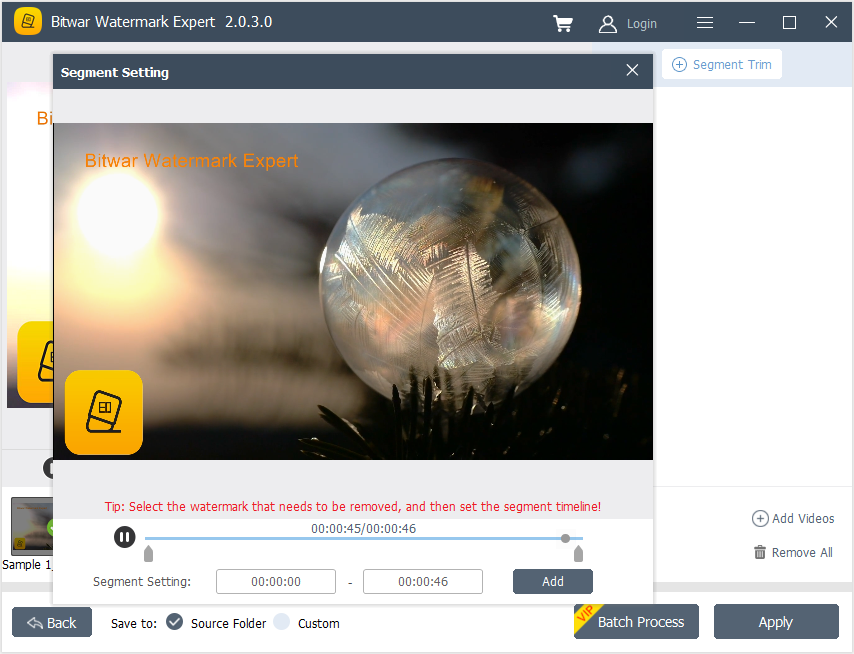
Steps to Remove Different Watermark Locations in Same Video
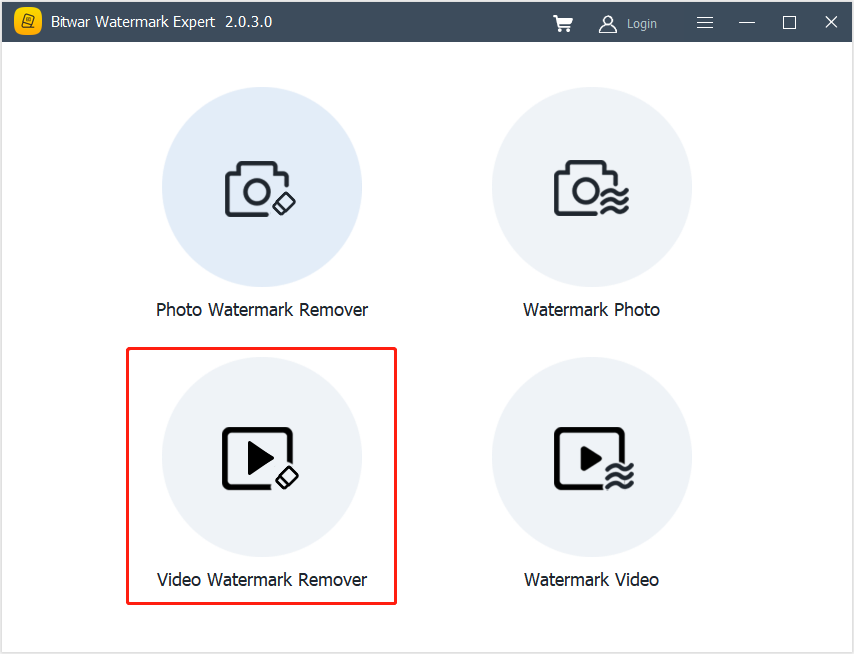
1. Launch Bitwar Filigran Uzmanı and choose Video Watermark Remover from the main interface.
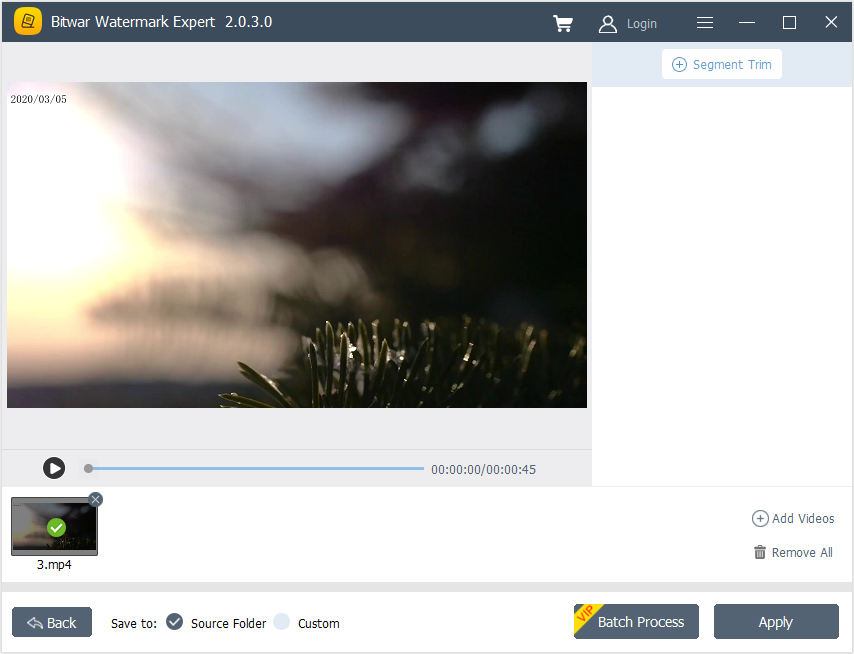
2. Drag or click Add Video option to add video into the software.
3. Select Segment Trim ve Vurgulamak the first watermark. Then, set the Segment Timeline by using the Segment settings and click Add.
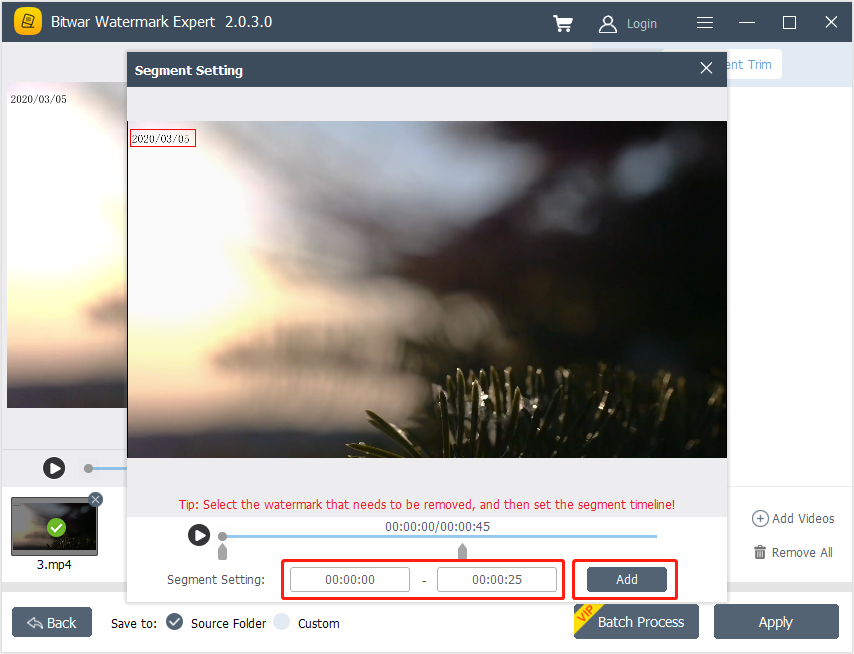
4. Repeat Step 3 again to add the second segment trim for the second watermark.
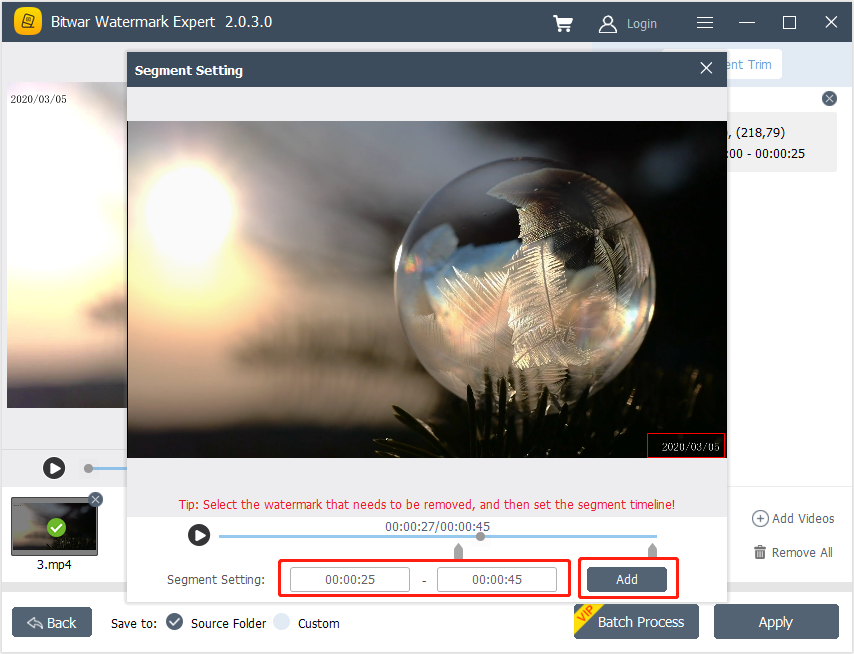
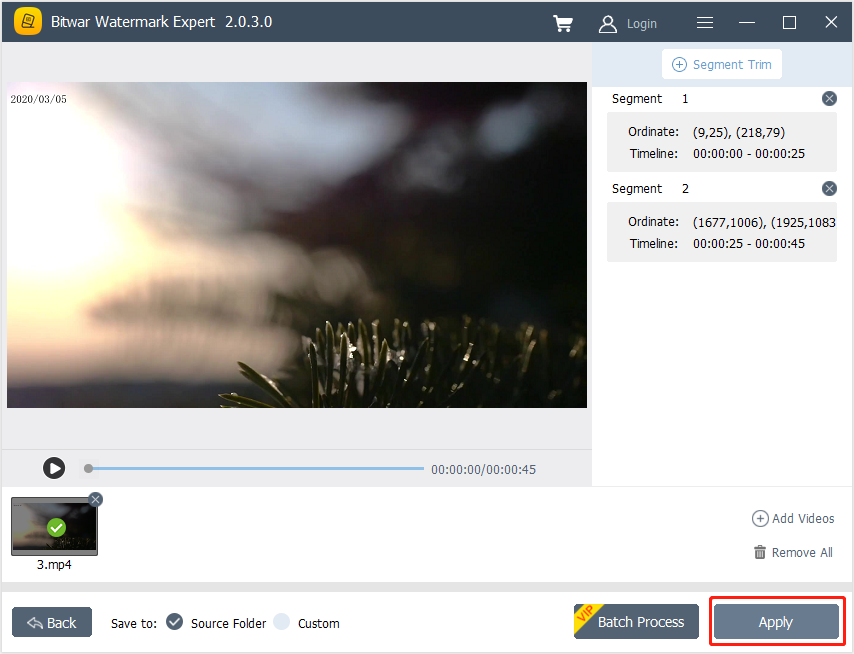
5. After adding all the Segment Trims and click Uygulamak to wait for the process to complete.
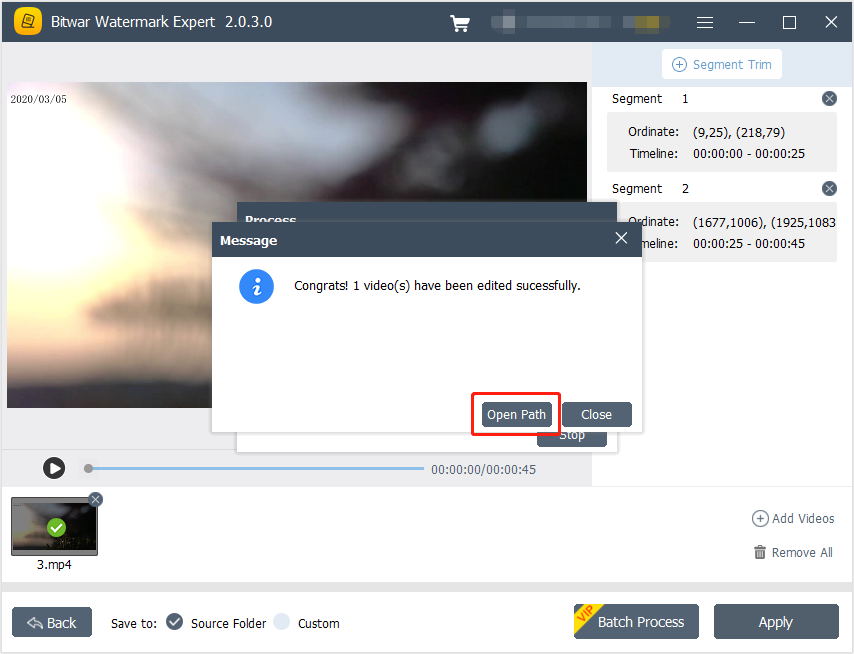
6. When the process is complete, select Açık yol to view the video in the file directory folder.
7. Let’s start to Önizleme the new video without the watermark!

For the Next Tutorial on Watermark Photo, please click on the link below!




