How To Save Notepad File As HTML On Windows 10
Cuprins
Notepad and HTML
Most web pages are written in HTML. But when we learn HTML, using a simple text editor(such as Notepad) is a great way to learn HTML. So it is necessary to learn to convert notepad files to HTML.
Steps To Save Notepad File as HTML Format
Step 1: Open the text file you want to save as an HTML file in the Notepad app.
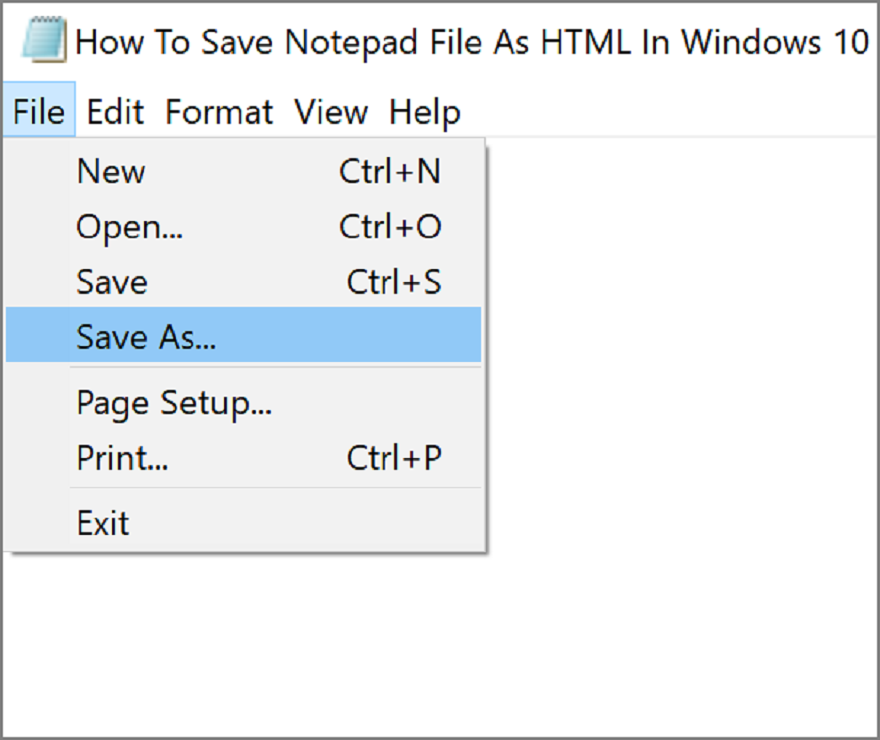
Step 2: Once the file is open in Notepad, click on the File menu, and then click the Save As option (or press Ctrl + Shift + S shortcut) to open the Save As dialog.
Step 3: Type in the name of your file and add .html at the end of the name.
Step 4: Click on the drop-down menu adjacent to the Save as type and select All Files.
Step 5: Click on the Salvați buton.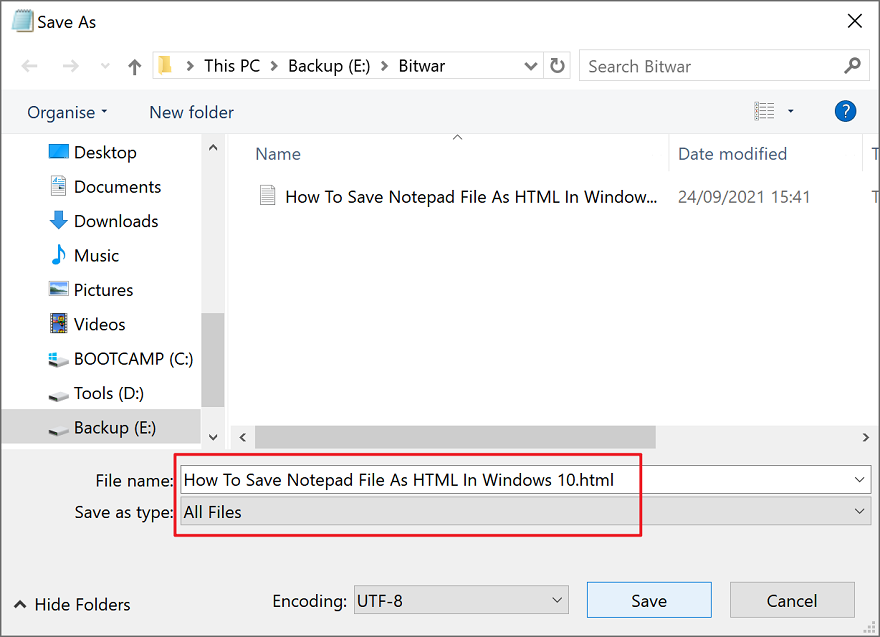
Once finish the above steps, the new file in HTML will appear in the same folder by default.
Last Word
See, it is easy. Hope this article will help you! And stay tuned for the next article.
Articolul anterior
What Is Ethernet Summary: Before, we have shown you how to save a notepad file as a PDF file. Then today, we will...Articolul următor
[FULL FIXED] Your Startup disk Is Almost Full On Mac Issue Summary: Before, we have shown you how to save a notepad file as a PDF file. Then today, we will...
Despre recuperarea datelor Bitwar
3 Steps to get back 500+ kinds of deleted, formatted or lost documents, photos, videos, audios, archive files from various data loss scenarios.
Learn More