[SOLVED] Error ox80070780 / File Cannot Be Accessed By System
Περίληψη: The text below will show different situations and solutions to fix the error ox80070780 or the file cannot be accessed by the system. Besides, learn how to recover lost data from your drive by using Λογισμικό ανάκτησης δεδομένων Bitwar!
Πίνακας περιεχομένων
File System: Error 0x80070780 or The File Cannot Be Accessed
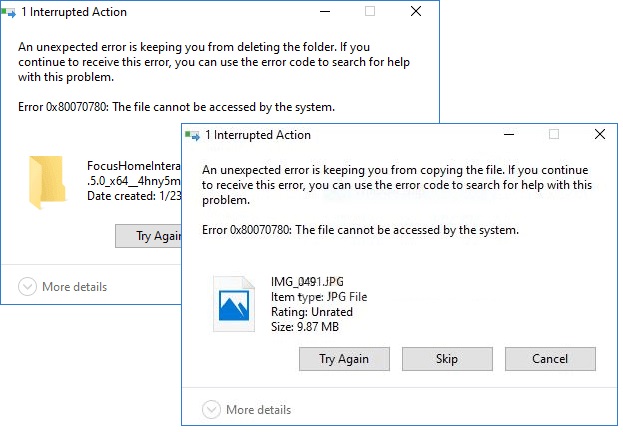
The file cannot be accessed by the system error or also known as Error 0x80070780 is an error faced by many users on the Windows operating system when accessing, copying, deleting or editing specific files.
Besides, if you are trying to access something on a computer via an external drive or USB or anything, the file cannot be accessed by the system error and the message: Error 0x80070780 will automatically pop up the moment you click on that file which prevents you from accessing it.
Related Article: [FIXED] User Access Denied When Copying Files On Windows 10
Factors for Error Message
This error occurs on Windows 7, 8, and even on Windows 10 because of many reasons such as:
- Permission issues.
- File system corruption.
- Missing files.
- Hard disk errors.
- Corrupted and unreadable bad sectors or file directory.
- Malware infection.
Practical Solutions to Fix Error 0x80070780 or The File Cannot Be Accessed by the System
First, there are four common situations when you come across the error ox80070780, so there are different unique solutions to resolve the issue for each situation. We will issue the four different situations and effective solutions to fix them step by step.
Quick Fix: Login As Administrator
Βήμα 1: Click on the των windows icon and click on your username on the top of the screen.
Βήμα 2: After that, a list of user account will appear on the screen. You need to find out if you are signing in as an Administrator. If you are not, then you need to log in to your Windows as an Administrator.
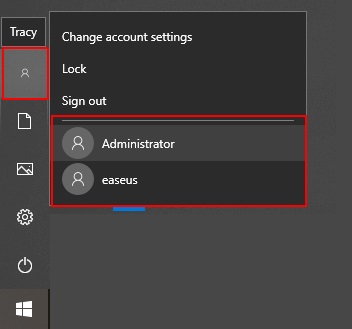
Βήμα 3: Lastly, sign in to the account using the account password.
After you had signed in successfully, you should access all the files on your computer if the files are still not accessible. Then you will have to fix the problem using the solutions below.
Situation 1: Accessing Files
If you got the error 0x80070780 while accessing files on your computer or external drive, you could use the following methods to fix it.
Method 1: Disk Cleanup
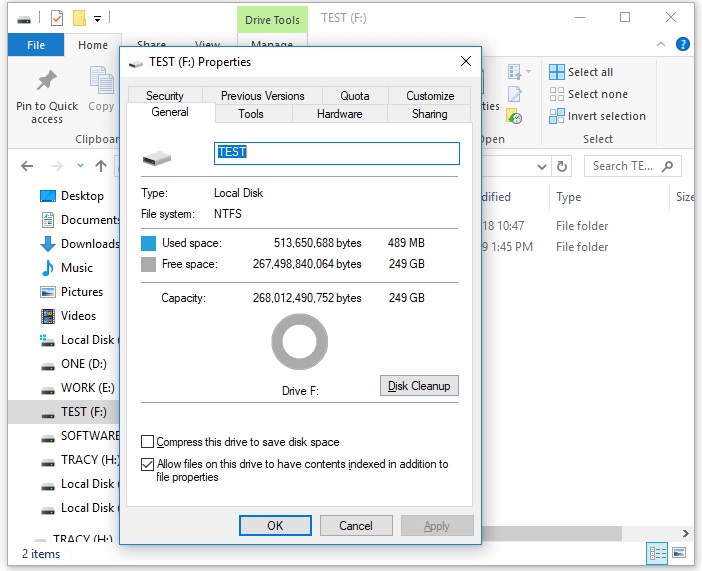
Βήμα 1: Κάντε κλικ στο This PC και right-click on the hard drive.
Βήμα 2: Select Properties from the drop menu.
Βήμα 3: Choose the Disk Cleanup under the General option.
Βήμα 4: Select the file types you want to go to and click, OK.
Method 2: Format Drive
Format drive will erase all your files, and it will fix the disk errors along with the existing files so make sure you have a backup on your data first before you format the drive.
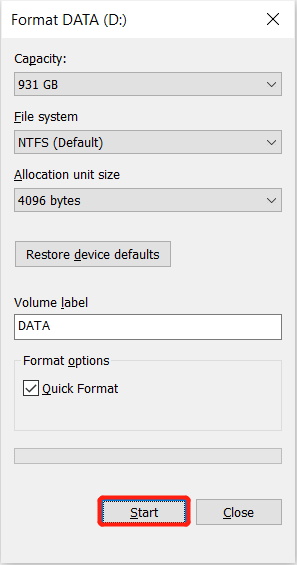
Βήμα 1: Open This PC και right-click on the hard drive partition.
Βήμα 2: Select the Format option from the drop menu.
Βήμα 3: Choose the files system compatible with Windows to a USB drive and click Start.
Βήμα 4: A warning window will appear and click OK.
These are the procedures you can use to fix error 0x80070780 if you ever come across it while accessing a file.
Data Recovery: Windows Data Recovery Tool
In case you forget to back up your essential data after disk clean up or formatting drive and it loses your data, don’t panic as we will show you how to recover your data back by using a data recovery tool for Windows.
We offer you to use Ανάκτηση δεδομένων Bitwar, a powerful and efficient recovery tool to restore any data types from your formatted drive.
Βήμα 1: Go to Bitwarsoft Download Center to download και install the software on your computer.
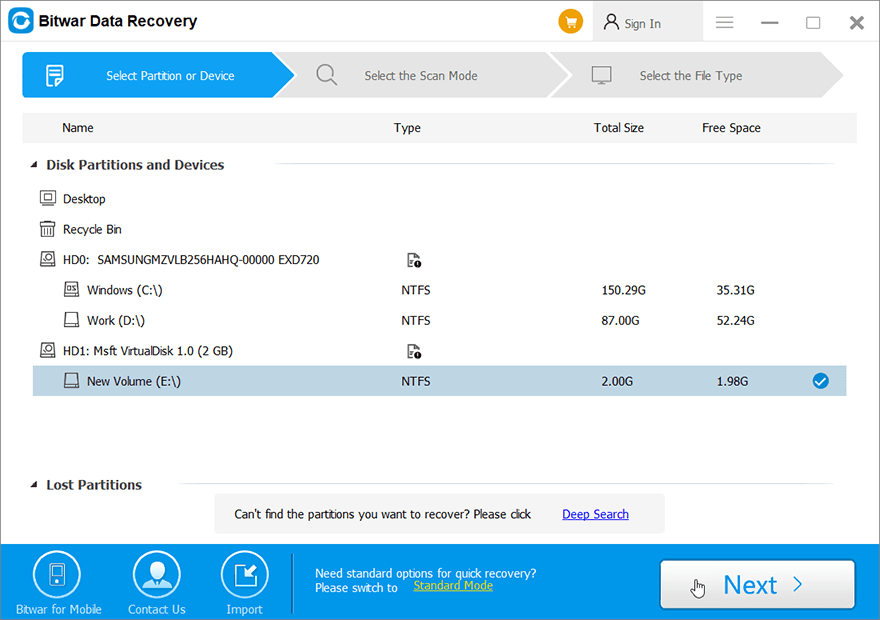
Βήμα 2: Choose the drive from the list of partitions and click next.
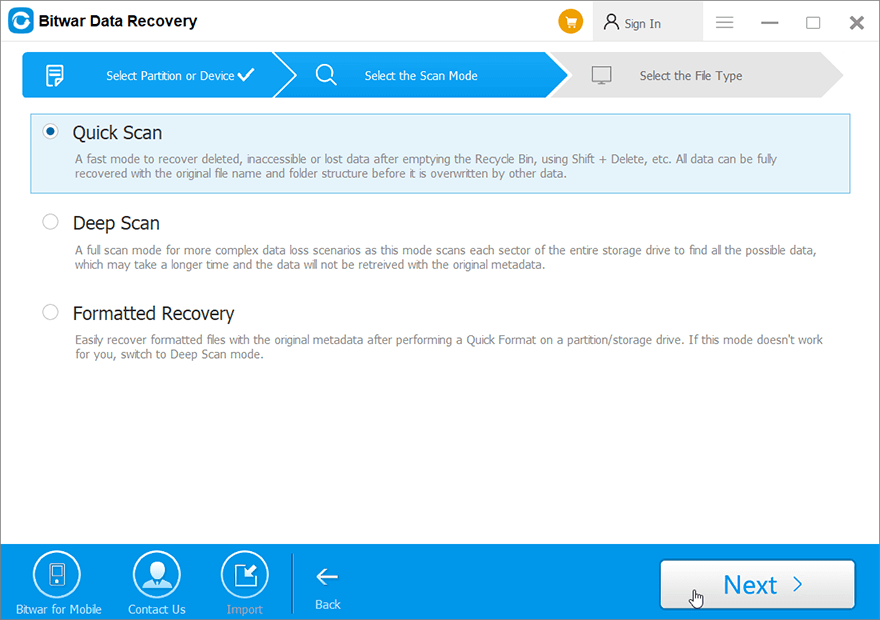
Βήμα 3: Select the preferred scan mode and click next.
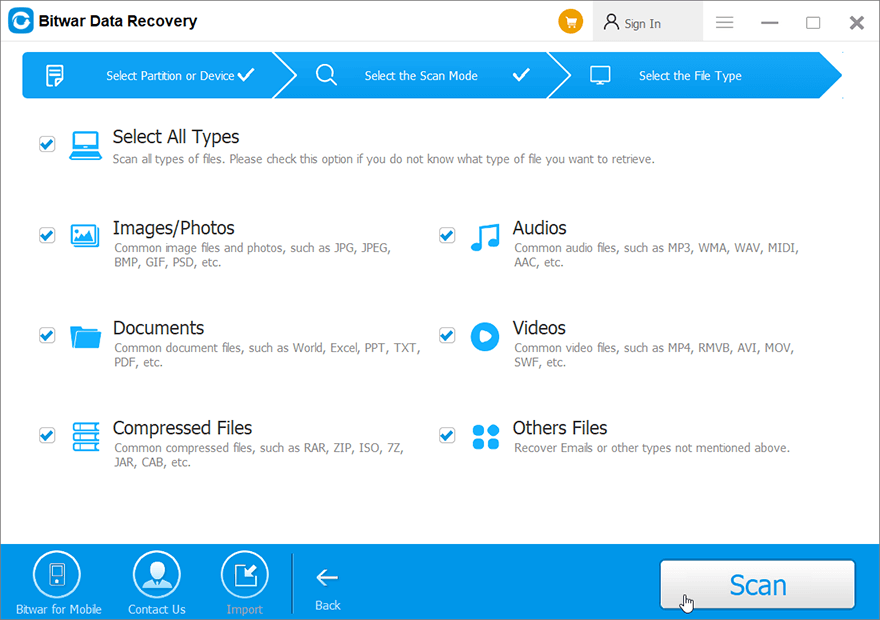
Βήμα 4: Choose the file types you want to recover and click next again.
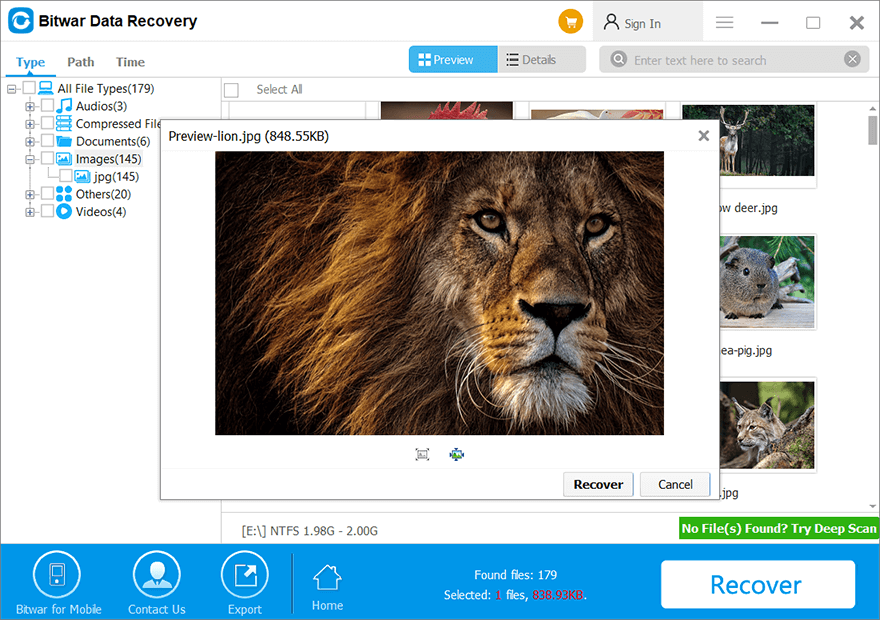
Βήμα 5: When the scan is complete, preview the files and select the desired files. Finally, click on the Recover button to start the recovery.
Situation 2: Copying Files
If you are being told that you cannot access the file by the system while copying files, you can refer to the methods below to fix it.
Solution 1: Robocopy to Copy Files
Βήμα 1: Πατήστε των windows + S and type cmd in the Search menu.
Βήμα 2: Open Command Prompt and choose Run As Administrator.
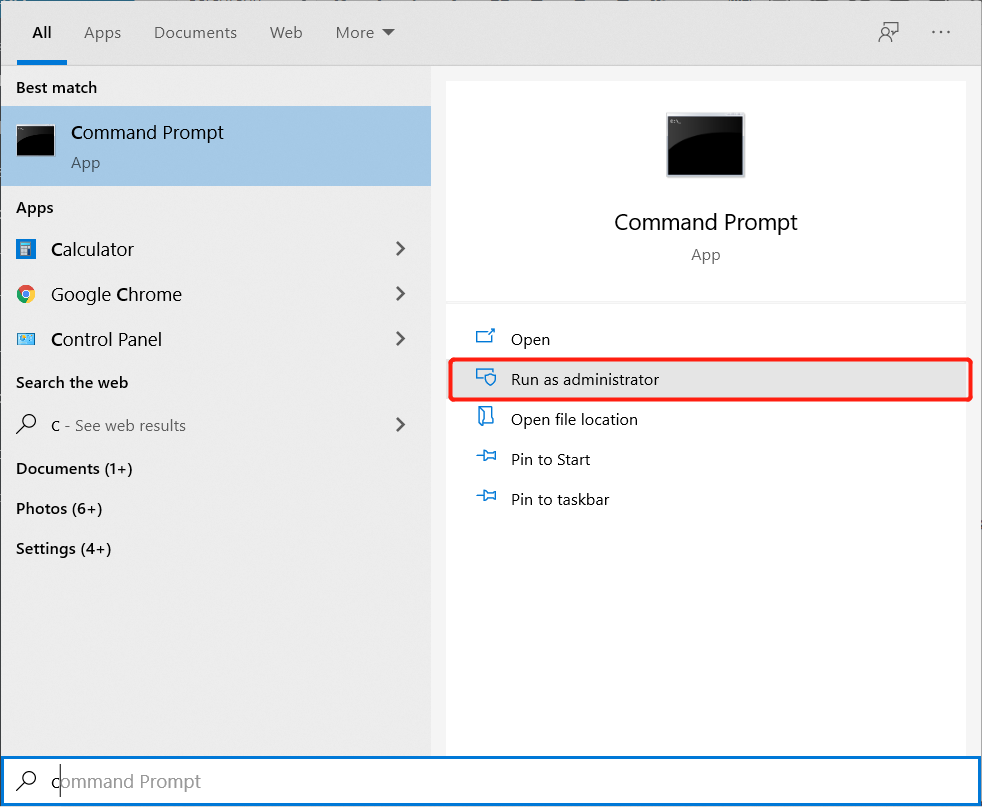
Βήμα 3: Type the following command in the Command Prompt window. After each command, remember to press Enter to execute the command.
C:\Users\admin\Downloads\file name
D:\test
Βήμα 4: After the last command, please wait patiently for the process to complete.
Situation 3: Backing Up System
Some users have come across error 0x80070780 while they were trying to back up their system.
Solution 1: Perform SFC Scan
System file corruption is a widespread issue that requires you to run SFC or System File Checker to restore the corrupted files successfully.
Βήμα 1: Open Command Prompt and choose to Run As Administrator again.
Βήμα 2: In the Command Prompt window, type sfc/scannow and hit Εισαγω.
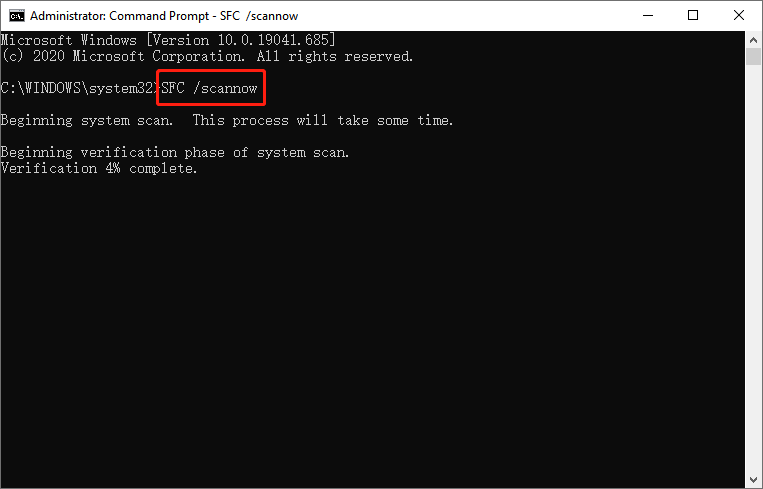
A scanning process will be initiated immediately to check the protected files and replace the corrupted versions with the proper ones.
Take Note: It is possible to get a message on the Command Prompt window saying that the computer cannot fix the errors found.
If that happens, enter the command: chkdsk E: /f/r/x (Replace E: with your drive letter) and hit Εισαγω to execute.
Situation 4: System Restore
It is also possible that you will face the error 0x80070780 or the file cannot be accessed by the system message while performing a system restore. If that happens, refer to the guided steps below to fix it.
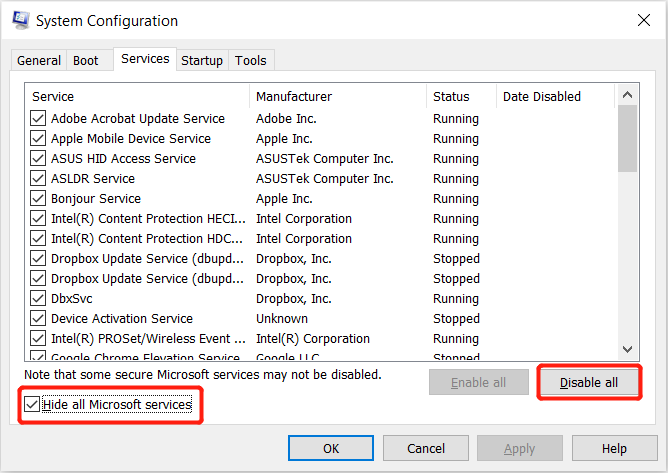
Βήμα 1: In the Windows search box, type in msconfig.
Βήμα 2: A menu will appear and select Run As Administrator.
Βήμα 3: Στο Services panel, check the Hide All Microsoft Services checkbox. After that, click on the Disable All option.
Βήμα 4: Then, go to the search box again and type Task Manager.
Βήμα 5: Στο Task Manager window, click more details and click on the Startup tab. Select and disable all items.
Βήμα 6: Back to Startup and click OK.
Lastly, you need to restart your PC, and the error message will disappear after your computer has restarted.
Resolve the Error!
In the end, you don’t have to worry if you are facing the error ox80070780 or the file cannot be accessed by the system on your Windows, as we had shown you all the effective solutions to fix. Besides, please remember to back up your data first with Bitwar Λογισμικό ανάκτησης δεδομένων before you perform disk cleanup or format drive to prevent any data loss throughout the process.
Προηγούμενο άρθρο
[FIXED] Microsoft Management Console Has Stopped Working Issue Summary: The text below will show different situations and solutions to fix the error ox80070780 or the file cannot be...Επόμενο άρθρο
4 Effective Solutions to Fix Hard Drive Only Shows Half Capacity Issue Summary: The text below will show different situations and solutions to fix the error ox80070780 or the file cannot be...
Για την ανάκτηση δεδομένων Bitwar
3 βήματα για να επιστρέψετε 500+ είδη διαγραμμένων, μορφοποιημένων ή χαμένων εγγράφων, φωτογραφιών, βίντεο, ακουστικών, αρχείων αρχείων από διάφορα σενάρια απώλειας δεδομένων.
Μάθε Περισσότερα