


Summary: Video courses enhance learners’ understanding and retention through intuitive visual and auditory elements. The flexibility of this learning method breaks the time and location constraints of traditional classrooms, making it an essential tool in modern education. Whether it’s software tutorials, computer troubleshooting demonstrations, or programming courses, video courses facilitate knowledge sharing effectively. Bitwar Screen Recorder is a powerful video recording tool for Windows computers, making it a must-have for creating educational videos. Users can easily utilize this software to record their video courses and share them seamlessly on platforms like YouTube or Google Classroom.
Table of Contents
Preparation Before Recording Video Courses
Preparing for video course recordings is essential for achieving quality results. Here are some key steps to consider:
- Create a Detailed Outline: Define your course objectives clearly, and develop a comprehensive outline that lists the content and timing for each section to ensure a logical structure.
- Gather Teaching Materials: Collect and organize all necessary teaching materials, including slides, demonstration software, sample code, and other supporting tools.
- Check Technical Equipment: Ensure that your recording devices, such as microphones, cameras, and computers, are functioning properly. Test both audio and video quality prior to recording.
- Select Suitable Recording Software: Choose a screen recording software that fits your needs, and familiarize yourself with its features and settings.
- Set Up the Recording Environment: Choose a quiet, tidy space for recording, ensuring good lighting and an appropriate background.
- Conduct a Test Recording: Perform a trial recording to assess the overall quality, including audio, video, and content delivery smoothness.
By following these steps, you can enhance the effectiveness of your recording process and improve the overall quality of your video courses.
Understanding Bitwar Screen Recorder
Bitwar Screen Recorder is a powerful tool designed for capturing high-quality screen recordings on Windows computers. This software is particularly useful for educators, content creators, and professionals who need to produce instructional videos, tutorials, or presentations.
- User-Friendly Interface: The clean and intuitive design allows users to get started effortlessly.
- High-Quality Recording: Supports HD recording, ensuring that video content is clear and detailed, making it suitable for professional use.
- Multiple Recording Options: Offers a variety of choices, including Full-screen, Areal, and Game recording, to meet different requirements.
- Audio Capture Functionality: Can simultaneously record system audio and microphone input, making it ideal for tutorials and presentations.
- Real-Time Annotations: Users can add notes and markers during recording, enhancing the interactivity and explanatory quality of the videos.
- Additional Advanced Features: Includes options such as Scheduled Tasks, Second Screen, Picture-in-Picture, and No Watermark, catering to a wider range of user needs.
Steps for Recording Video Courses Using Bitwar Screen Recorder
1. First, you need to download and install the Screen Recorder on your Windows computer. For the detailed steps, refer to another article: Get Started Bitwar Screen Recorder.
2. After the installation, double-click to launch the Bitwar Screen Recorder tool. You will see various recording modes, including Full-Screen, Area, Game, Sound and Camera.
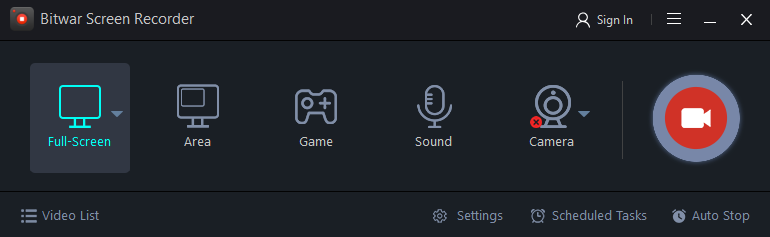

3. Click on the Settings icon in the bottom right corner of the interface. Based on your recording needs, configure the video format, quality, FPS, and decide whether to enable system sound and microphone input.


4. Next, launch the application or website you wish to record and prepare before starting the video courses.
5. Return to the software’s main page and select the recording mode.
- If you’re playing a game in your browser, choose either Full-Screen or Area recording based on your needs.
- For client applications, you can click on Game mode and select the background application window to capture the screen. The Game mode can capture the screen of most running client applications.
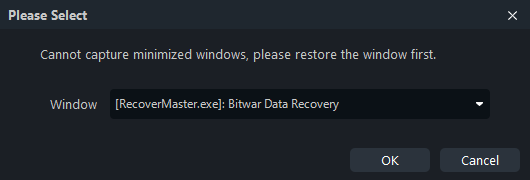
- Users who need a camera for interactive engagement with learners can click on Camera to choose either to add a camera or to use the camera alone, based on their requirements.

6. Next, click the Red-record button to start the video courses. You can also start recording using the shortcut key combination Alt + 1. During the recording, users can also utilize the built-in editing tools during recording to add text, shapes, and other annotations to the courses footage.


7. Once you’ve finished, click the Bitwar Screen Recorder icon in the system tray to pause or stop the recording. Or use the shortcuts Alt+2 or Alt+3 to stop or pause the recording.
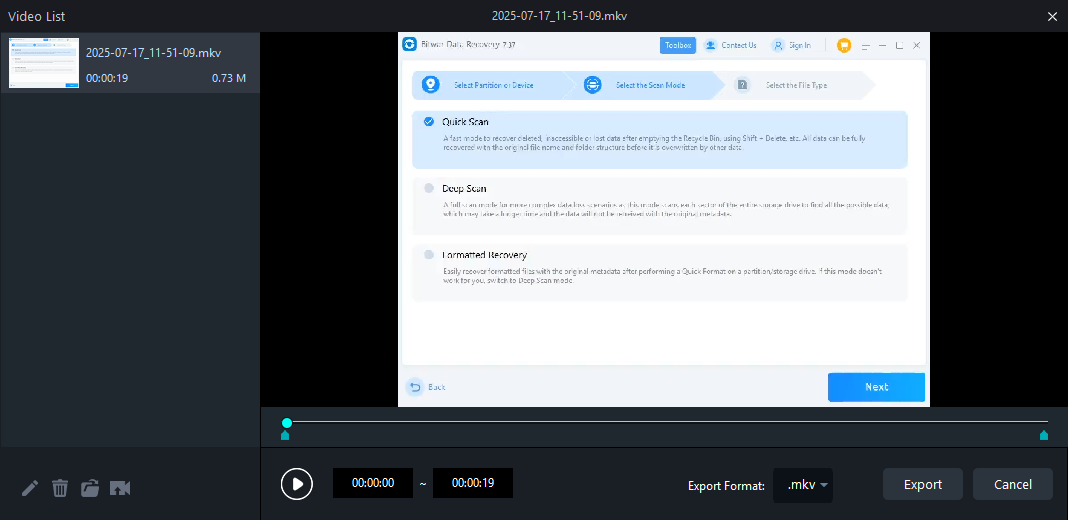
8. After stopping the recording, the video will automatically save to the default location set by the software. In the playlist, you can view the names, durations, and sizes of your video courses. Click the play button to watch them. Additionally, you can edit the recorded videos if needed.

Conclusion
As you can see, online content creators and educators can easily design engaging lessons for students. All you need to do now is choose a reliable online video camera. Bitwar Screen Recorder is undoubtedly your best choice, as it is extremely user-friendly and packed with features. You can explore it yourself and enjoy a seamless experience in screen recording. If you are interested in this software, click the following link to learn about its Purchase, Activation and Update.