


Summary: In the gaming world, recording gameplay has become an essential tool for sharing exciting moments, victories, tutorials, and personal entertainment. By capturing gameplay footage, you can showcase your skills, share strategies, and create content for platforms like YouTube and Twitch, as well as produce short videos for social media. Are you wondering how to record smooth gameplay on your computer? This guide will help you learn how to use Bitwar Screen Recorder effectively to capture high-quality gameplay footage with ease.
Table of Contents
Essential Tools for Gameplay Recording
To start recording games, you need the right equipment and software. These tools will ensure a smooth recording process. Here are some essential tools to consider:
- Capture Device: While most computers can handle recording functions, many users opt for third-party professional screen recording tools, such as Bitwar Screen Recorder, for better quality.
- Microphone: A high-quality microphone can significantly enhance audio quality, especially if you plan to provide commentary.
- Headphones: To avoid echo and ensure clear audio, it’s crucial to choose a suitable pair of headphones.
With these tools ready, users can begin recording game videos using Bitwar Screen Recorder by following the detailed steps outlined below.
Record Gameplay on PC with Bitwar Screen Recorder
1. First, users need to download the software installation package and install Bitwar Screen Recorder on their computer. For detailed instructions, users can refer to another article: Get Started Bitwar Screen Recorder.
2. After the installation, double-click to launch the Bitwar Screen Recorder tool. You will see various recording modes, including Full-Screen, Area, Game, Sound and Camera.
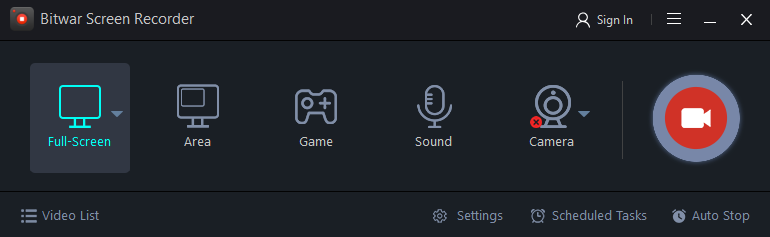

3. Click on the Settings icon in the bottom right corner of the interface. Based on your recording needs, configure the video format, quality, FPS, and decide whether to enable system sound and microphone input.
- For Quality, it’s advisable to select Smooth, which is suitable for fast-paced games. HD offers a good balance between visual quality and smoothness, making it ideal for most scenarios and video platforms like YouTube and Twitch. If you are aiming for the best visual quality, opt for Original, which is best suited for high-end devices and professional content creation.
- FPS plays a crucial role in both gaming and video recording. 30 FPS is suitable for standard video content, resulting in smaller file sizes and catering to the majority of users. In contrast, 60 FPS is typically regarded as the standard for smooth gameplay, particularly for fast-action games, and is recommended for platforms like YouTube and Twitch.


4. Next, launch the game you wish to record and prepare before starting the game.
5. Return to the software’s main page and select the recording mode. If you’re playing a game in your browser, choose either Full-Screen or Area recording based on your needs. For games running through a client software, click on the Game mode and select the appropriate game window to capture the gameplay footage.
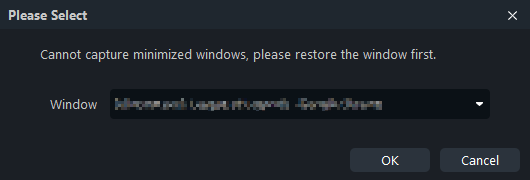

6. Next, click the Red-record button to start capturing your gameplay. You can also start recording the gameplay using the shortcut key combination Alt + 1. During the recording, users can also utilize the built-in editing tools during recording to add text, shapes, and other annotations to the gameplay footage.


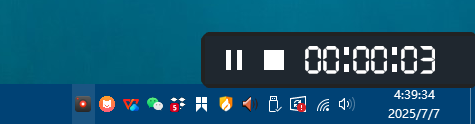
7. Once you’ve finished, click the Bitwar Screen Recorder icon in the system tray to pause or stop the recording. Or use the shortcuts Alt+2 or Alt+3 to stop or pause the recording.

8. After stopping the recording, the video will automatically save to the default location set by the software. In the playlist, you can view the names, durations, and sizes of your gameplay videos. Click the play button to watch them. Additionally, you can edit the recorded videos if needed.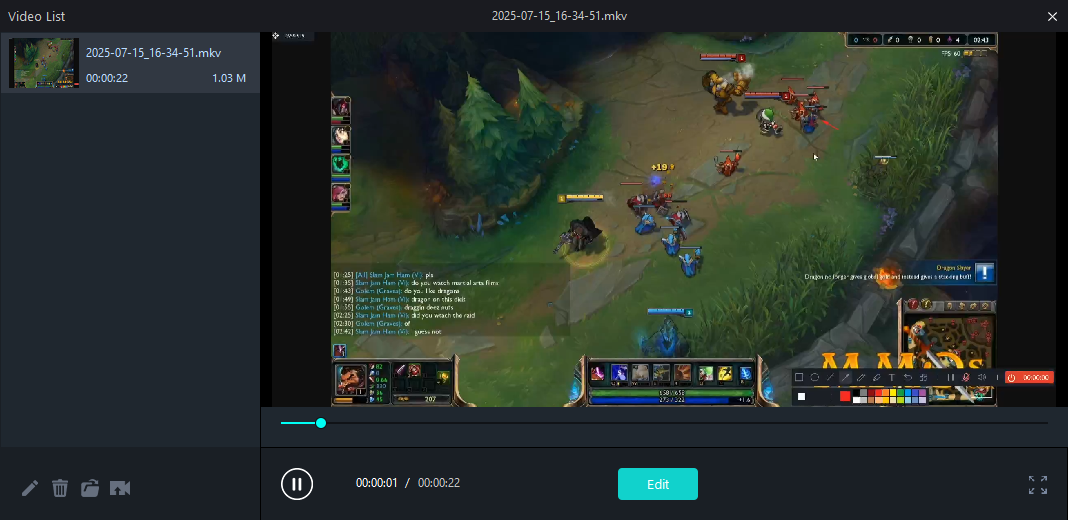

Conclusion
By following the steps outlined in this guide, you can effortlessly capture exciting moments and share them with friends, family, and the gaming community. If you’re eager to record your own gameplay videos to share with others, download Bitwar Screen Recorder now. If you are interested in this software, click the following link to learn about its Purchase, Activation and Update.