



Summary: Managing disk space helps keep your files organised and prevents your drives from running low on available storage. Duplicate files and large folders can occupy valuable disk space without being noticed. This guide explains how to use Bitwar Cleaner to find duplicate files, remove unnecessary copies, and move large folders to another drive for better storage management.
Table of Contents
Why Disk Space Management Matters
As you use your computer, files are downloaded, copied, edited, and transferred between folders. Over time, duplicate files and large folders can gradually consume available storage, making it more difficult to organize your files and manage disk space efficiently.
Regular disk space management helps you:
- Remove unnecessary duplicate files
- Better organize stored files
- Reduce storage usage on the system drive
- Manage available storage more efficiently
Bitwar Cleaner provides dedicated tools to help you organize your storage without manually searching through folders.
Remove Duplicate Files with Duplicate Finder
Duplicate files are often created when files are downloaded, copied, or backed up. Removing unnecessary copies helps keep your storage organised and reduces wasted disk space.
Step 1: Open Bitwar Cleaner, then select Duplicate Finder from the left navigation panel.
Step 2: Select the System Drives and specify the target file types want to scan. If you want to find duplicate files in a specific folder, click Custom Folders.
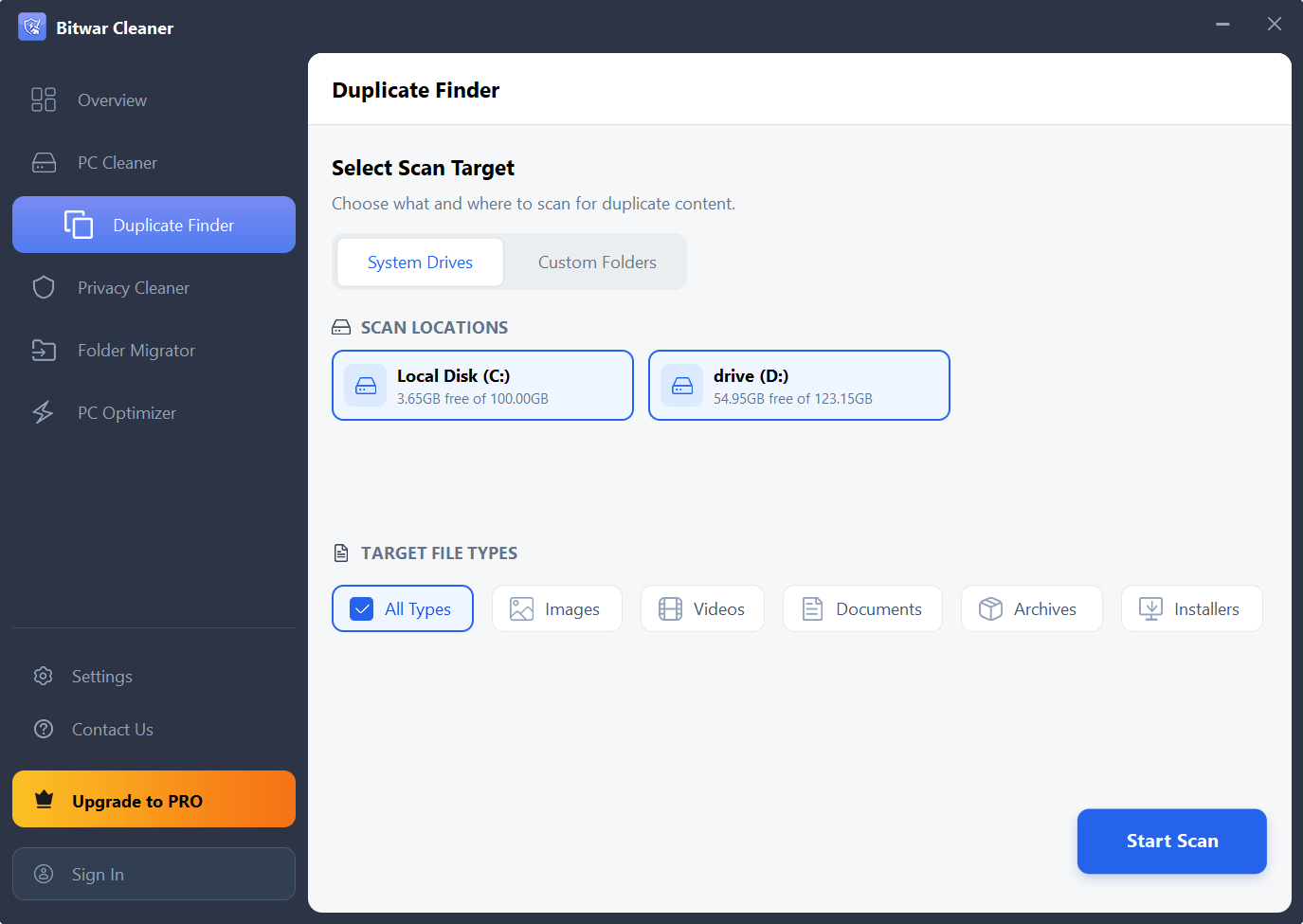

Step 3: Click Start Scan, the software will scan the selected location and compare files to identify duplicate copies.
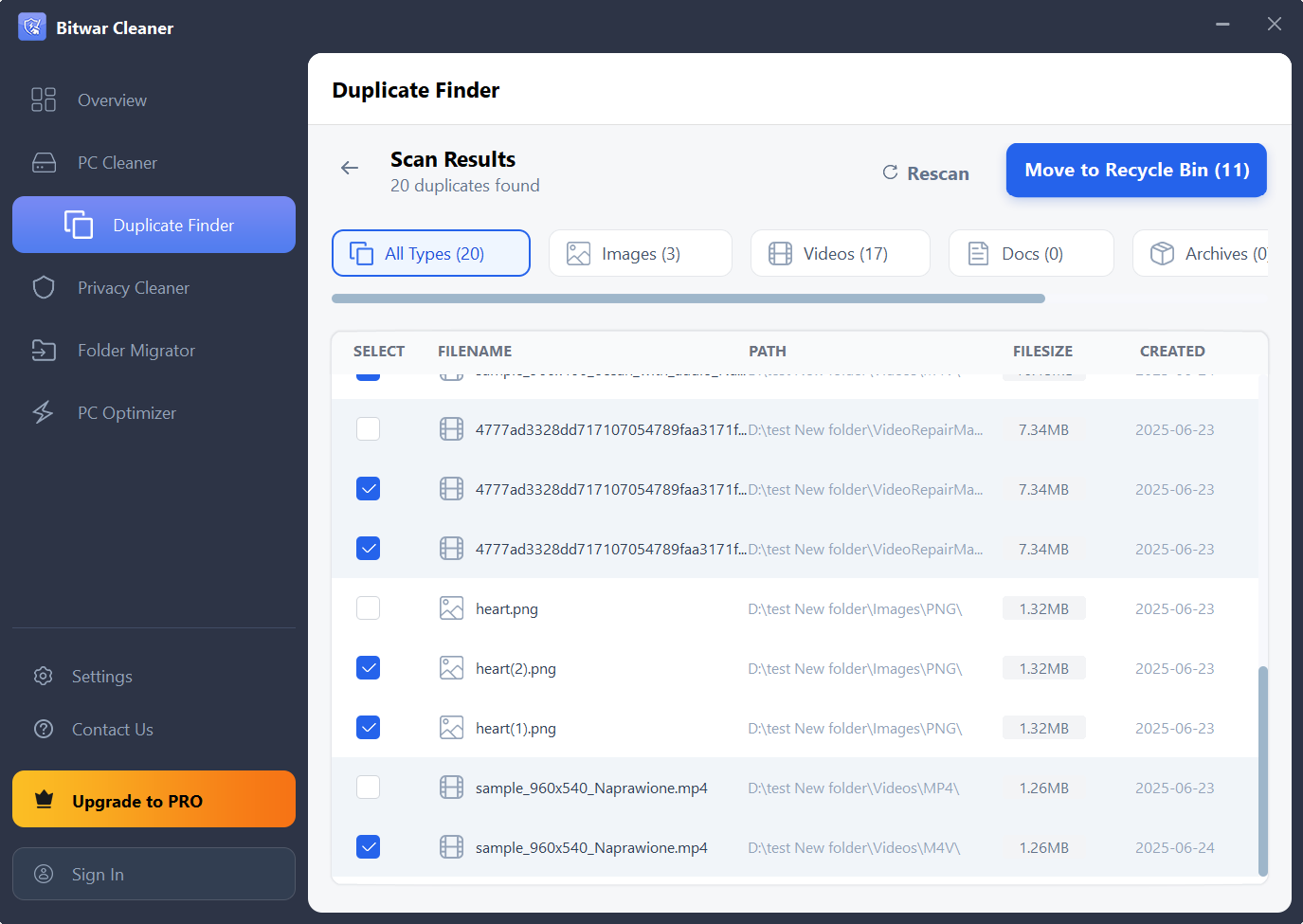
Step 4: After the scan is complete, duplicate files are automatically selected. Review the scan results, and click Move to Recycle Bin.
Move Large Folders with Folder Migrator
Large folders can occupy a significant amount of storage on the system drive. Moving them with Folder Migrator to another drive helps you manage storage more efficiently while keeping the folders accessible.
Step 1: Click Folder Migrator from the left navigation panel.
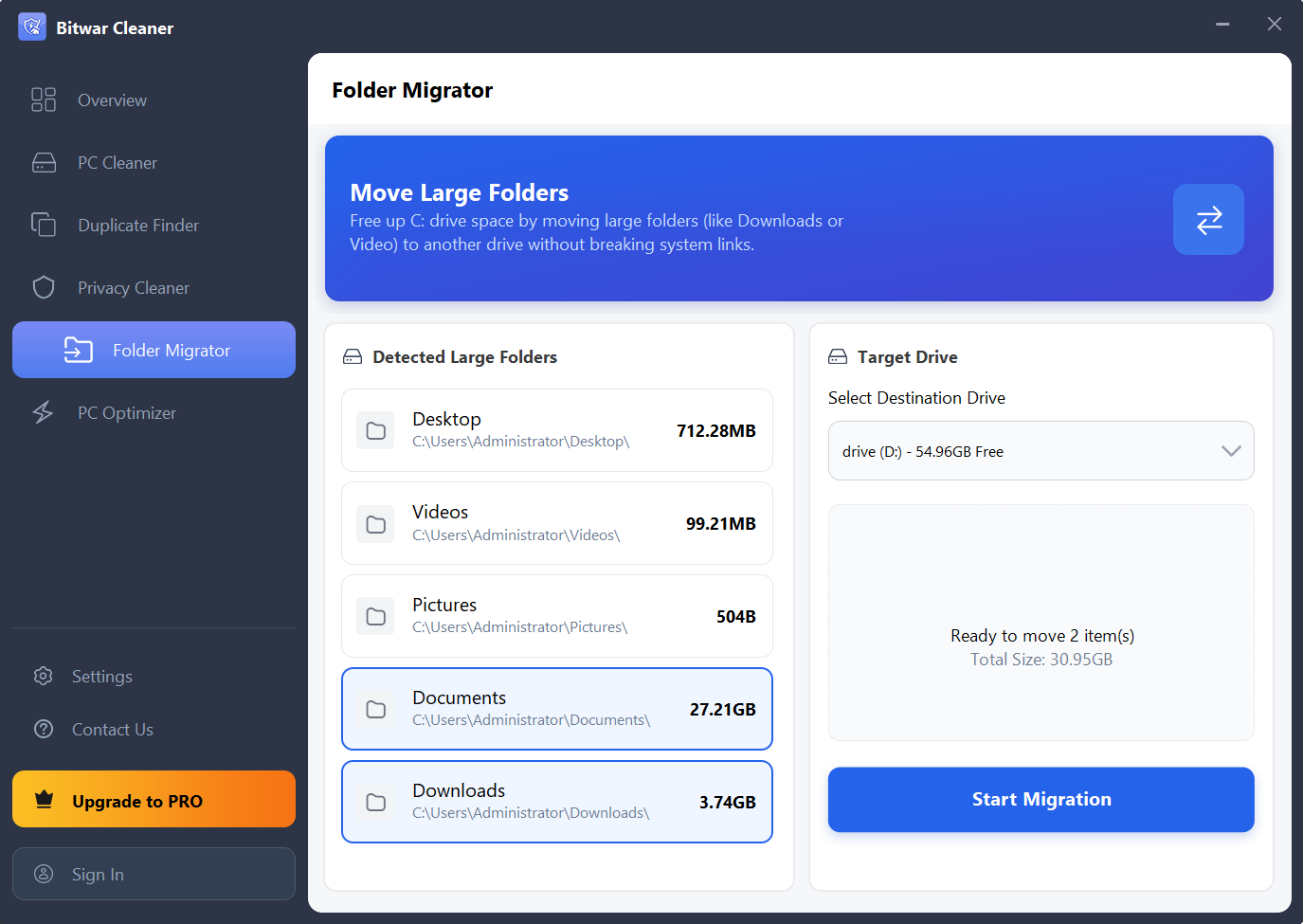
Step 2: Select the large folders you want to move, choose the destination drive, then click Start Migration.
Step 3: Once the migration is complete, a prompt will appear asking you to restart your computer. Choose whether to restart now based on your needs.
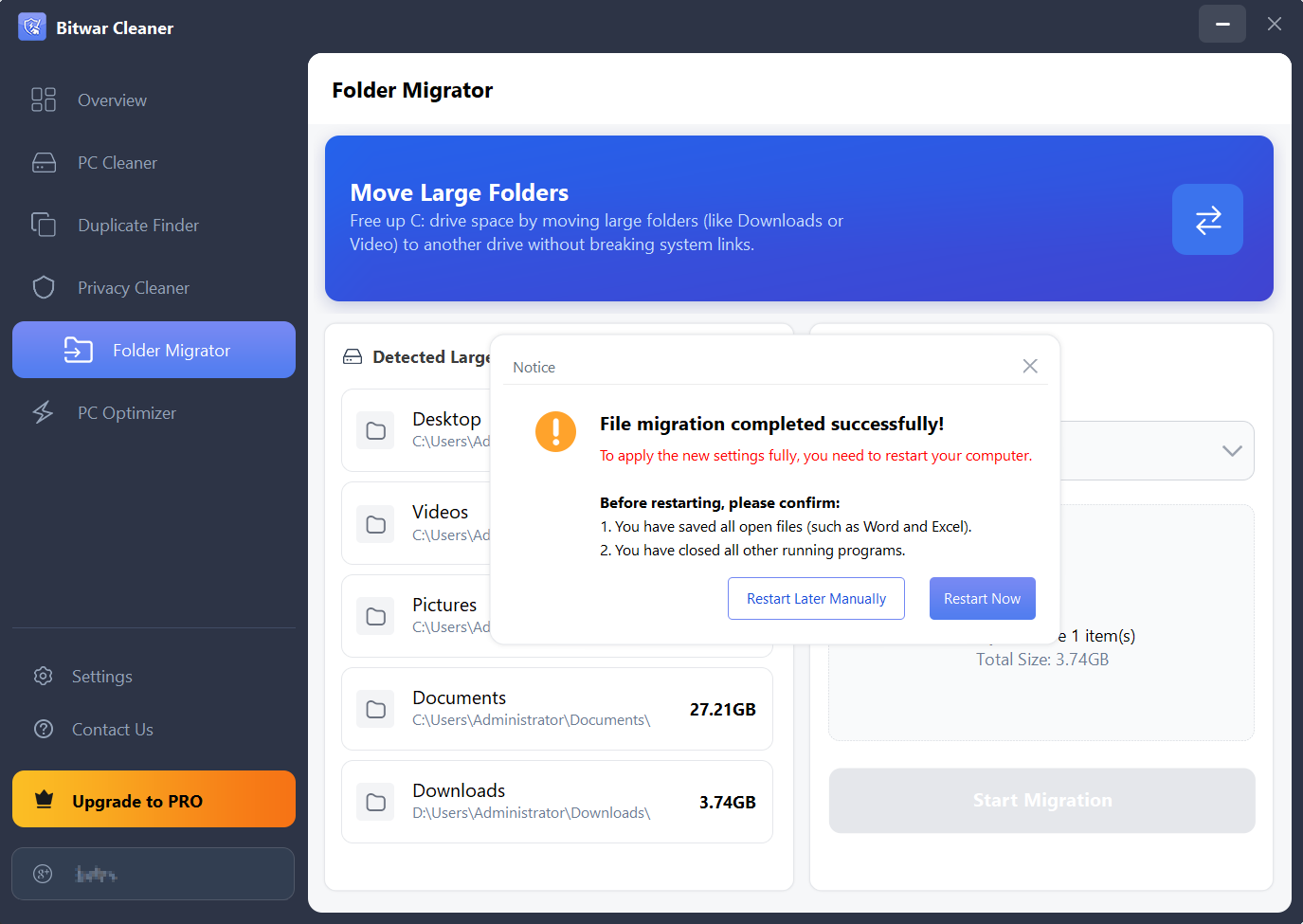
Note: After the migration is complete, all files in the selected folder are moved to the destination drive, leaving the original folder empty.
Perform Storage Management Regularly
Managing disk space regularly helps keep your storage organised and prevents the system drive from becoming full.
A simple storage management routine might include:
- Run Duplicate Finder after downloading or copying large amounts of data.
- Use Folder Migrator when large folders begin taking up too much space on the system drive.
Next Step
To learn more about all the maintenance tools available in Bitwar Cleaner, click the link below: