


Summary: Bitwar Cleaner brings together essential PC maintenance tools in one place. With these features, you can keep your computer cleaner, better organised, and running smoothly. In this guide, we will explore Bitwar Cleaner’s five core features and explain how each one helps with PC maintenance.
Over time, everyday computer use can lead to the accumulation of unnecessary files, duplicate data, privacy traces, and performance issues. These factors may gradually affect system speed and reduce available storage space.
Bitwar Cleaner is a PC maintenance and optimisation tool designed to help users better understand and manage their computer’s condition. It provides an overview of the system status and helps users clean unwanted data, manage storage space, protect personal privacy, and optimise overall performance, keeping the computer running smoothly and efficiently.
Table of Contents
System Overview
When you open Bitwar Cleaner, the homepage provides an overview of your PC’s current condition. The System Overview section displays important details such as storage usage, system performance, CPU usage, and memory consumption. These details help you identify issues that may affect your computer’s speed and stability.
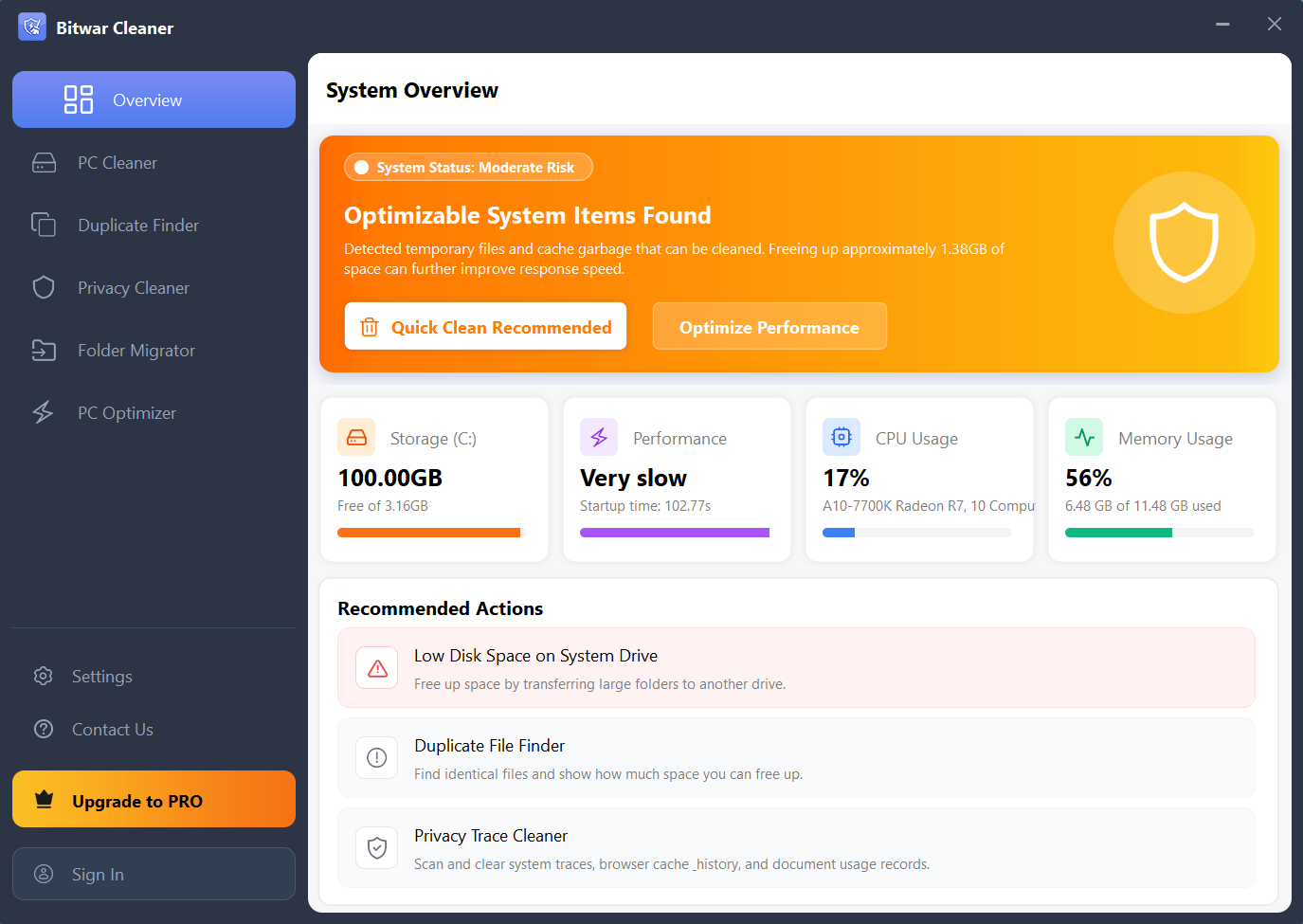

By checking this information regularly, you can keep track of your system status and follow the recommended actions to maintain better performance.
The following sections introduce the five core features of Bitwar Cleaner and their main functions.
PC Cleaner
Over time, Windows and installed applications create various types of temporary data, cache files, logs, and other unnecessary files. The PC Cleaner feature allows you to scan different areas of your computer and remove unwanted files. It helps free up disk space and keeps your system cleaner.
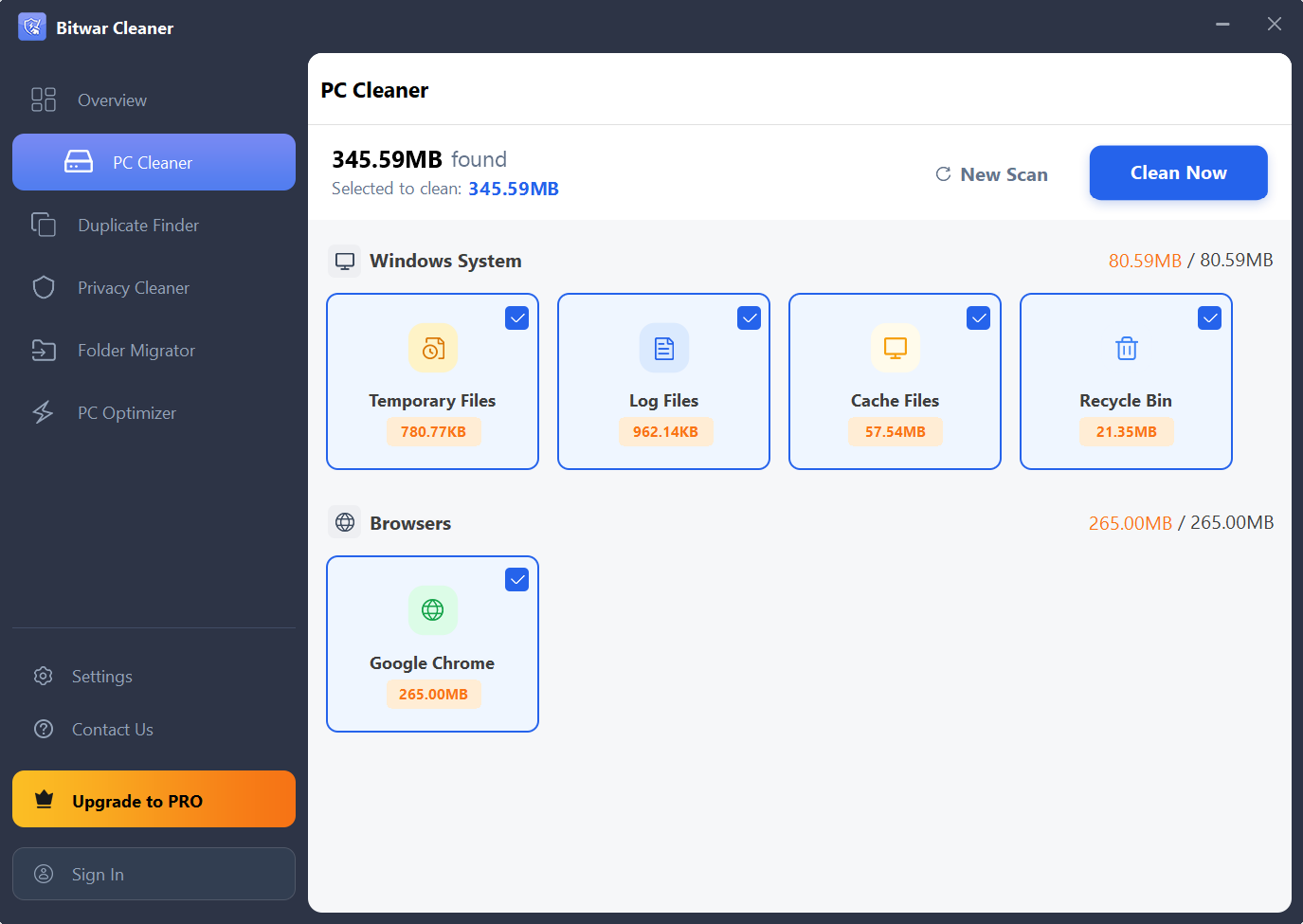
PC Cleaner includes two main cleaning categories:
Windows System
This category scans common Windows-related files, including:
- Temporary Files: Removes temporary files created by Windows and applications during daily use.
- Log Files: Deletes system and application log files that are no longer required.
- Cache Files: Clears cached data that has accumulated over time.
- Recycle Bin: Removes files stored in the Recycle Bin to help recover available storage space.
Browsers
PC Cleaner also supports Google Chrome cleanup by removing unnecessary browser data, such as cached files, to free up storage space and maintain a cleaner browsing environment.
Duplicate Finder
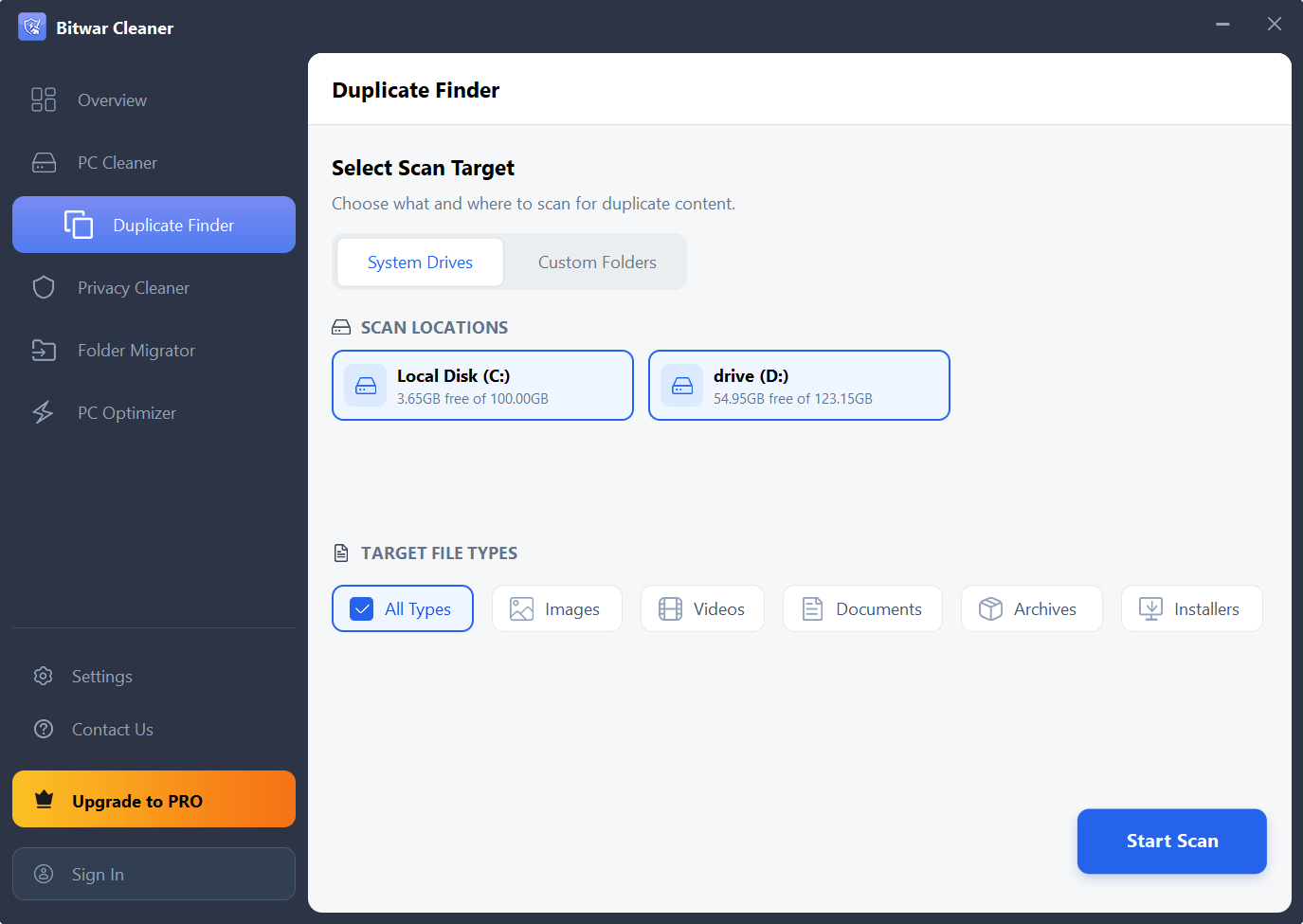
Duplicate files are often created when files are downloaded, copied, or moved between folders. Over time, these unnecessary copies can take up valuable storage space. The Duplicate Finder feature helps you locate identical files on your computer and safely remove unwanted duplicates to free up space.
Before starting a scan, users can use Select Scan Target to choose System Drives or Custom Folders based on their needs.
Privacy Cleaner
Unlike standard junk cleaners that focus on freeing up storage space, Privacy Cleaner is designed to remove traces of computer activity.
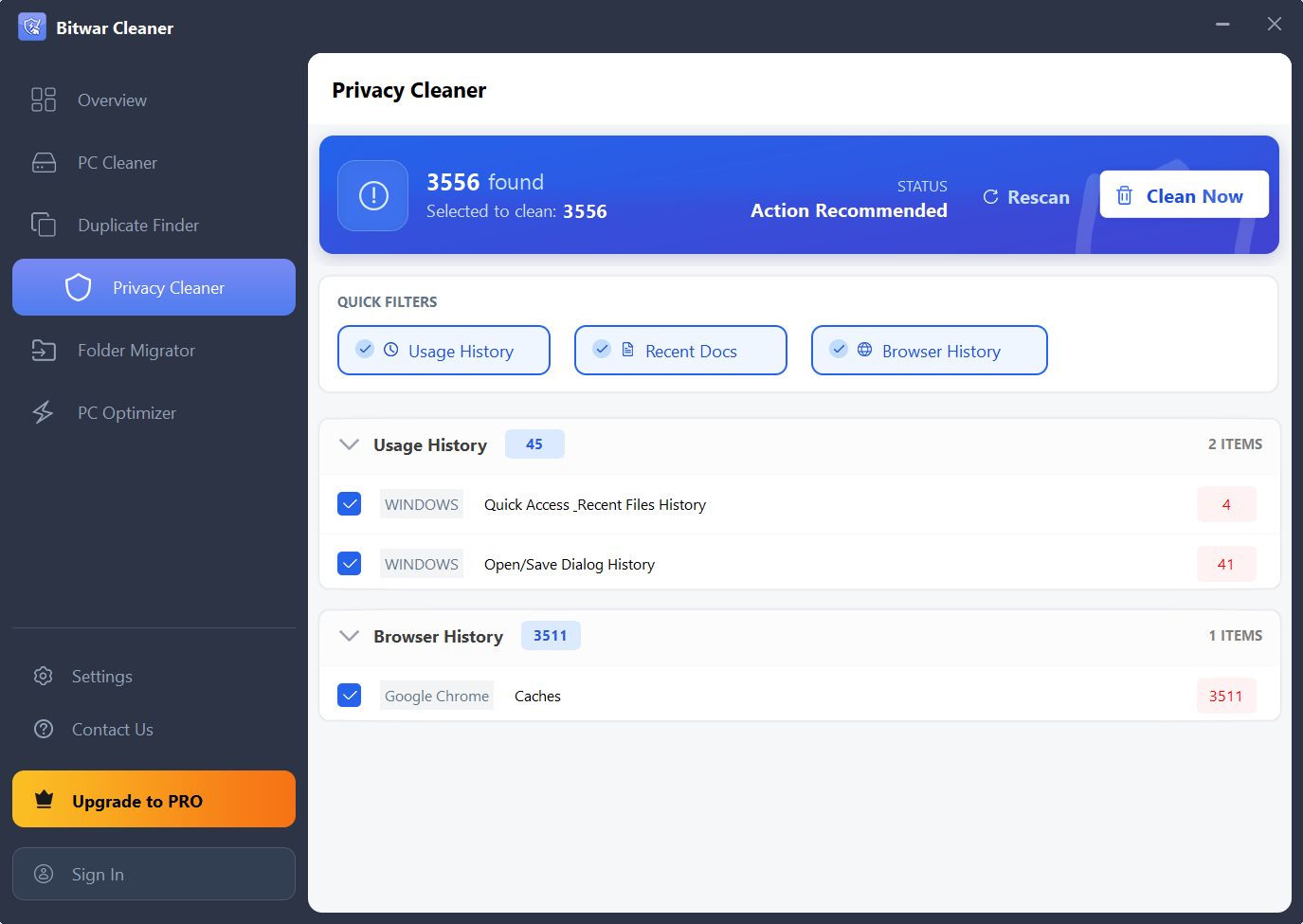
Actions such as opening files, browsing websites, and using applications can leave behind usage records. Privacy Cleaner helps remove these traces to protect your privacy and maintain a cleaner computing environment. It can clean:
- Usage History: Removes records related to application and system usage activities.
- Recent Documents: Clears recently opened file lists, helping prevent others from seeing recently accessed documents.
- Browser History: Removes browsing records stored by browsers to protect browsing privacy.
Folder Migrator
When the C: drive is running low on space, moving large folders to another drive can help free up storage.
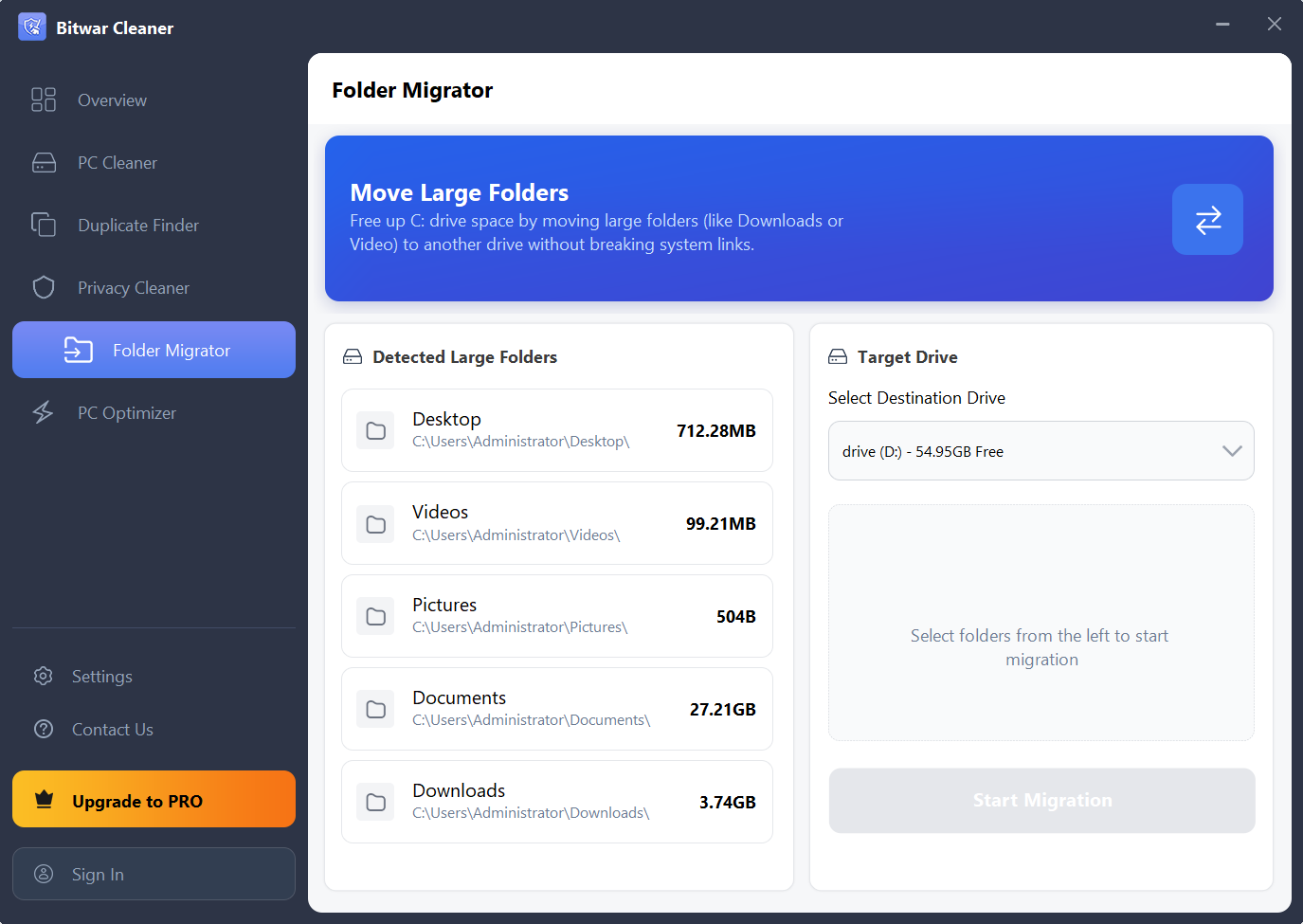
The Folder Migrator feature allows you to move selected large folders, such as Downloads or Videos, to another drive while keeping the original folder links working properly.
Instead of manually copying files and changing folder locations, Folder Migrator simplifies the migration process and ensures that moved folders remain accessible after the transfer.
PC Optimizer
Over time, unnecessary startup items, background services, and system settings can slow down your computer. The PC Optimizer feature helps you manage these settings to improve startup speed and overall system responsiveness.
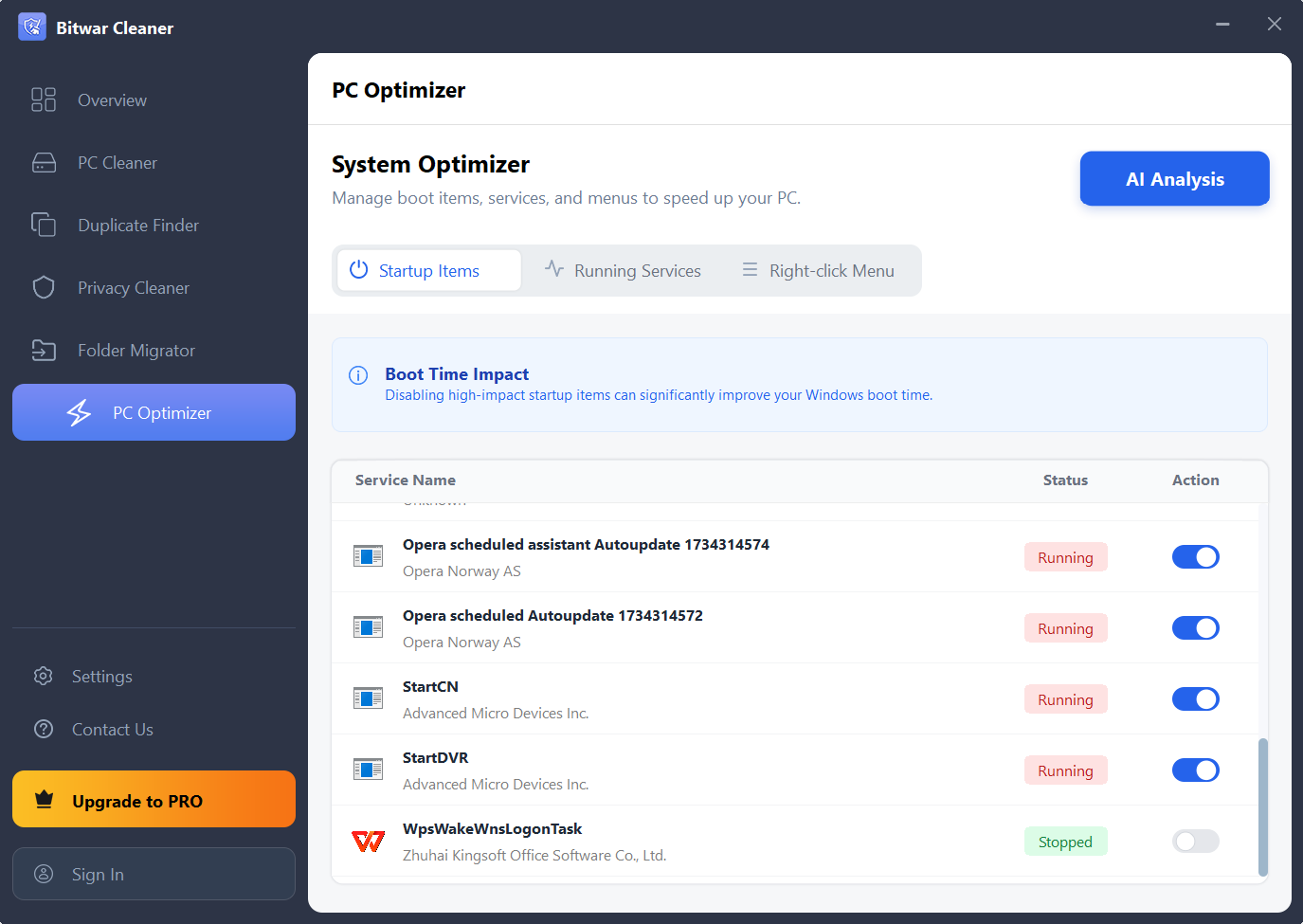
It allows you to:
- Manage Startup Items
- Optimise System Services
- Adjust Right-click Menus
By reducing unnecessary processes and fine-tuning system settings, PC Optimizer helps keep your PC running faster and more smoothly.
For the next step in cleaning and optimizing your PC, click the link below: